
The Linear Grid view of timesheets uses a row by row layout, allowing you to quickly add, edit, and save timesheet lines. This guide explains how to add, edit, and delete time entries and disbursements, and provides tips for efficiently recording project time in the Linear view.
About Linear timesheets
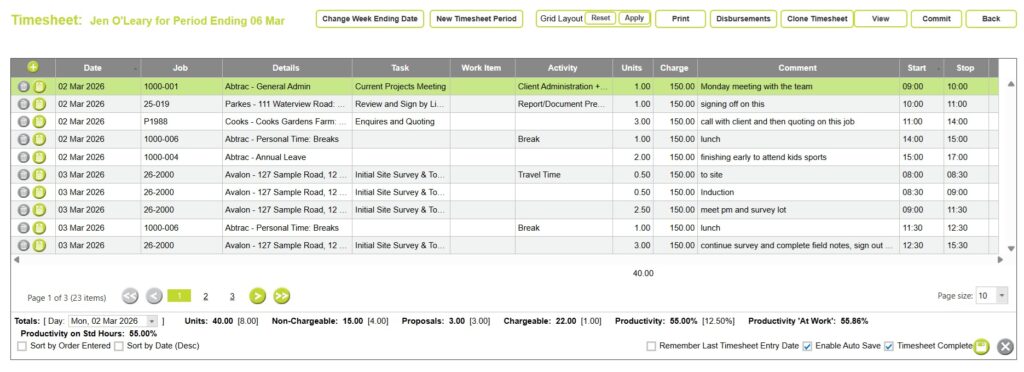
The Linear Grid view is a flexible way to enter and manage your timesheets in Abtrac. It uses a grid layout, allowing you to quickly add, edit, and save multiple lines of time in sequence.
Linear view shows time line by line with dates down the page. It’s great for detailed daily entries or when you complete lots of small tasks in one day. This view is also ideal for users who prefer to enter several lines consecutively or need additional sorting and inline options.
Adding timesheet lines using Linear Grid view
Linear timesheets work best if you enter your fields in order. Most fields are configured by your administrators and may be optional or required depending on your organisation’s settings.
To add timesheet lines to the linear grid, click on the plus button in the top left of the grid.

1. Select the Date
Enter the date for your time entry. The date format is set for all users from System Settings.
Date fields are either:
- DD MMM YYYY e.g. 31 JAN 2024, or
- DD/MM/YYYY e.g. 31/01/2024
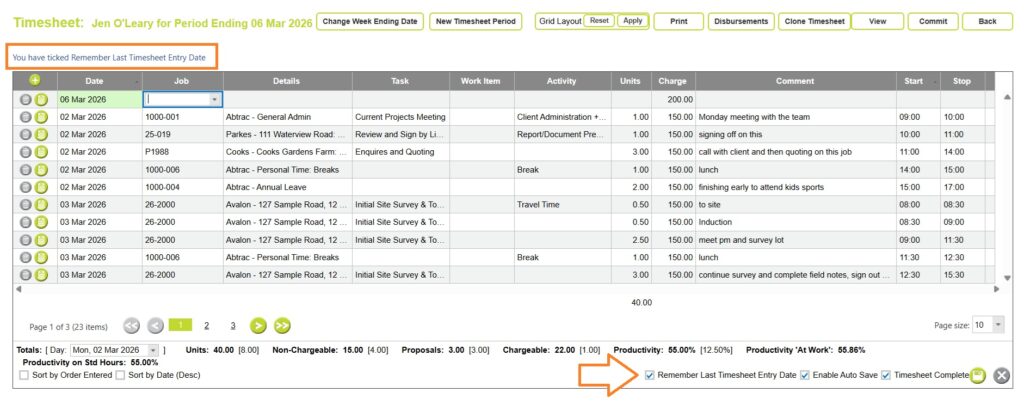
Remember Last Timesheet Entry Date
When using the Linear Grid view you can leave the date field blank.
If left blank, Abtrac will default to today’s date when line is saved.
If the “Remember Last Timesheet Entry Date” option is enabled in your settings, Abtrac will remember the last timesheet entry date, setting the date when the line is saved.
You can set this option from the checkbox at the footer of your timesheet in Linear Form View, or from within the My Settings page.
2. Select the Job
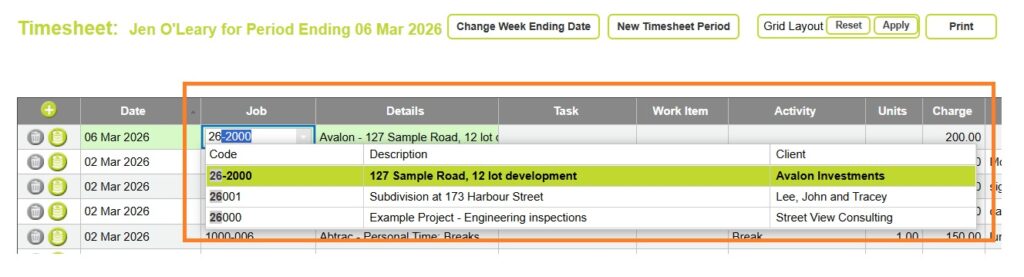
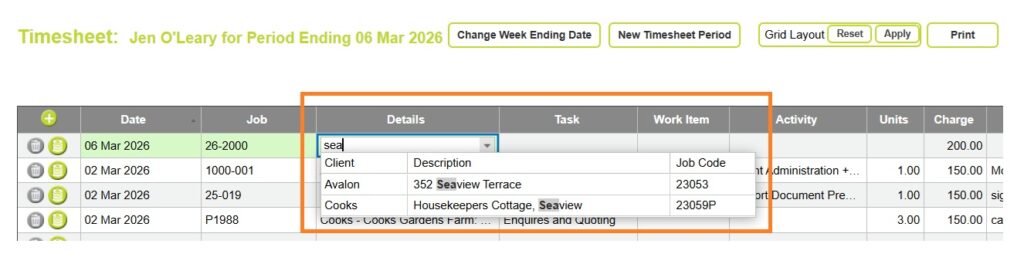
Use either the Job Code or Job Details box to choose your project. Selecting the job in either box will fill out details in the other. You can type part of a name or a number to search for projects. Administrators control the default sort order of both these boxes, but you can customise this in Edit My Settings.
Job Code dropdown
Shows the job code description and the full client name. Type Job code numerals in here to search.
Job Details dropdown (Job Combo Box)
Shows the client abbreviation, job description, and job code. Type letters and words in here to search.
3. Optionally add timesheet classifiers: Tasks, Activities, Work Items, Comments
The only mandatory fields on every timesheet line are a date and a job code. All other choices in the form are configured by your Abtrac administrators, including whether fields are optional or required.
- Tasks (also called phases or stages) are linked to project fee estimates, and how the project will be invoiced.
- Work Items are sometimes associated with tasks, but can be independent. They are small steps of work, with a due date, that can be ‘ticked off’ as they are completed.
- Activities are descriptive and can be shared across multiple projects, they can also be used to control charge rates.
- Comments are also descriptive, to provide additional context and are often referenced within invoices.
4. Record Time (units or clock)
Units
Enter units directly (the unit conversion is set by your admins, where typically 1.0 equals one hour)

Use Start and Stop times to calculate units
You can use the start and stop time boxes to calculate total units for you. The start/stop times use a 24 hour clock, where 13:00 = 1pm. Once a stop time is added, the units box is updated.

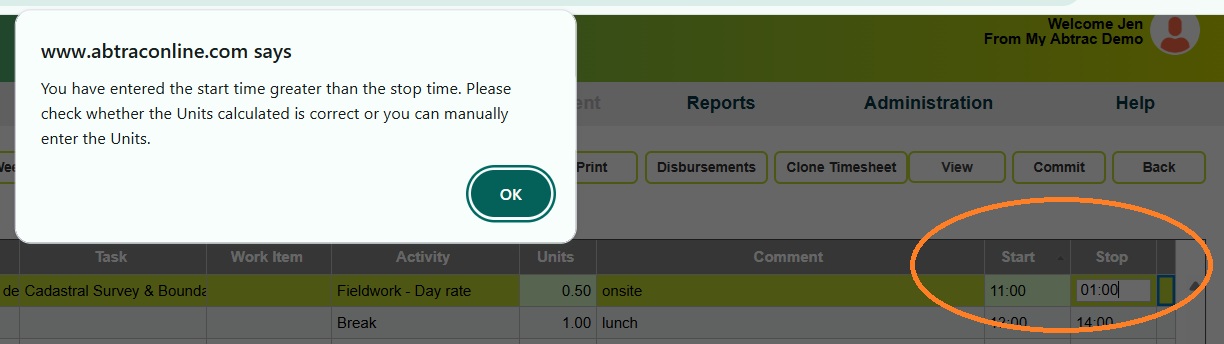
If your start and stop times span a 24 hour day, eg. the stop time is ‘earlier’ than the start time (either legitimately or accidentally), Abtrac will prompt you to confirm these times when saving “You have entered the start time greater than the stop time. Please check whether the Units calculated is correct or you can manually enter the Units.”.
Rounding & Start/Stop Time Behaviour
Depending on system settings, Abtrac may round time to the nearest 5, 10, or 15 minutes.
5. Save the timesheet line entry
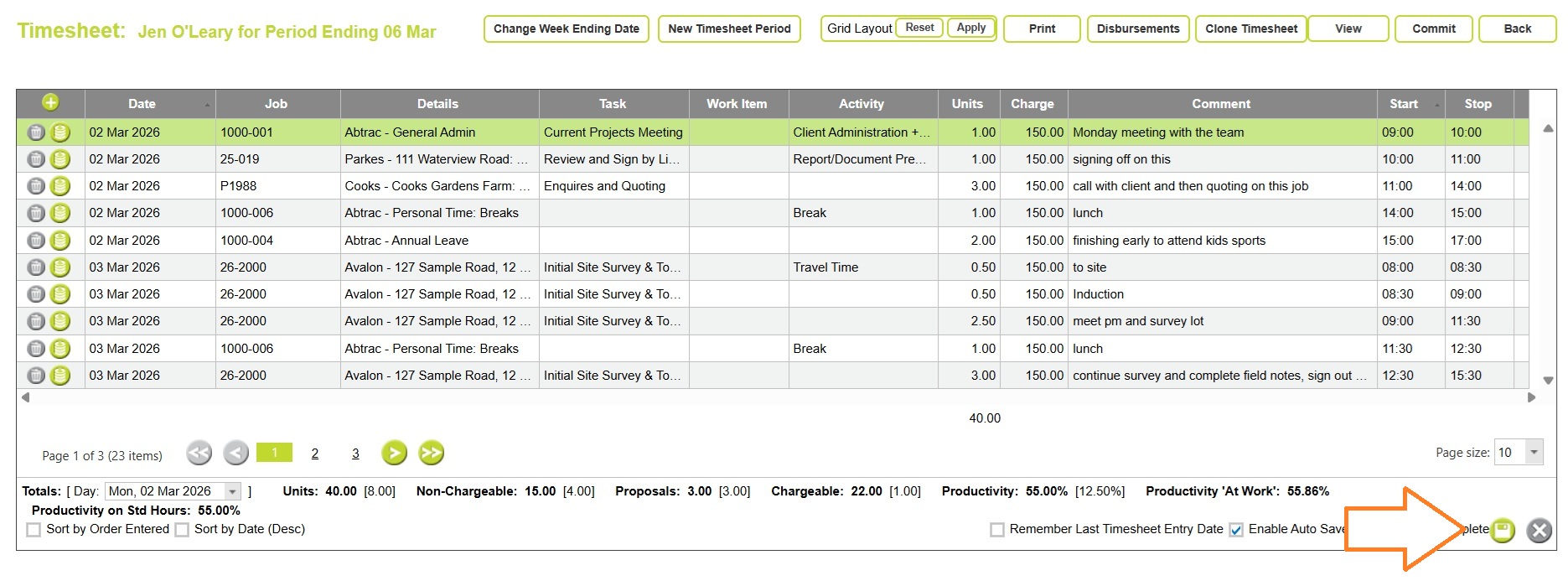
Click the Save icon on the bottom right of the page to post the time.
Missing fields will prevent you from saving the timesheet line
Any mandatory fields that have not been completed will display a red exclamation mark with a hover tooltip explaining what is needed.

With the exception of Date and Job Code, any other required fields are managed by your Abtrac administrators. If your timesheet is prompting for required fields that you are unsure about, speak with your administrator. These settings are controlled in System Settings and can be adjusted if needed.
Edit Timesheet Lines using the Linear Grid view
To edit an existing timesheet line start by selecting the line displayed in the grid that you want to update.
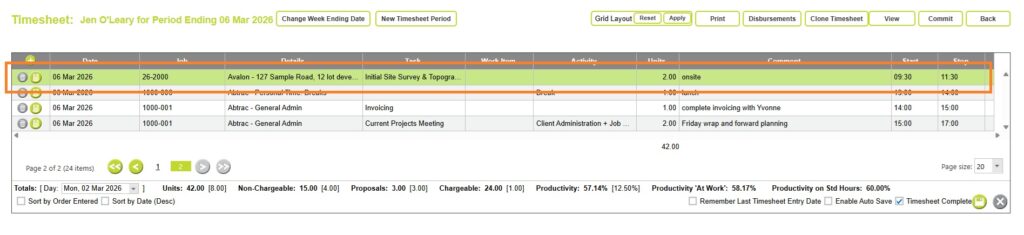
You can adjust fields such as the date, job, task, activity, comments and units.
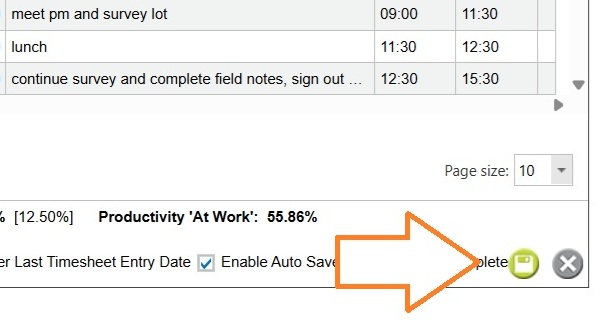
After making your changes, click Save to overwrite the original entry with the updated information.
Delete Timesheet Lines using the Linear Grid view
To delete an existing timesheet line using the Form view in Abtrac, start by selecting the line displayed in the grid that you want to remove. In Linear Grid View click on the relevant row.
Click the Delete button on the left of the selected timesheet line, to mark it for removal.
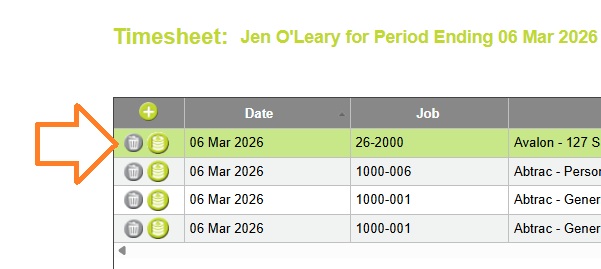
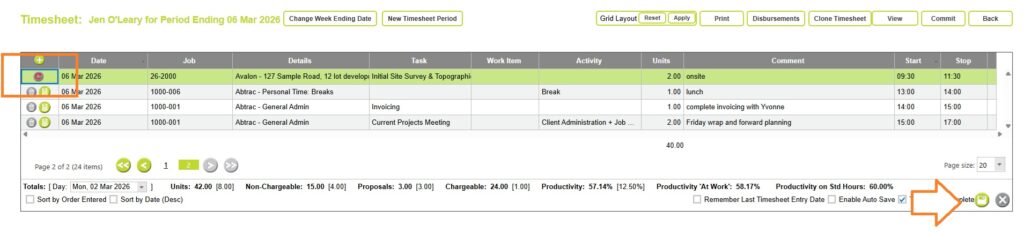
In Linear Grid view, the line is not deleted immediately. You’ll need to save the timesheet for the entry to be permanently removed.
If you change your mind before saving, click the Restore button to undo the deletion and keep the timesheet line.
Adding disbursement lines using the Linear Grid view
With Abtrac you can quickly record out-of-pocket expenses (disbursements) against a project while you are completing your timesheet.
Start by selecting the line displayed in the grid that you want to add a disbursement for.
In Linear Form View click on the releveant row.
Click on the Disbursement button on the left of the selected timesheet line to add a disbursement to your timesheet.
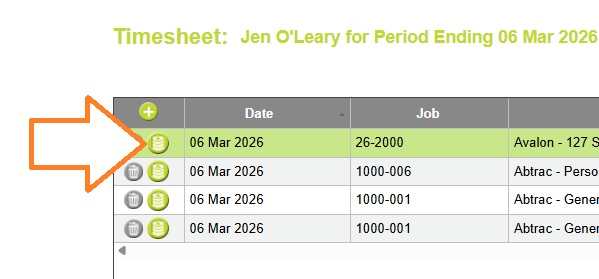
This will open a popup window for entering expense details.
In the popup window:

- Click on the plus button to add one (or multiple) disbursement(s) for the selected project
- Select a Disbursement Type (e.g. mileage, printing, travel)
- Enter the Quantity
- Enter the Amount
Click Save in the popup window to add the disbursement to your timesheet.
Additional Features of Linear Grid view timesheets (Right Click options)
Linear Grid timesheets also include additional inline and right-click options, some of which may only be available depending on your access permissions.
To access these options, first click within a line to activate a cell (a border will appear highlighting the selected cell) :
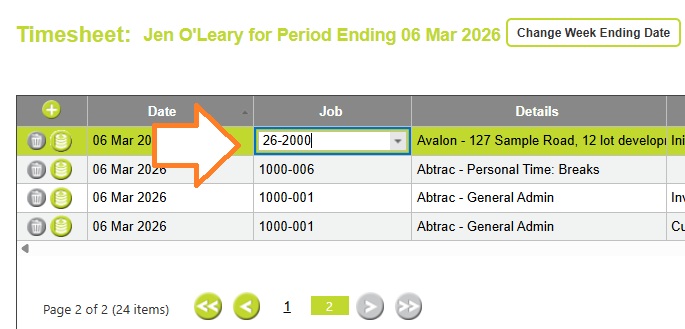
Then, right click within the active cell to display the additional options:
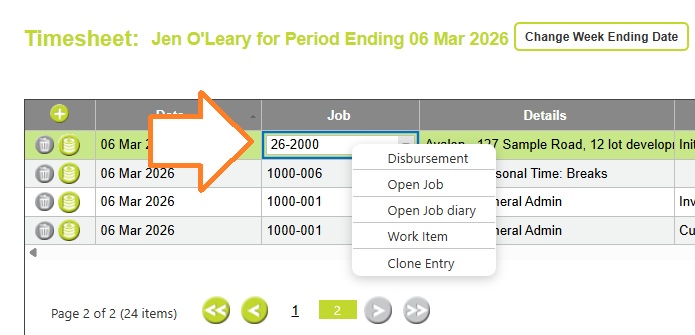
Right Click: Disbursement
Disbursement, opens the add disbursement pop up.which automatically populates the project information so you only need to choose the disbursement type and quantity.
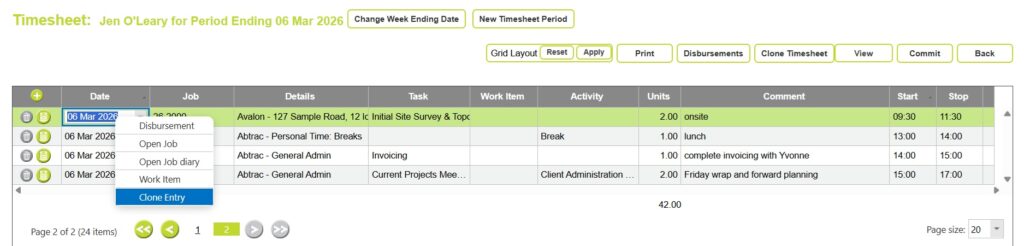
Right Click: Clone Entry
You can clone timesheet lines within your current timesheet. click within a line to activate a cell, then right click and choose Clone Entry.
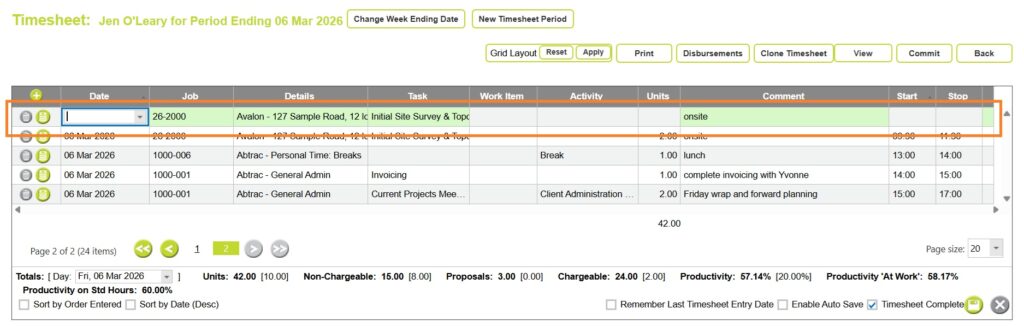
Clone Entry copies the line and duplicates all the description fields, job code, task, activity and comments. You only need to confirm the date and units, and then save.
Right Click: Open Job
Open Job takes you to the job details page.
Right Click: Open Diary
Open Diary takes you to the diary page where you can view or add diary entries.
Right Click: Work Item
If you’ve entered a work item number, clicking Work Item takes you to the work item details page where you can update comments, review the work status, and manage scheduling.
Video: Linear Grid timesheets
Other timesheet views and layouts
Abtrac offers multiple timesheet views and layouts to suit different working styles. In addition to Form view, you can use Grid view for faster, spreadsheet-style entry, and switch between Linear and Crosstab layouts depending on how you work.
You can change your layout at any time using the View option at the top of your timesheet, or save your preferred layout under Edit My Settings.
Read more:
Changing your timesheet view and layout
Cross Tab Grid view timesheets
Abtrac KB# 2246 / AV # 0039