
The Receipt Schedule report provides list of payments received against invoices within a selected date range. It also includes a detailed breakdown of Abtrac payment events as they are recorded in the Invoices and Payments page – such as bad debts, journal adjustments, uneconomic amount written off, and discount given.
This report is useful for reviewing payment activity synced from accounting systems, and tracking adjustments that affect invoice balances.
The Receipt Schedule report is only available with Abtrac’s Debtor Management module.
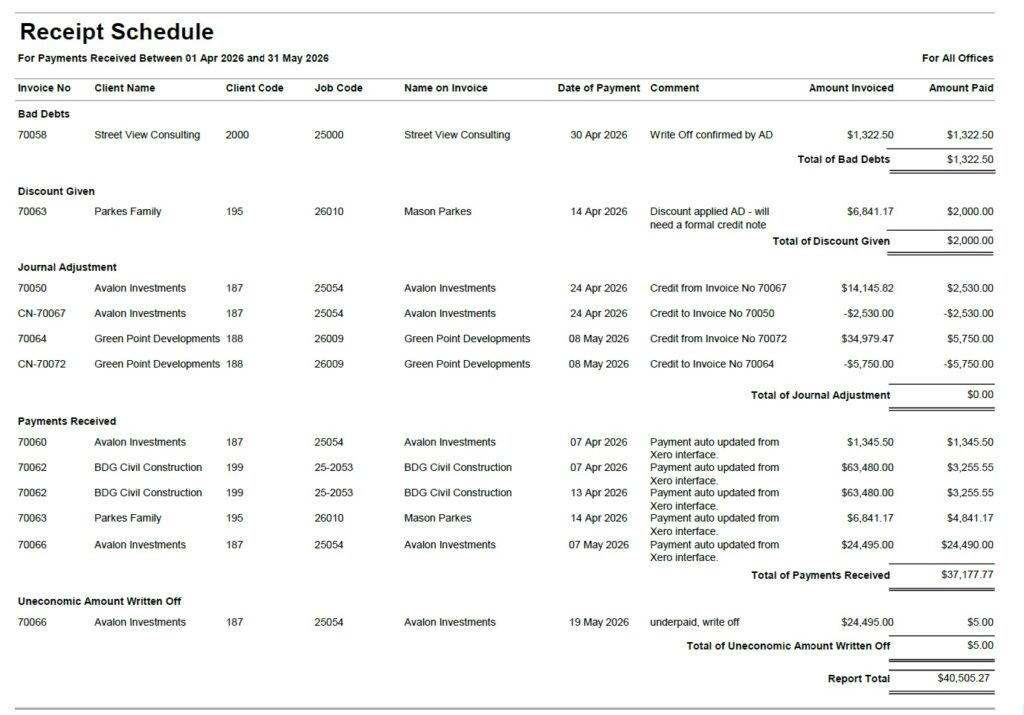
Receipt Schedule Report
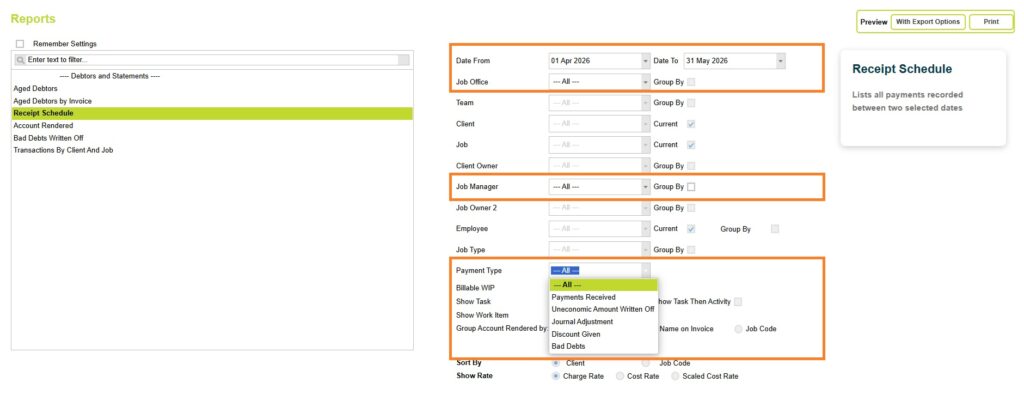
Go to Debtor Management >> Debtor Reports >> click on ‘Receipt Schedule’ and select the required date range. These dates related to invoice payment events, and not invoice dates.
Receipt Schedule Report – Filter, Sort and Grouping Options
You can also optionally filter this report by Job Office, Job Owner1 and Payment Type (Payment Event), and group by Job Owner1.
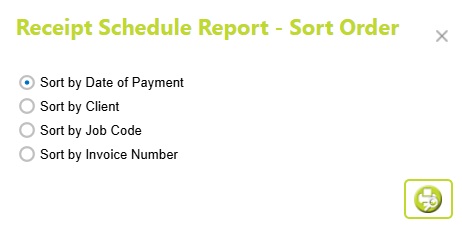
Now click on the Preview button and select one of the preview options (Print or with Export options). Next choose your sort order options: Date of Payment, Client Name, Job Code, or Invoice Number.
Click on the preview button to preview the Receipt Schedule report.
Understanding the data
For each transaction, the report can display:
- Invoice number
- Client name and code
- Job code
- Name on invoice
- Payment date
- Payment comments or notes
- Amount invoiced
- Amount paid
The report also includes subtotals for each section, grouped by payment type and an overall report total.
Date of Payment
This is the Payment Date from Invoices and Payments > Record Payments.
Comment (Payment Comment)
The comment linked to a payment date and event from Invoices and Payments > Record Payments.
Amount Invoiced
The amount invoiced is the total value of invoices (including tax) with a payment event recorded for the selected dates.
This includes committed and uncommitted invoices. The figures here will correlate to those in an Invoice Listing report,
Amount Paid
The amount paid (including tax) for a payment line from Invoices and Payments > Record Payments.
Payment Events
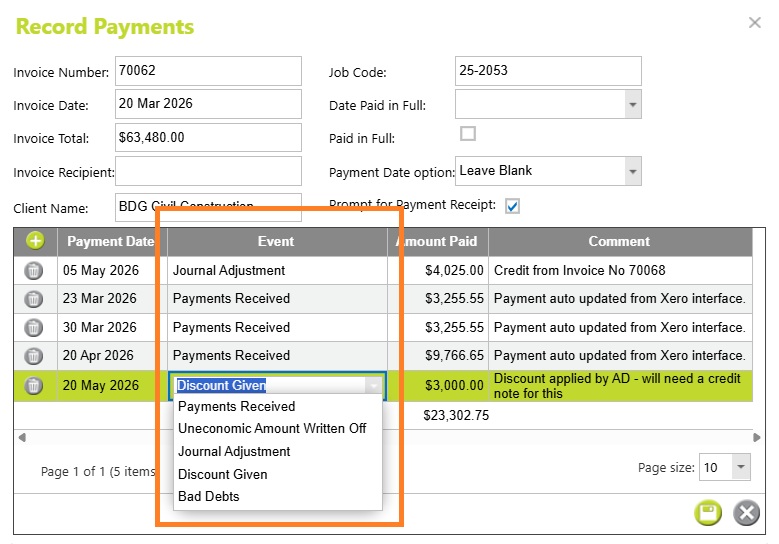
There are five payment event types to choose from when recording payments manually in the Debtors Module: Payments Received, Uneconomic Amount Written Off, Bad Debts, Journal Adjustment and Discount Given. These options are then used in debtor reporting.
Each payment event type is used for a different kind of debtor transaction, allowing you to accurately track in your Receipts schedule report how an invoice balance was settled and report on those transactions separately. Depending on how your business is set up, these payment event types may also line up with different accounting codes or categories in your accounting system, such as bad debts, discounts, or adjustment journals.
Payments Received
Payments Received are standard customer payments made against an invoice. These reduce the outstanding debtor balance and are typically used for normal cash receipts, EFT payments, or payments synced from accounting systems such as Xero.
Uneconomic Amount Written Off
Uneconomic Amount Written Off is used for very small outstanding balances that are not worth chasing, such as minor underpayments or rounding differences. This clears the invoice balance without requiring a formal credit note.
Bad Debts
Bad Debts are used when an outstanding invoice is considered unrecoverable and needs to be written off entirely or partially. This is commonly used for overdue invoices that will no longer be pursued for payment.
Journal Adjustment
Journal Adjustment is used for accounting-style adjustments between invoices or debtor balances, often involving credit notes, reallocations, or corrections. These entries commonly offset each other and may not represent actual cash received.
Discount Given
Discount Given is used when part of an invoice is waived as a negotiated or operational discount rather than through a formal credit note. This might include settlement discounts, goodwill reductions, or agreed reductions at the time payment is received.
Abtrac KB # 2196