
Employee Disbursements are costs, charges, or quantities that employees can record against projects from their timesheets.
Despite the name, an Employee Disbursement does not necessarily mean an employee is seeking reimbursement.
In Abtrac, an Employee Disbursement simply means the disbursement type has been configured so employees are allowed to enter it themselves.
Employee Disbursements may represent:
- Employee expenses: Mileage, parking, accommodation, flights, meals
- Equipment usage: Company vehicles, GNSS/RTK rovers, survey equipment
- Consumables: Aluminium survey disks, boundary pegs, marker paint, survey markers
- Internal charges: Printing, courier services, specialist equipment hire
Some Employee Disbursements may be reimbursed to staff, while others are simply project costs recorded against a job.
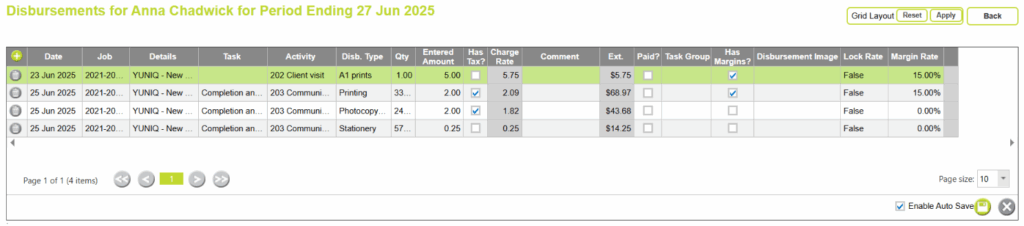
Entering Employee Disbursements
Employee disbursements are entered within an employees timesheet. Either directly from a timesheet entry, or from the Disbursements menu.
Go to Time & Disbursements > Employee Time & Disbursements > and open a Timesheet > choose the Disbursements button in the timesheet header, within the timesheet form, or from the Disbursements button within a timesheet line.

When entered from within a timesheet line, Abtrac opens the disbursements pop up and automatically links the disbursement to the selected timesheet line project and task.
Understanding Disbursement Fields
Disbursement type rules and System Settings control what you can see and edit on the disbursements page.
Date, Project Code, Quantity and Entered amount/Charge Rate are all required. Other fields may be required based on your settings.
As a general guide:
| Date | The date the disbursement occurred. |
| Client, Project, Task Group, Task and Activity | These fields determine where the disbursement is allocated. When a disbursement is entered from a timesheet line, many of these fields are automatically populated from the selected timesheet entry. |
| Disbursement Type | The disbursement being recorded. The list of disbursement types is created and maintained from Administration > Maintenance > Disbursements. You must pick a type from the list, you cannot add a type from the timesheet pages. |
| Quantity | The number of units being recorded. For example: Survey Pegs = 5 Coffee Receipt = 1 Parking Fee = 1 Mileage = 38 |
| Entered Amount* | The unit amount entered by the user. This is commonly used when recording the value shown on a receipt or supplier invoice. Uber receipt = 1 x $37.80 Parking receipt = 1 x $12.00 Accommodation = 1 x $185.00 Depending on the Disbursement Type configuration, Abtrac may automatically calculate the Entered Amount from the Charge Rate, or use the Entered Amount to determine the Charge Rate. |
| Has Tax* | Indicates that the Entered Amount already includes GST or sales tax. For example: * Taxi or Uber fares * Meals * Accommodation invoices If tax is included, Abtrac can remove the tax component before calculating the amount to be charged to the client. This prevents GST from being charged twice when the invoice is later raised. |
| Charge Rate* | The amount charged per unit to the project or client. A Charge Rate may: * Come directly from the Disbursement Type setup * Be locked and unable to edit (due to Disbursement Type rules) * Be calculated from the Entered Amount * Include a margin or adjustment * Exclude tax if the Entered Amount included tax If a Charge Rate has already been configured in the maintenance page, selecting the Disbursement Type may automatically populate the rate. |
| Has Margins?* | Shows whether a margin or adjustment has been applied to the Charge Rate. This depends on the setup of the Disbursement Type and System Settings. |
| Extn.* | The total value of the disbursement. Typically: Extension = Quantity × Charge Rate |
| Disbursement Image | Disbursements entered through the mobile app can include an image attachment (photo of receipt etc). These images can be viewed in an employees timesheet in the web app, and on the reimbursement of disbursements page. |
| Paid? | Used for reimbursable employee expenses. When selected, it indicates that the employee has already been reimbursed for that expense. |
Entering Disbursements from Different Timesheet Views (Web application)
Employee Disbursements can be entered from all timesheet views.
Linear Grid View Disbursements
With Abtrac you can quickly record out-of-pocket expenses (disbursements) against a project while you are completing your timesheet.
Start by selecting the line displayed in the grid that you want to add a disbursement for.
In Linear Grid View click on the relevant row.
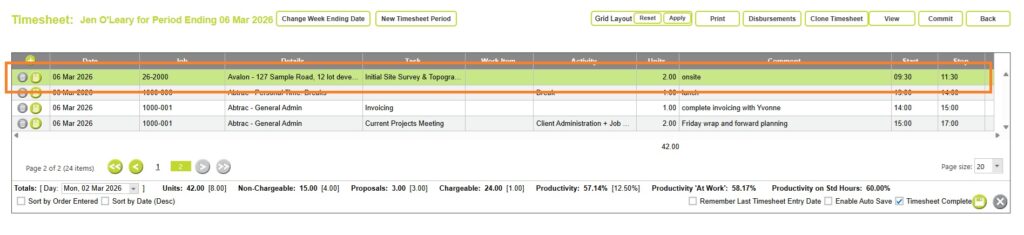
Click on the Disbursement button on the left of the selected timesheet line to add a disbursement to your timesheet.
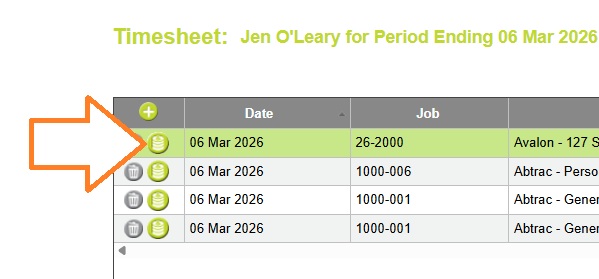
This will open a popup window for entering expense details.
In the popup window:

- Click on the plus button to add one (or multiple) disbursement(s) for the selected project
- Select a Disbursement Type (e.g. mileage, printing, travel)
- Enter the Quantity
- Enter the Amount
Click Save in the popup window to add the disbursement to your timesheet.
Cross Tab Grid View Disbursments
With Abtrac you can quickly record out-of-pocket expenses (disbursements) against a project while you are completing your timesheet.
Abtrac will automatically link the disbursement to the selected project, so you don’t need to re-enter job details.
Start by selecting the line and cell displayed in the grid that you want to add a disbursement for, then Right Click and choose the Disbursement option.

This will open a popup window for entering expense details.
In the popup window:
- Click on the plus button to add one (or multiple) disbursement(s) for the selected project
- Select a Disbursement Type (e.g. mileage, printing, travel)
- Enter the Quantity
- Enter the Amount
Click Save in the popup window to add the disbursement to your timesheet.
Form View Disbursements
With the form view of timesheets you can quickly record out-of-pocket expenses (disbursements) against a project while you are completing your timesheet.
Start by selecting the line displayed in the grid that you want to add a disbursement for..
Abtrac will automatically link the disbursement to the selected project, so you don’t need to re-enter job details.
In Cross Tab Form view click on the units cell.
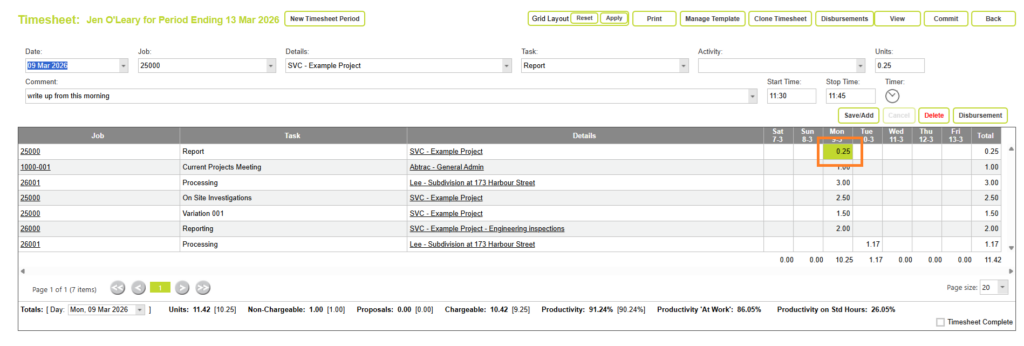
In Linear Form View click on the releveant row.

Once selected, the details of that entry will populate in the Form view.

Click on the Disbursement button within the form to add a disbursement to your timesheet.
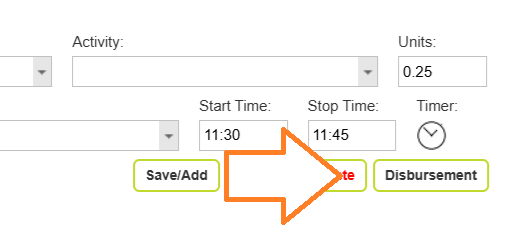
This will open a popup window for entering expense details.
In the popup window:
- Click on the plus button to add one (or multiple) disbursement(s) for the selected project
- Select a Disbursement Type (e.g. mileage, printing, travel)
- Enter the Quantity
- Enter the Amount
Click Save in the popup window to add the disbursement to your timesheet.
Entering Disbursements in the Mobile App
Employee Disbursements can also be entered from the mobile app.
Adding a disbursement when creating a timesheet line

When saving a timesheet, touch the save icon with the dollar ($) sign to save the time and enter disbursements straight away.
Adding a disbursement from My timesheets

Touch on the disbursement icon on the timesheet entry.
Or touch anywhere on an already entered timesheet row, and select disbursements from the popup.
Disbursement Details

Adding a new disbursement entry will fill the client and job information based on the timesheet entry.
You can select the disbursement type and other related information the same as on the desktop version of Abtrac.
Editing an existing disbursement

When you touch the Disbursement icon from the timesheet screen, where a disbursement already exists, you get a screen showing you all the disbursements related to that timesheet entry.
From here you can:
- tap New Disbursement Entry (+) button to add an additional disbursement,
- touch an existing disbursement row to edit it
- delete the disbursement using the trash can
Viewing All Disbursements for a Timesheet Period
At any time you can view all Employee Disbursements entered during the current timesheet period.
From Time & Disbursements > Employee Time & Disbursements > Open the required timesheet period, then click Disbursements.
The Employee Disbursements screen displays all disbursements entered during that period, regardless of how they were originally entered.
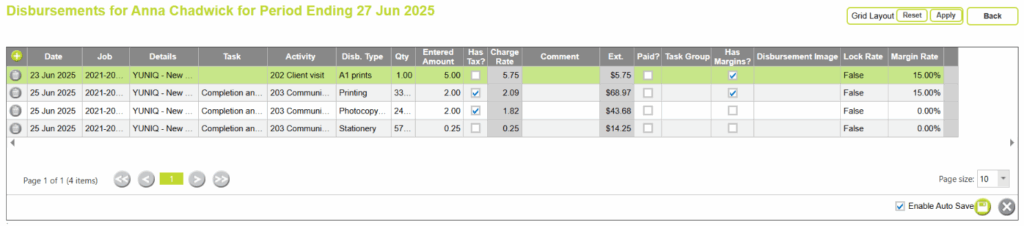
From here you can:
- Add new disbursements
- Edit existing disbursements
- Review project allocations
- View receipt images
- Update comments
- Confirm reimbursement information
Administration Settings for Employee Disbursements
Making a Disbursement Type Available to Employees
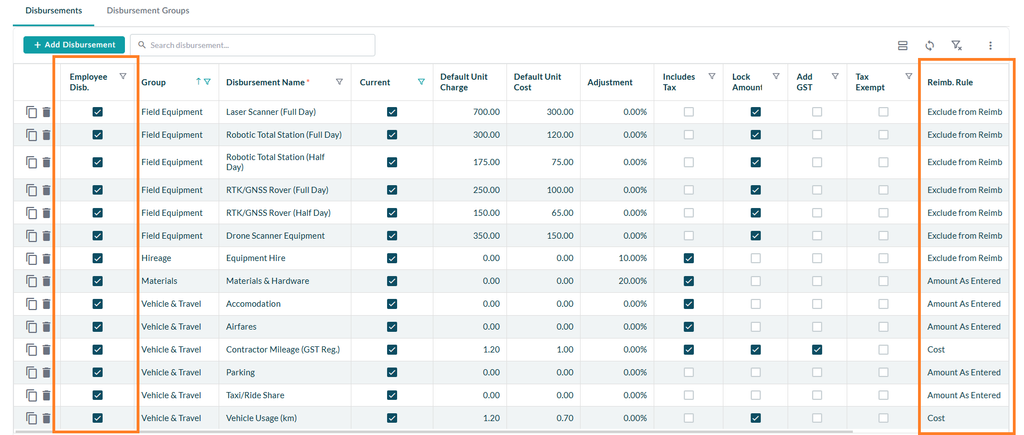
Administrators can make Disbursement Type available to staff with the Employee Disb. setting from Administration > Maintenance > Disbursements
When enabled, employees can enter that disbursement type from their own timesheets. When disabled the disbursement can only be entered by administrators or office staff.
Read more about Disbursement Types here
Customising the Employee Disbursement screen
From Administration > Settings > User control Settings, Abtrac administrators can show or hide the columns available for employee disbursement entries.
Read more about User control settings here

System Settings and rules for Employee Disbursements
From Administration > Settings > System Settings > select the Timesheets tab > from here you can select the rules for disbursements.
Disbursement rules can operate independently of timesheet rules. For example, you may allow timesheets to be entered without comments but require comments on all expense claims or reimbursable disbursements.
The Disbursement Settings section allows you to apply rules specifically to disbursement entries. These rules can be different from the rules used when entering timesheets.
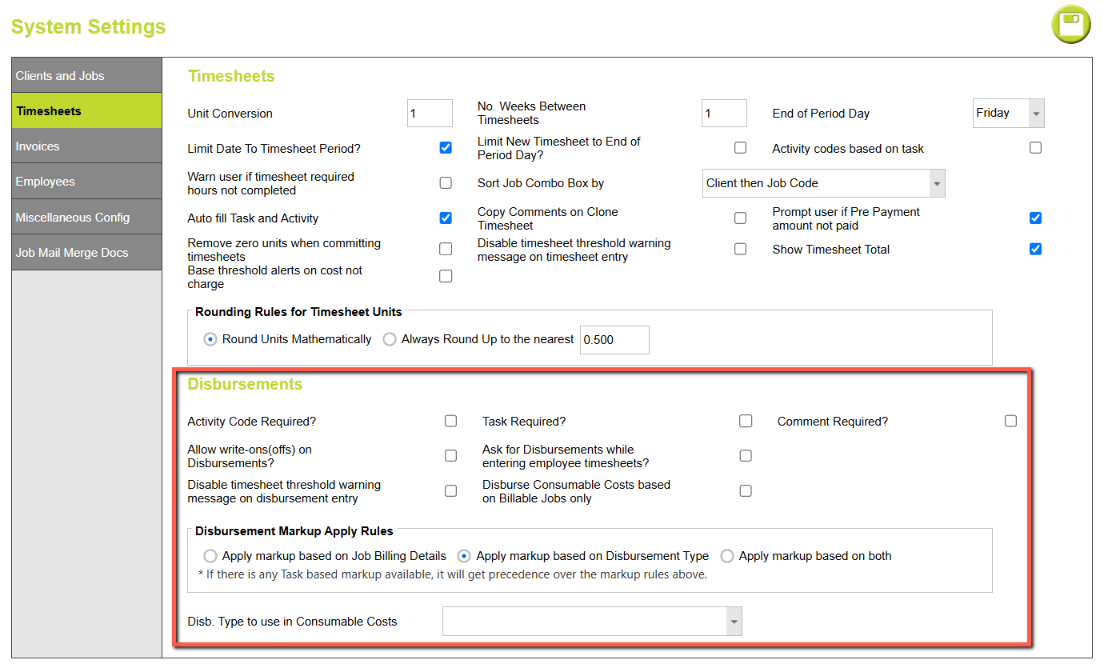
Examples include:
- Requiring an Activity when entering a disbursement.
- Requiring a Task or Task Group.
- Requiring staff to enter a Comment explaining the expense.
- Prompting employees to add a disbursement while entering time.
- Disabling threshold or budget warnings when entering disbursements.
These settings help ensure employees capture the information your organisation requires while keeping disbursement entry consistent across all projects.
Read more about System settings for Disbursements here
Difference between Employee Disbursements and Office Disbursements
Employee Disbursements
- They are entered against an employee’s timesheet.
- They appear in timesheet reports under that employee’s name.
- They can be included in reporting for reimbursing staff.
Examples:
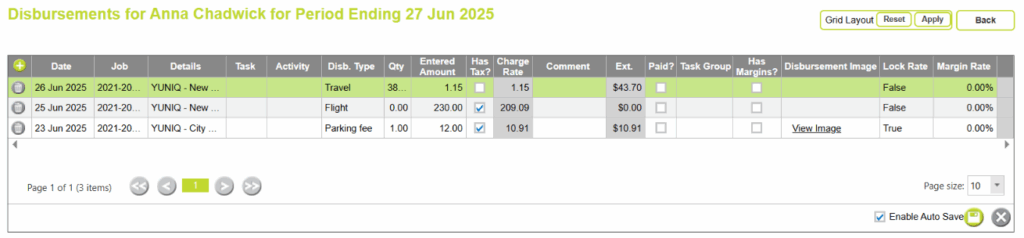
- 38 km travel @ $1.15 per km = $43.70
- 1 × Parking fee – $12.00 (incl. tax)
- 1 × Flight – $230.00 (incl. tax)
Office Disbursements
- They are entered or imported at an office/company level.
- You can import disbursements for office only.
Examples:
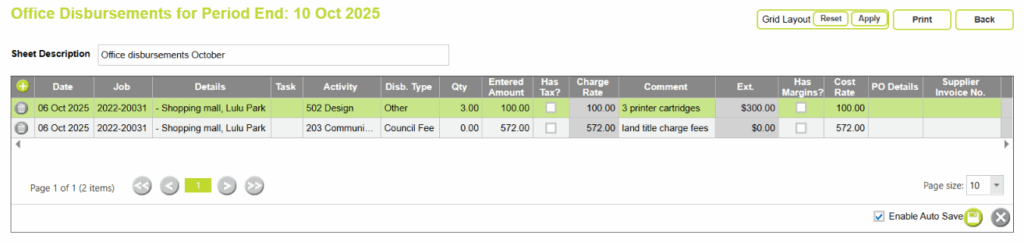
- Land Title fees imported from a council invoice (usually excl. tax)
- 3 × Printer cartridges – $300.00
Abtrac KB # 2208