
Disbursements are the costs you record against a project that are not time – printing, mileage, courier, parking, equipment hire and so on.
All disbursements created in Abtrac must be assigned to a Disbursement Type configured in the Maintenance menu.
Disbursements can be entered in several ways, including by employees on timesheets, office staff, imported from external systems, added through equipment scheduling, or entered as additional costs during invoicing. In each case, a Disbursement Type must be selected.
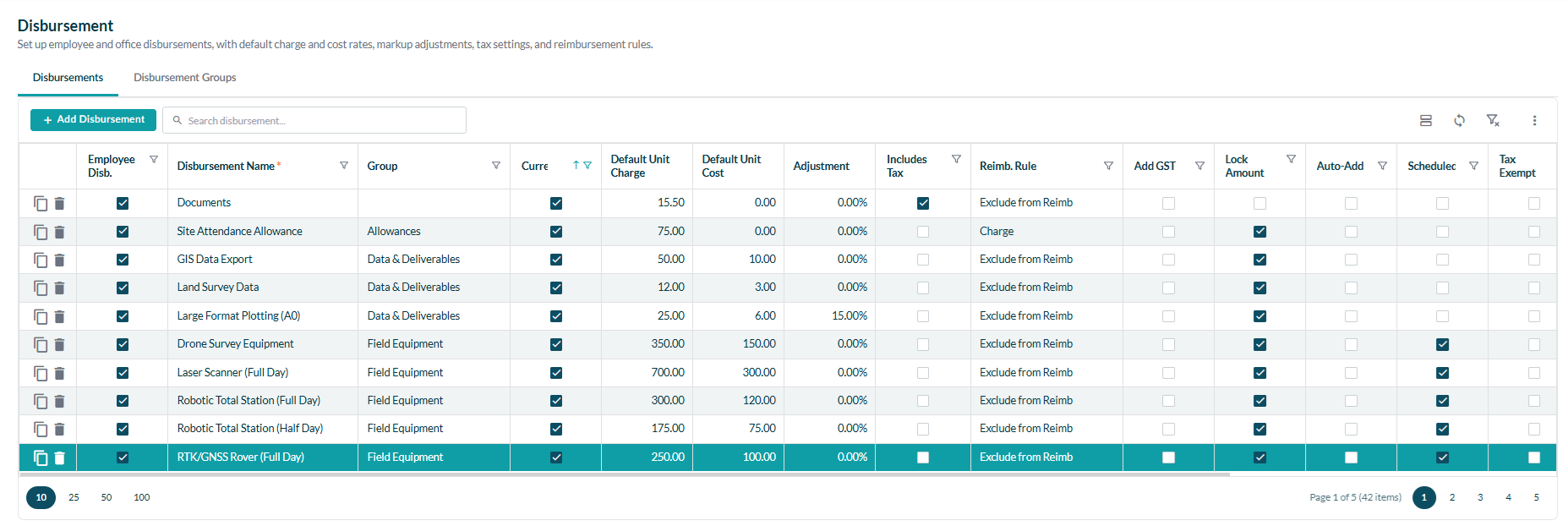
When creating Disbursement types you decide:
- the name it appears under, and the group it sits in;
- the default unit charge (what you bill the client) and default unit cost (what it costs you);
- whether the default rate includes tax, and whether the item is sales tax exempt;
- whether mark-ups, adjustments apply when on charging to clients
- whether employees can enter it on their own timesheets, and if so whether an employee is reimbursed for it (and how);
- whether it is added automatically to new projects and whether it can be scheduled.
Disbursements can be organised into Disbursement Groups, which are used to arrange the disbursement lists that your people pick from and to report on related costs together, or to bill related costs together.
Users cannot create new disbursement types while entering transactions. If a new type of cost needs to be tracked, it must first be added to the Disbursement maintenance list.
Read more about Disbursements here
Disbursement Type Options
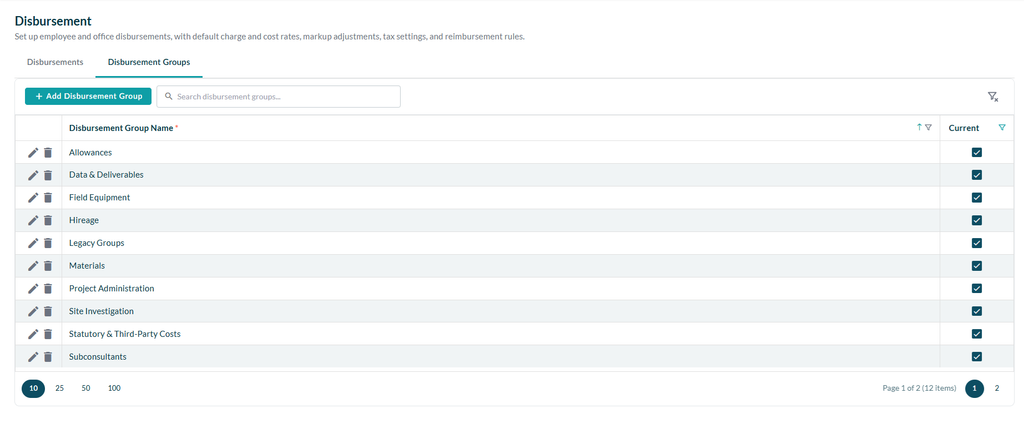
The Disbursements maintenance page has two tabs – Disbursements and Disbursement Groups.
Disbursement Types
Disbursement Types control default costs, adjustment margins, tax settings and who can access these types.
Disbursement Groups
Disbursement groups are used to arrange disbursements – for example Printing, Travel and External Costs – so that the drop-down lists your people use are easier to work through and so that related costs can be reported or invoiced together.
A disbursement can be in one group or none.
Glossary of Disbursement type field options
Disbursement types are explained in detail further on in this article.
| Field | Purpose |
|---|---|
| Disbursement Name | The name users see when selecting the disbursement. Must be unique. |
| Disbursement Group | Optionally used to organise disbursement types into logical groupings for reporting and data entry. |
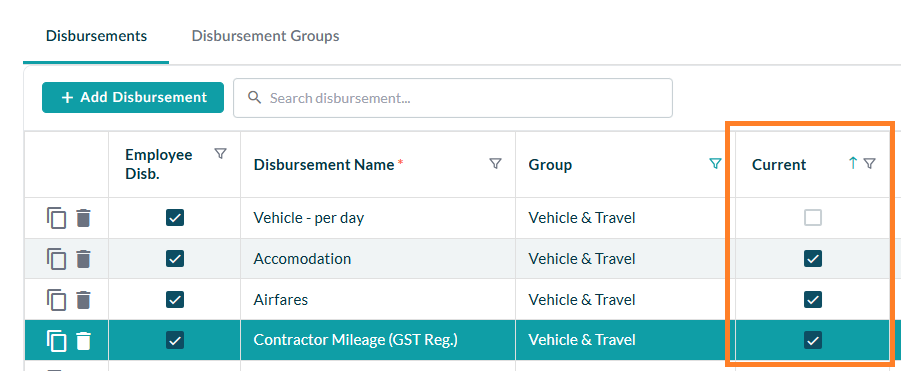
| Current | Controls whether the disbursement can be used for new entries. Historical records remain unchanged. |
| Default Unit Charge | The standard amount charged to clients for each unit of the disbursement, can be also be unknown or zero. |
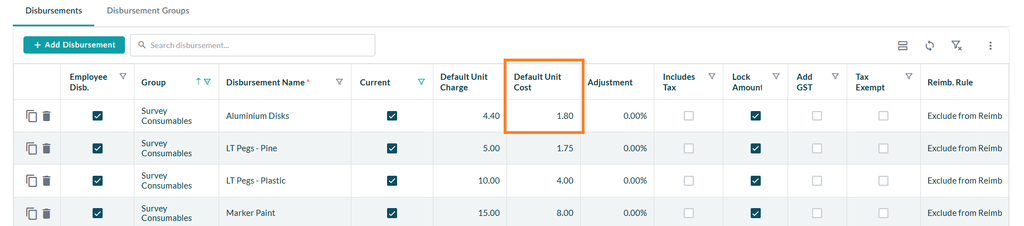
| Default Unit Cost | The standard internal cost of each unit, used for project costing and profitability reporting, can be also be unknown or zero. |
| Adjustment | Additional percentage adjustment applied to the charge rate (maybe cost rate), depending on system settings. |
| Includes Tax | Indicates the Default Unit Charge already includes sales tax, used when adding an amount from a receipt e.g parking, lunch etc. Where the Entered amount(charge rate) has tax, the extension or total amount later applied to the invoice is excluding tax (so as not to charge tax twice) |
| Employee Disb. | Allows employees to enter this disbursement within their own timesheets. |
| Reimb. Rule | Determines if/how employees are reimbursed when this disbursement is entered. |
| Add GST | Add GST is primarily relevant where reimbursement amounts calculated from Cost or Charge rates should have tax added during reimbursement calculations. This is uncommon for employee expense claims, which are typically reimbursed using Amount As Entered. |
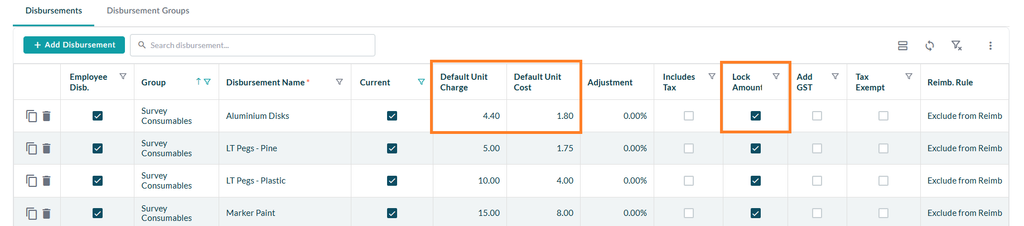
| Lock Amount | Prevents users changing the default charge and cost amounts when entering the disbursement, used for fixed rate disbursments. |
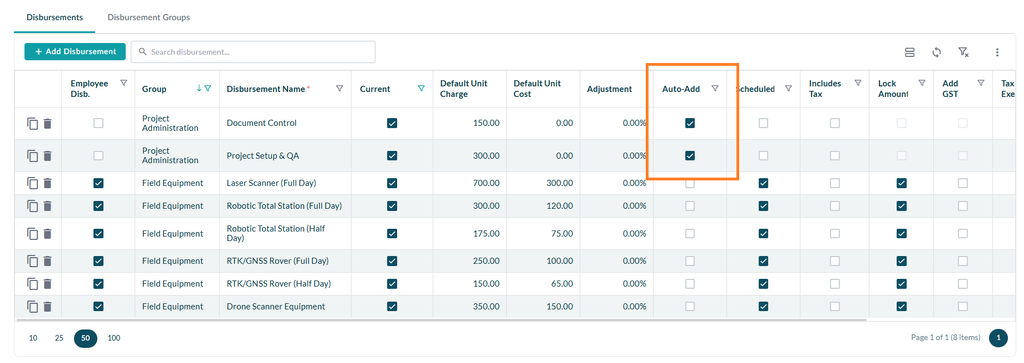
| Auto-Add | Automatically adds the disbursement type and amount to newly created projects. |
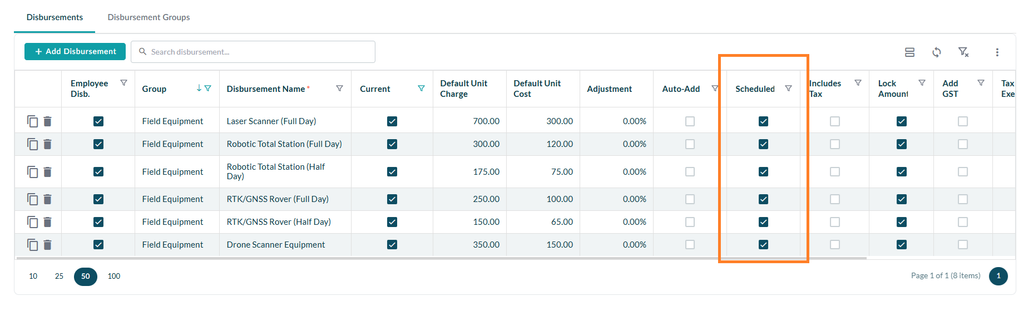
| Schedule | Makes the disbursement available for equipment and resource scheduling. |
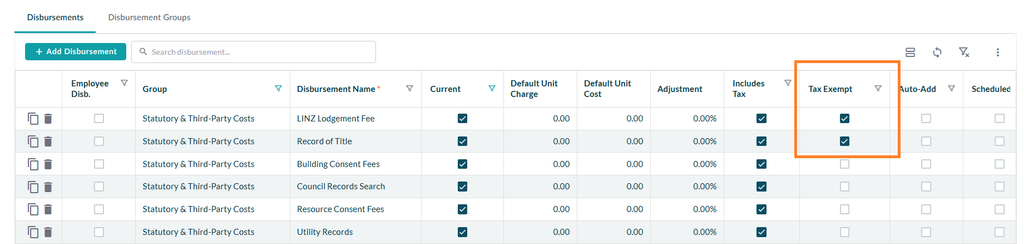
| Tax Exempt | Determines disbursements that would normally be invoiced without tax. |
How to add or edit Disbursement types
The Disbursements tab is an editable list. You can change many disbursements in the same visit, and nothing is stored until you choose Save changes.
Adding a disbursement
Click Add Disbursement. A new row appears at the top of the grid.
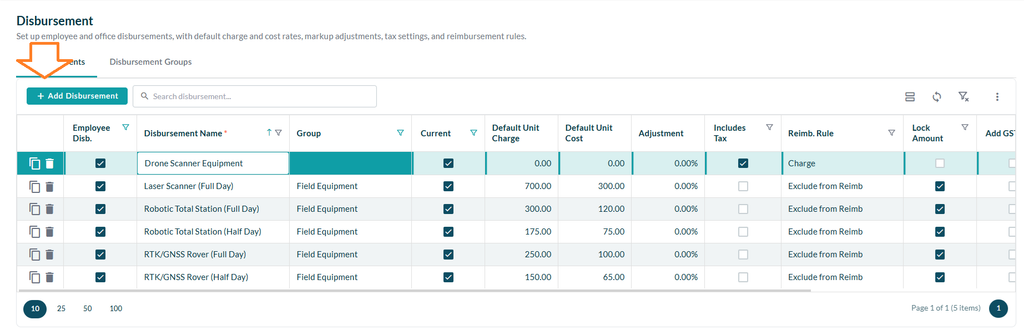
Type the Disbursement Name. This is the only column you must fill in.
Complete any other columns you need (see the summary above, and detailed examples below).
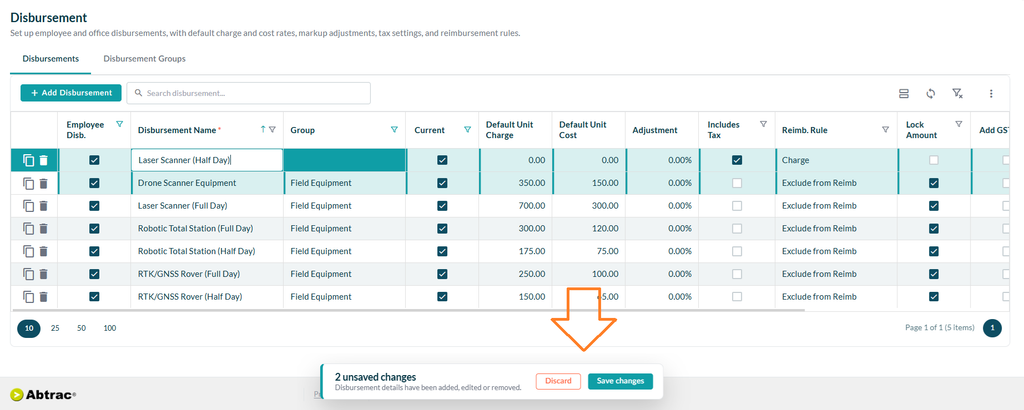
To add more, click Add Disbursement again. Each new row is held until you save.
Click Save changes in the bar at the bottom of the screen.
Duplicating a disbursement
When a new disbursement is similar to an existing one, click the Clone icon at the start of the row.

A new row is added containing the same settings, with “Copy” added to the name. Change the name and anything else that differs, then save.
Editing disbursements
Click a cell and type, tick a box, or choose from a list. You do not have to save row by row – you can change as many cells and rows as you like, then save them all together. Changed cells are tinted teal and the bar at the bottom of the screen counts your unsaved changes (for example “2 unsaved changes”).
Changed your mind? Click Discard in the save bar to throw away every unsaved change and return the grid to how it was.

Deleting a disbursement type
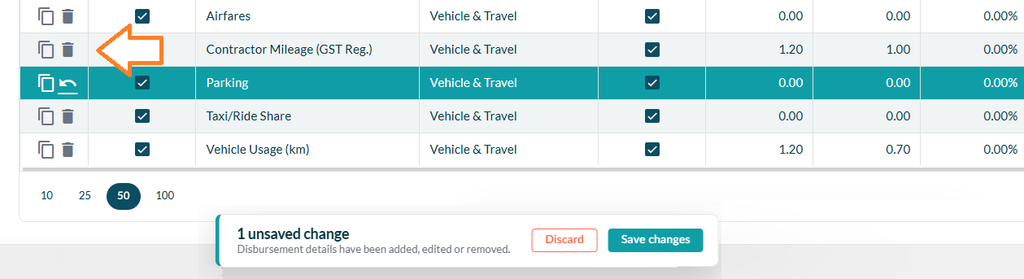
Click the Delete icon at the start of the row. The row is marked for deletion and the icon changes to an undo arrow – click it if you change your mind.
Click Save changes to delete the marked rows.
Archiving disbursement types
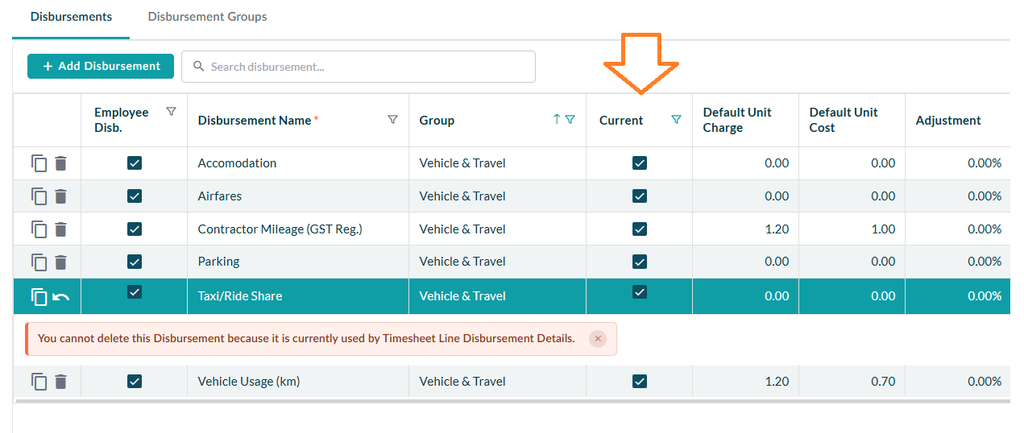
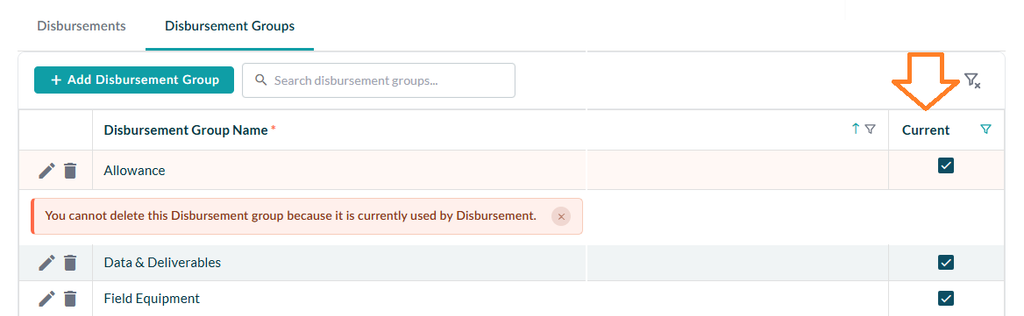
A disbursement that has already been used in Abtrac – for example on a timesheet or an invoice – cannot be deleted.
You’ll see a message below the relevant disbursement types, indicating why they cannot be deleted.
To stop the disbursement being used you can make it non-current instead, by unticking the Current box.
How to add or edit Disbursement Groups
Disbursement groups are used to arrange disbursements – for example Field Equipment, Subconsultants, Vehicle & Travel – so that the drop-down lists your people use are easier to work through and so that related costs can be reported or invoiced together. A disbursement can be in one group or none.
Adding a Disbursement group
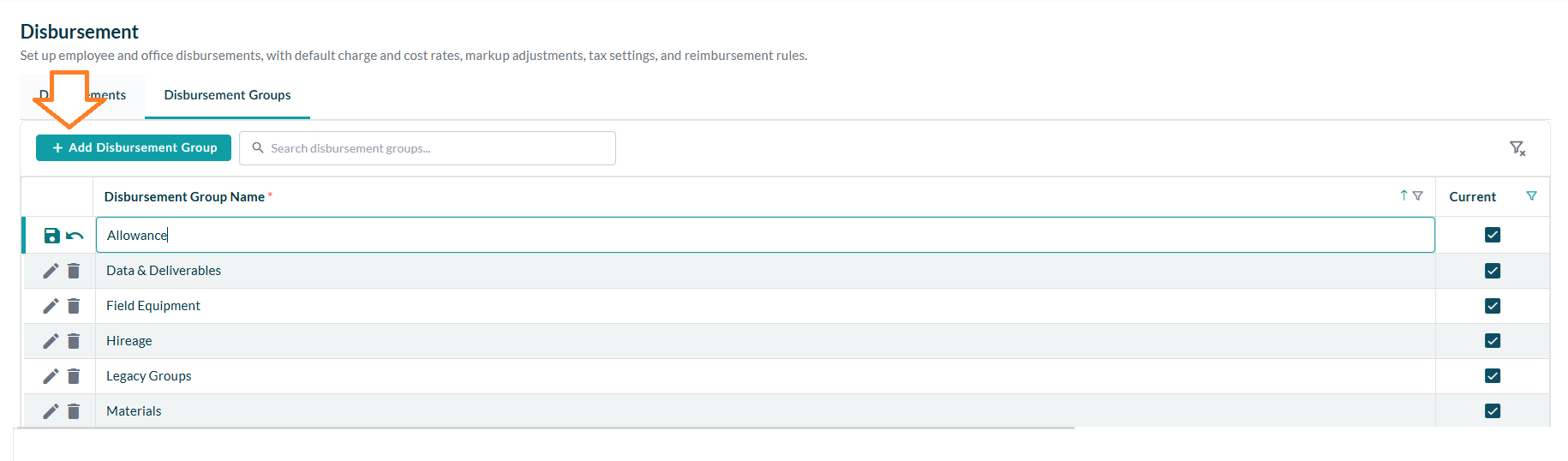
Open the Disbursement Groups tab and click Add Disbursement Group.
Type the Disbursement Group Name, then click the Save icon on the row. Click the Undo icon to abandon the new group.
Editing and deleting a group
Click the Edit (pencil) icon on a row, change the name or the Current setting, then click Save.
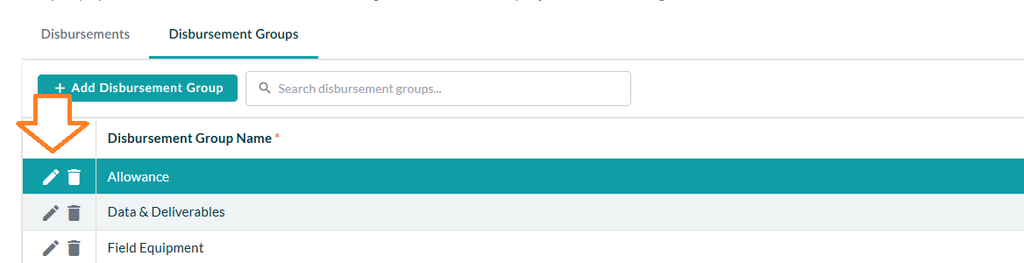
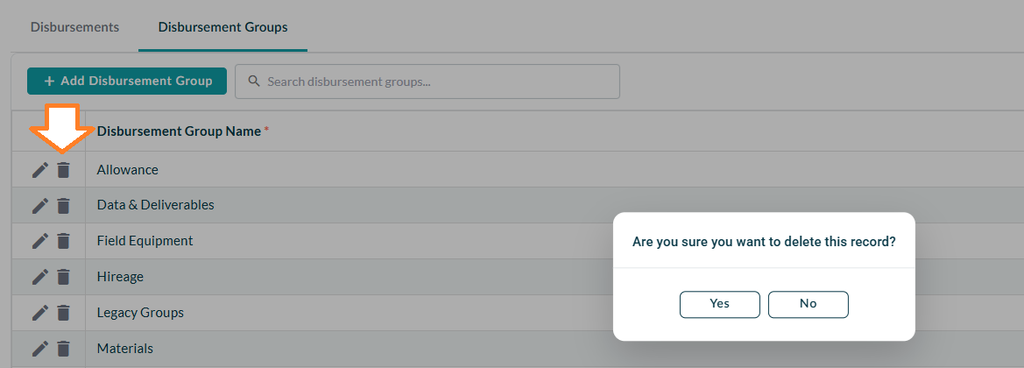
Click the Delete (bin) icon and confirm to delete a group.
Archiving disbursement groups
A group that still has disbursements assigned to it cannot be deleted – move those disbursements to another group first, or untick Current to retire the group.
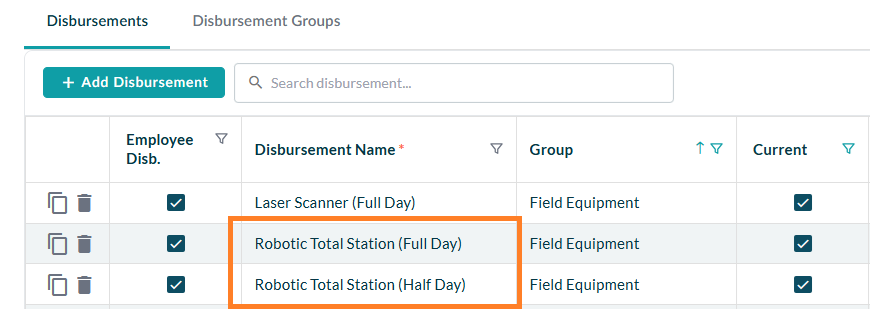
After adding or renaming groups, return to the Disbursements tab – the Group list refreshes automatically as long as you have no unsaved changes.
The Group drop-down on the Disbursements tab lists current groups only. A group you have marked as not current stays on the disbursements already using it but cannot be chosen for new ones.
Understanding the Disbursement Grid data (Disbursements Glossary)
Each row in the grid represents a single Disbursement Type. The columns determine how that type behaves throughout Abtrac.
Disbursement Name
The name users see when entering disbursements. Choose names that are clear and meaningful to employees and project managers. Disbursement names are required and must be unique.
Disbursement Group
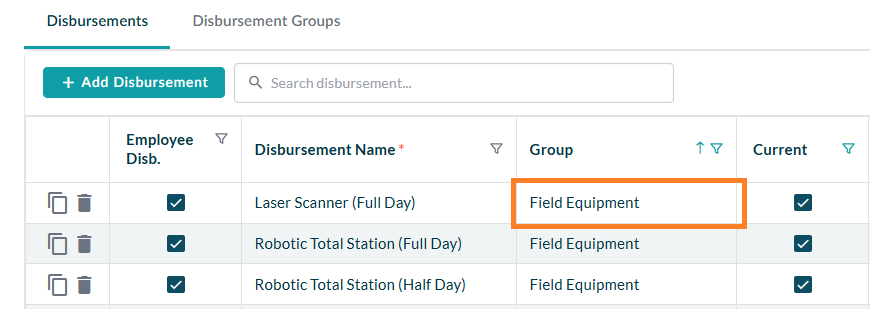
Disbursement Groups are used to organise related disbursement types.
Examples:
| Group | Typical Items |
|---|---|
| Field Equipment | Laser Scanner, Robotic Total Station, RTK/GNSS Rover, Drone |
| Subconsultants | Consultants and Subcontractors (by name or discipline) |
| Project Materials | Materials and consumables, Disks, Pegs, Paint |
| Travel and Accommodation Costs | Mileage, Accommodation, Vehicle Costs |
Groups help:
- simplify data entry;
- organise long pick-lists;
- improve reporting;
- summarise related costs together on invoicing.
Current
Determines whether a disbursement type is available for new entries.
Default Unit Charge
The default amount charged to the client for one unit of the disbursement.
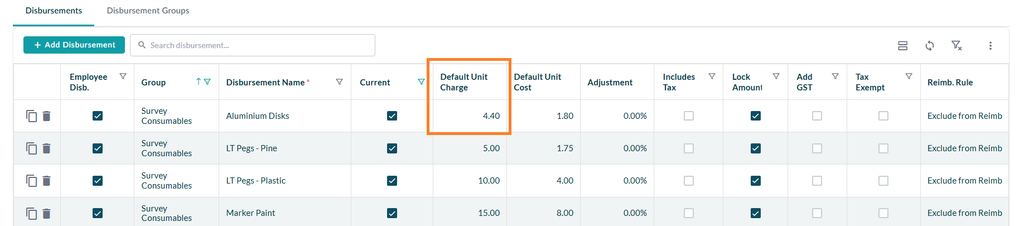
This value will be automatically applied when the disbursement type is selected and can be used to recover equipment usage, consumables, employee expenses, supplier costs, or other project-related expenses.

Typical examples include:
- Mileage charged per kilometre
- Vehicle charges per day
- RTK/GNSS equipment charges
- Survey consumables such as pegs, disks, markers and paint
- Standard courier or administration charges
Whether users can change the charge amount during entry depends on the Lock Amount setting.
Default Unit Cost
The default internal cost for one unit of the disbursement.
This value is used for project costing, profitability reporting, budget analysis, and margin calculations. In many cases it represents the estimated cost of providing the item or service.
Typical examples include:
- Vehicle operating costs
- Equipment ownership or lease costs
- Consumable purchase costs
- Standard employee reimbursement costs
- Estimated subcontractor costs
Like the charge amount, the default cost value is automatically applied when the disbursement type is selected.
For disbursements imported from accounting systems, supplier invoices, or external files, the Default Unit Cost is often set to 0.00 so that the actual imported cost is used instead.
Default Charge and Cost example
| Disbursement Type | Default Cost | Default Charge |
|---|---|---|
| Mileage | $0.88/km | $1.10/km |
| Company Vehicle | $45/day | $80/day |
| Survey Equipment | $75/day | $150/day |
| Aluminium Disks | $1.80 each | $4.40 each |
When the disbursement is entered, Abtrac automatically applies these default values, helping maintain consistent costing and charging across projects. If Lock Amount is enabled, users cannot change the default charge amount during entry.
Understanding Fixed Rate Charges vs Actual Costs
A Disbursement Type can be configured in one of two common ways.
Fixed Rate Disbursements
Some disbursement types have predefined Charge Rates and Cost Rates.
Examples include:
- Mileage
- Printing
- Company Vehicles
- Survey Equipment
- Aluminium Disks
- LT Pegs
- Boundary Markers
When one of these disbursements is entered, the user typically enters a Quantity and Abtrac applies the default rates from the Disbursement Type.
For example:
| Disbursement | Quantity | Charge Rate | Total |
|---|---|---|---|
| Printing | 19 | $0.10 | $1.90 |
| Mileage | 32 km | $1.08 | $34.56 |
| Aluminium Disks | 10 | $4.40 | $44.00 |
In these cases the user is recording how many units were used, and Abtrac calculates the value from the predefined rates.
Actual Value Disbursements
Other disbursement types are used to capture the value shown on a receipt, supplier invoice, or employee expense claim.
Examples include:
- Parking
- Taxi / Uber
- Flights
- Accommodation
- Title Searches
- Council Fees
- Consultant Invoices
In these situations the quantity is often simply 1, and the amount entered is the actual amount paid.
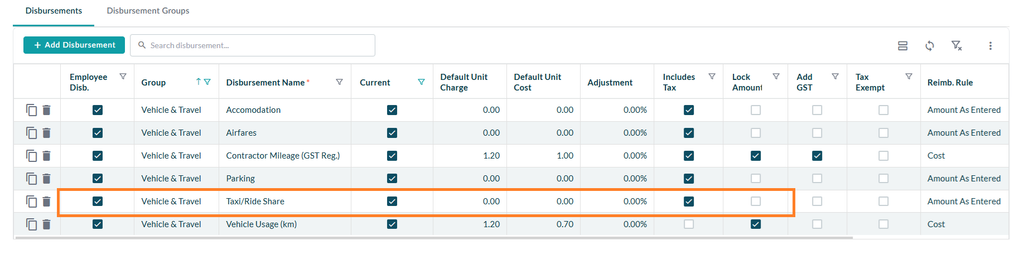

For example:
| Disbursement | Quantity | Entered Amount |
|---|---|---|
| Parking | 1 | $18.50 |
| Taxi | 1 | $37.60 |
| Accommodation | 1 | $245.00 |
| Title Search | 1 | $35.00 |
The amount entered may then become the project cost, employee reimbursement amount, or client charge depending on the Disbursement Type settings.
Using Both Approaches for Charge and Cost Rates
Most organisations use a combination of both approaches.
For example:
| Disbursement Type | Typical Entry Method |
|---|---|
| Mileage | Quantity × predefined rate |
| Printing | Quantity × predefined rate |
| RTK Equipment | Quantity × predefined rate |
| Aluminium Disks | Quantity × predefined rate |
| Parking | Actual receipt amount |
| Taxi / Uber | Actual receipt amount |
| Accommodation | Actual invoice amount |
| Consultant Invoice | Actual supplier invoice amount |
A useful rule of thumb is:
If the cost is normally recovered using a standard rate, enter the quantity and let Abtrac calculate the value. If the cost varies each time, enter the actual amount from the receipt, expense claim, or supplier invoice.
Imported Costs
For disbursements imported from supplier invoices or accounting systems, the Default Unit Cost is often set to zero.
In these situations the imported value becomes the actual project cost.
Examples include:
- LINZ fees
- Consent fees
- Accommodation
- Supplier purchases
- Imported consultant invoices
Lock Amount
Prevents employees changing the default amount during entry.
Typical examples include:
- mileage rates;
- vehicle charges;
- equipment hire rates;
- standard consumable charges.
This helps maintain consistency across projects.
Adjustment
An additional percentage adjustment applied to charge rate calculations.
This field is commonly used where:
- employee reimbursements differ from client charge values;
- additional recovery percentages are required;
- margin calculations are applied to selected disbursements.
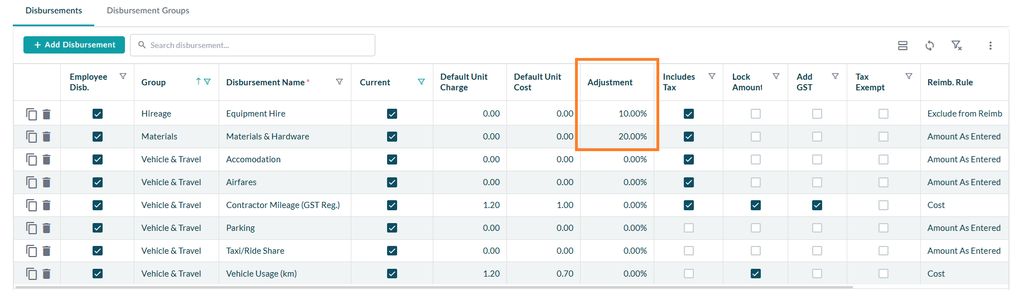
How adjustments behave is also affected by your System Settings. Adjustments can be applied at the Disbursement type level, the Project level or Both. You can also apply an Adjustment at the Task level.
Read more about Adding a Percentage to Disbursements here
Includes Tax
Enable Includes Tax when the amount entered already includes GST, such as a supplier receipt.
For example:
| Description | Amount |
| Taxi Receipt Amount (GST included) | 37.60 |
| GST exclusive value | 32.70 |
| Charge extension stored in Abtrac | 32.70 |
When invoiced, GST is added back in the normal way, resulting in a total of $37.60.
Using the GST-exclusive amount as the charge rate prevents GST from being charged twice and ensures the client is billed the correct amount.

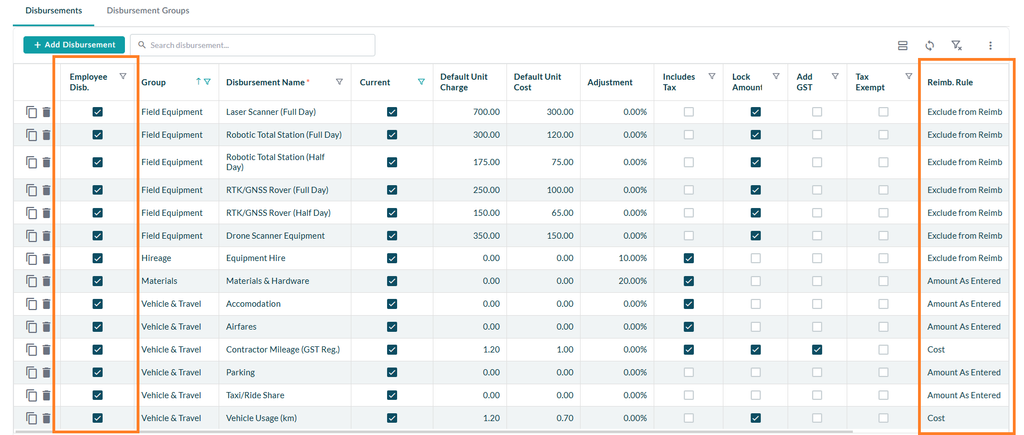
Employee Disb.
Controls whether employees can enter this disbursement on their own timesheets.
This setting is often misunderstood. Employee Disbursement does not necessarily mean employee reimbursement.
It simply means employees are allowed to record the item.
Examples include:
| Type | Examples |
|---|---|
| Employee Expenses | Mileage, Accommodation, Parking, Taxi fares |
| Equipment Usage | RTK/GNSS Rover, Company Vehicles, Survey Equipment |
| Consumables | Aluminium Disks, LT Pegs, Marker Paint, Boundary Markers |
Reimbursement Rule
Controls how employee reimbursements are calculated.
| Reimbursement Option | Description | Common Examples |
|---|---|---|
| Charge | Employee is reimbursed based on the charge amount. | – |
| Cost | Employee is reimbursed based on the cost amount. | Mileage |
| Amount As Entered | Employee is reimbursed the exact value entered. | Parking receipts, Taxi fares, Accommodation costs, Flights |
| Exclude from Reimbursement | No reimbursement is generated. | Company-owned equipment, Imported supplier costs, Project materials, Survey consumables |
Add GST
Add GST determines whether GST is added when calculating reimbursement amounts for Employee Disbursements. This setting is only relevant when reimbursements are calculated from a Cost Rate or Charge Rate, rather than using Amount As Entered.
In most cases, employee expenses are reimbursed using Amount As Entered, so Add GST is not required.
A typical use case is a GST-registered contractor claiming mileage.
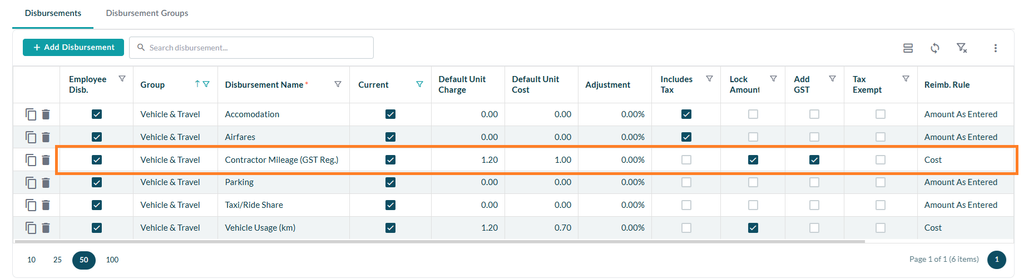
For example:
| Reimbursement Rule | Cost Rate |
| Cost Rate | $1.00 per km |
| Quantity | 100 (km) |
| GST Registered | Yes |
| Add GST | Yes |
Abtrac calculates a reimbursement of $100.00 + GST = $110.00.
This ensures the reimbursement matches the GST-inclusive amount that the contractor should invoice for their services.
Auto-Add
Automatically adds the disbursement to newly created projects.
Common examples include:
- Monthly Costs
- Job Setup Fees
- Standard Administration Charges
This removes the need to manually add recurring project costs.
Scheduled
Allows the disbursement type to be scheduled in the same way as employees schedule time.
Typical examples include:
- RTK/GNSS Equipment
- Survey Vehicles
- Drones
- Monitoring Equipment
- Shared Resources
See also Scheduling Disbursements and Equipment
Tax Exempt
Identifies disbursements that would normally be invoiced without tax. When these disbursements are assigned to invoice lines (either manually or through automatic invoice generation) the associated invoice lines will be created as tax free (when the invoice header settings allows tax on selected items)
It is particularly useful for:
- government fees;
- statutory charges;
- pass-through costs;
- tax-exempt expenses.
Assiging GL Codes (Account Codes) to Disbursements
Disbursement Types can be linked to General Ledger (GL) account codes to help automate how disbursements are handled when invoicing clients and importing supplier bills.
Using GL Code Mapping, you can assign a revenue GL code to a Disbursement Type for when the cost is invoiced to a client, and an expense GL code for when supplier bills are imported into Abtrac. This allows different types of expenses to be automatically allocated to the correct accounts in your accounting system.
You can also use Disbursement Groups to make managing these mappings easier. For example, if several Disbursement Types belong to the same group and use the same GL code, you can apply a GL code to the whole group in one step rather than mapping each type individually.
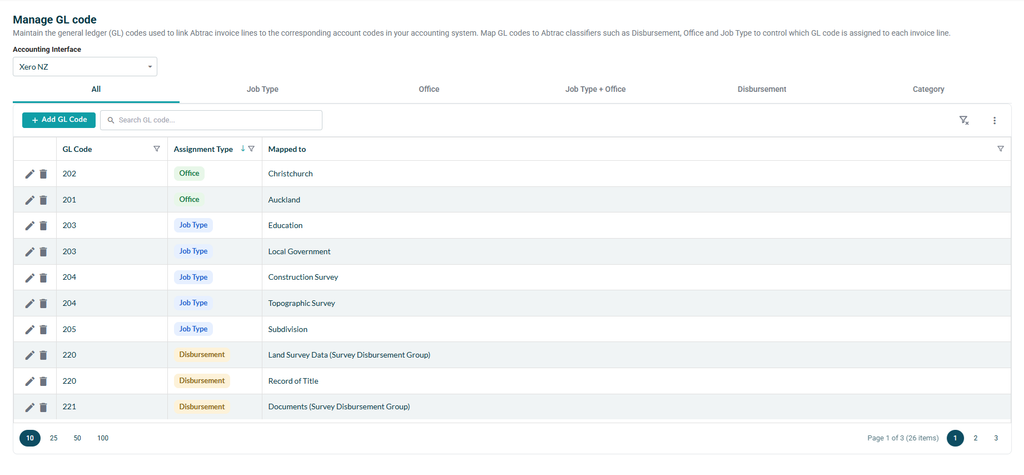
To configure these mappings, go to Administration > Maintenance > GL Code Mapping.
For more information, see GL Code Mapping (Account Code Mapping).
Using the Disbursement types grid
Search and Filter
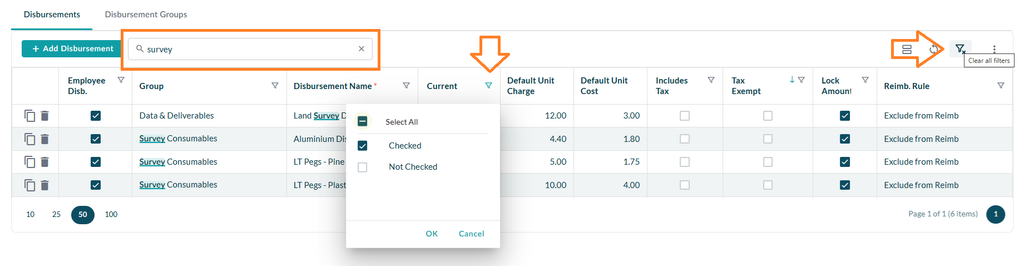
- Type in the Search disbursement… box to find a disbursement by any text in the row.
- Click the filter icon in a column heading to filter by that column. The Current column is filtered to current disbursements by default – clear that filter to see disbursements you have marked as not current.
- Click Clear All Filters to remove the search and every filter in one step.
Choose and arrange columns
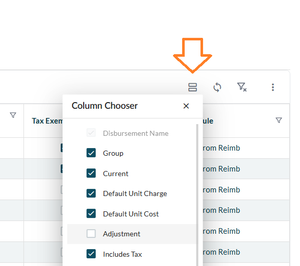
- Click the column chooser icon (Grid Layout) to show or hide columns. Required columns, such as the Disbursement Name, cannot be hidden.
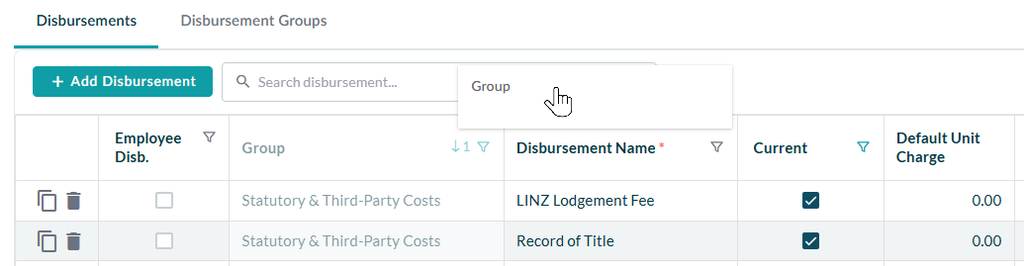
- Drag a column heading to move it. Drag the edge of a heading to make the column wider or narrower – the other columns keep their size and the grid scrolls sideways if it becomes wider than the screen.
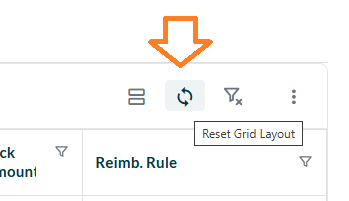
- Reset Layout puts the columns back to their original order and size.
Export Disbursement Types
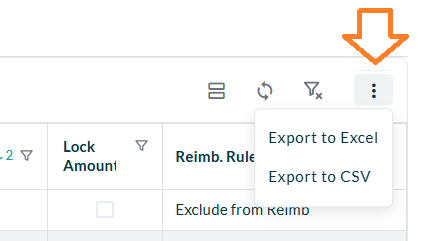
Open the ⋮ menu in the toolbar and choose Export to Excel or Export to CSV. The file contains the rows and columns currently shown, so apply any filters and column choices first. Files are saved as Disbursements.xlsx or Disbursements.csv.
Abtrac KB# 2027