
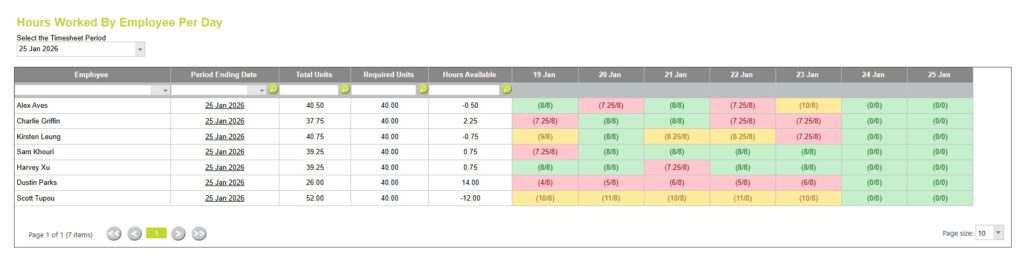
The Hours Worked by Employee Per Day report is a management tool that helps supervisors and administrators monitor timesheet completion during the current timesheet period.
Rather than reviewing completed timesheets after the week has finished, this report allows you to see, day by day, whether employees are keeping their timesheets up to date.
By checking it regularly throughout the week, you can quickly identify missing or incomplete days and remind staff to enter their time before the period closes.
Why use this report?
Many organisations require employees to complete their timesheets daily. Waiting until the end of the week often results in forgotten work, inaccurate job costing and delays to approvals.
This report provides an at-a-glance view of each employee’s progress through the current timesheet period, allowing managers to quickly identify:
- employees who have not entered today’s time
- partially completed days
- missing timesheets
- employees who are consistently recording more or fewer hours than expected
- staff who need a reminder before the timesheet period closes
Because each day is displayed separately, you can easily distinguish employees who are entering time daily from those who are catching up several days later.
Using the Approve Timesheets > Daily Time page
From Time & Disbursements > choose Approve Timesheets > Hours Worked by Employee Per Day.
Select the Timesheet Period you want to review.
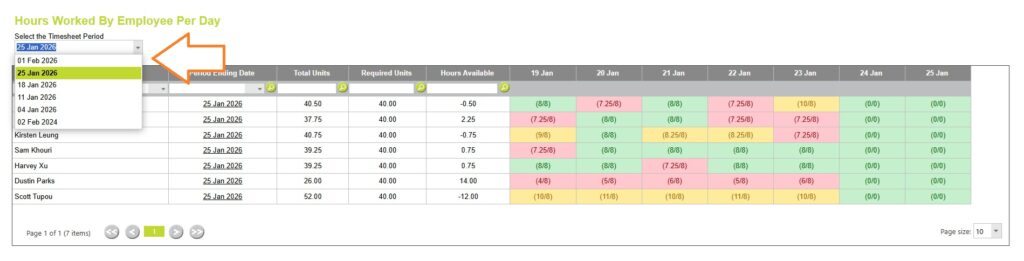
The page displays one row for each employee in the selected timesheet period, showing:
- Employee
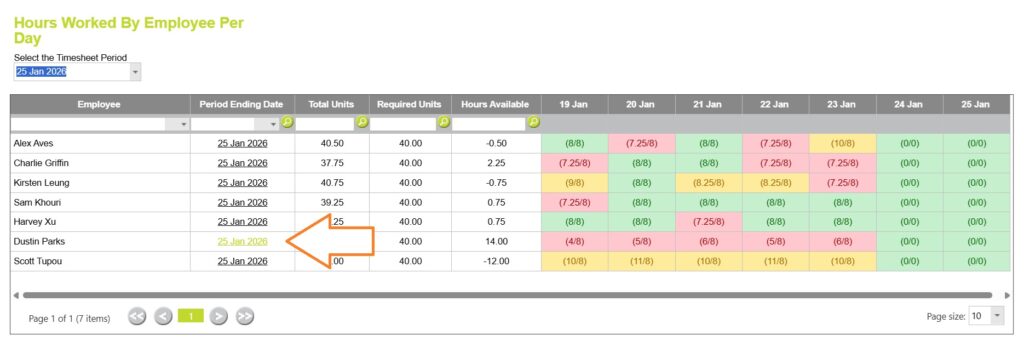
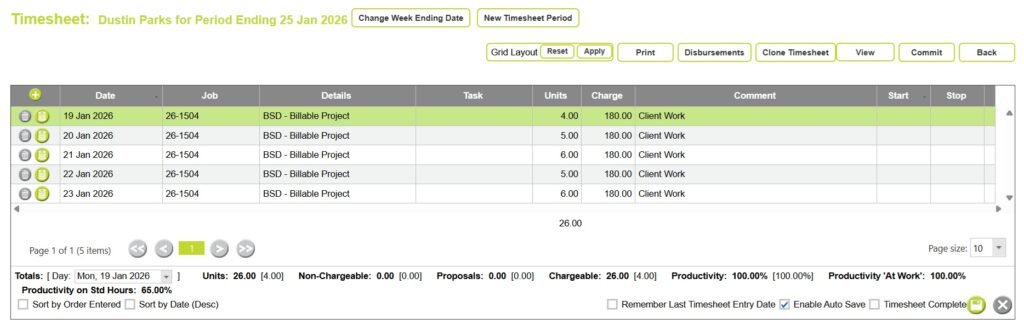
- Period Ending Date: the end date of the selected timesheet period (click on the period ending date to jump into the employees timesheet and see details).
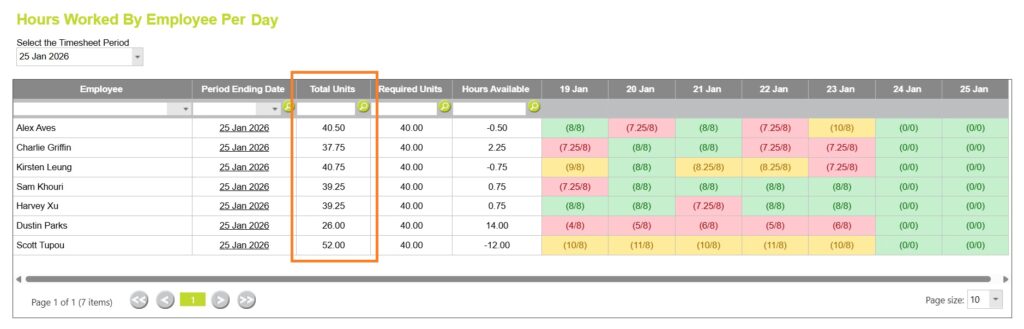
- Total Units: the total hours entered for the period.
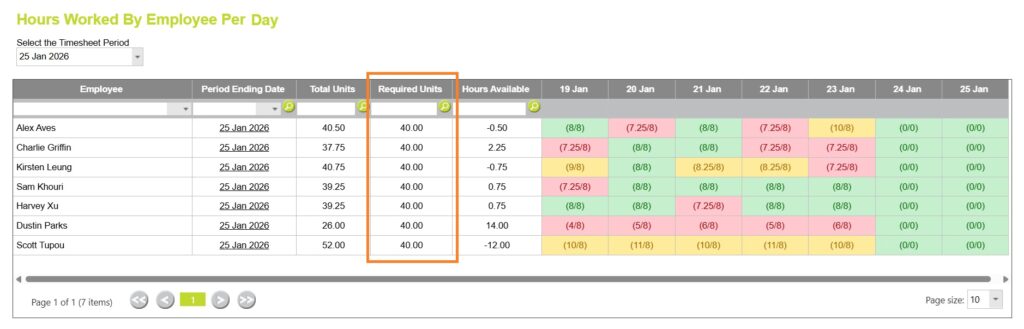
- Required Units: the total hours the employee is expected to record for the timesheet period.
- Hours Available: the difference between the required hours and the hours entered.
- Daily Hours: one column for each day in the selected timesheet period, displaying (Hours Entered / Required Hours) for that day.
For example, (7.25 / 8) indicates the employee has entered 7.25 hours against a requirement of 8 hours for that day.
View Timesheet Information
The Period Ending Date shows the end date of the timesheet period.
Click on a timesheet period ending date to open the timesheet and review all time and disbursement entries for the selected employee.
Total Units
The total number of hours the employee has entered during the selected period.
Required Units
Required Units displays the total number of hours or units the employee is expected to complete for that period.
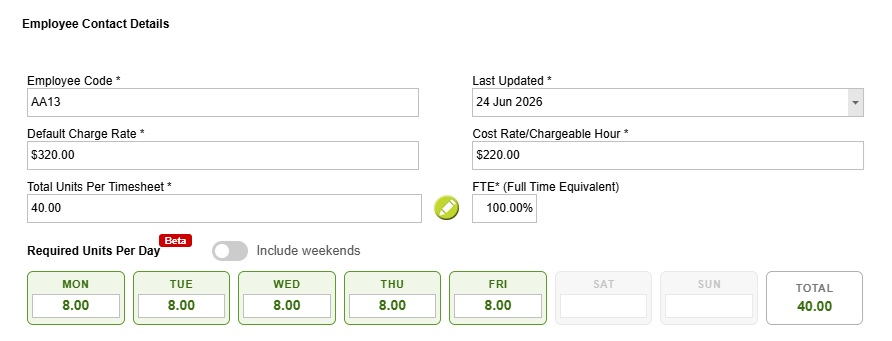
The required Units Per Timesheet are set per employee from Administration >> Employees >> Employee Details.
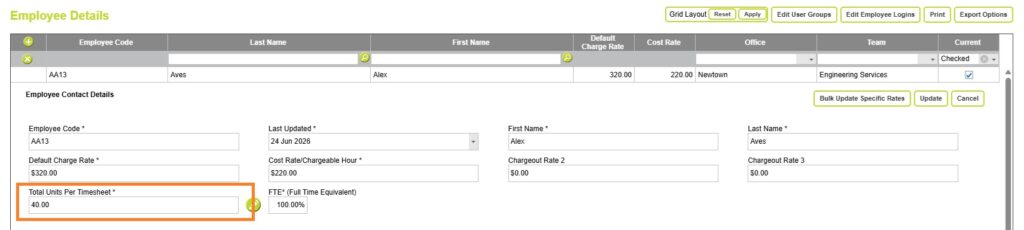
Read more about Required Units per Timesheet here
Hours Available
The difference between the employee’s Required Units and Total Units entered.
Hours Available =
Required Units – Total Units
- A positive value means the employee still has hours remaining to enter.
- A negative value means the employee has entered more hours than were required.
For example:
| Required Units | Total Units | Hours Available | Meaning |
|---|---|---|---|
| 40.00 | 37.75 | 2.25 | The employee still needs to enter 2.25 hours. |
| 40.00 | 40.50 | -0.50 | The employee has recorded 0.5 hours more than required. |
Daily hours
Each day displays two values in brackets:
(Hours Entered / Required Daily Hours)
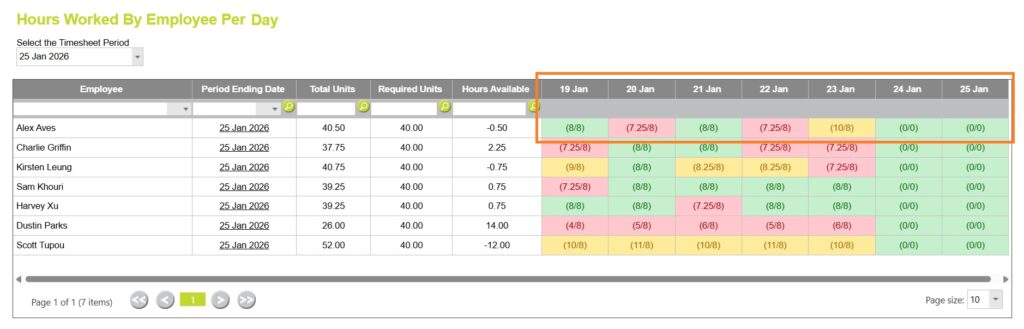
The Required Daily Hours are set per employee from Administration >> Employees >> Employee Details.
Looking across the week makes it easy to identify missing timesheets, incomplete days, or employees who have recorded more or fewer hours than expected, without opening individual timesheets.
Each day is colour-coded to show whether the employee has met their required hours:

| Display | Colour | Meaning |
| (8 / 8) | Green | The employee has entered all required hours for the day. |
| (7.25 / 8) | Red | The employee is still 0.75 hours short. |
| (10 / 8) | Yellow | The employee has entered two hours more than their standard requirement. |
| (0 / 8) | Red | No time has been entered for a required working day. |
| (0 / 0) | Green | No hours were required, such as a weekend, public holiday or rostered day off. |
Other ways to track timesheet compliance in Abtrac
The Hours Worked by Employee Per Day page is ideal for monitoring timesheet completion during the current reporting period. Depending on what you’re trying to achieve, you may also find these features and reports useful:
- Approve Timesheets – Review and commit completed employee timesheets before invoicing or reporting.
- Hours Worked Reports – Analyse hours worked by employee, client, project or activity over any reporting period.
- Bulk View and Bulk Edit Timesheet Reports – Open and review multiple employee timesheets from a single screen, making it easy to identify missing entries, compare completed timesheets, and follow up with employees before approving the timesheet period.
- Timesheet Reminders – Configure automatic email reminders to encourage employees to complete their timesheets before the end of each period.
Abtrac KB # 2275