
You can set required units for an employee timesheet period from the Administration menu.
Once required units are set, you can view and report on hours remaining in a period, and the percentage hours worked.

Setting up/Editing Required Units Per Timesheet
From Administration >> Employees >> Employee Details >> click on the pencil edit button beside the name of the person whose details you want to change.

This will expand the details for the selected employee in the screen.

Set up or edit the ‘Units Per Timesheet’ in the field indicated above. Then click on the Update button. This will change the ‘Required Units’ in the timesheets screen going forward.
Setting up/Editing Required Units Per Day
In addition to required units per timesheet period, you can also set daily required units.
From Administration >> Employees >> Employee Details >> click on the pencil edit button beside the name of the person whose details you want to change.
This will expand the details for the selected employee in the screen. Once timesheet required units are set for the period, click the pencil button to evenly distribute this requirement across all working days (or, optionally across all days).
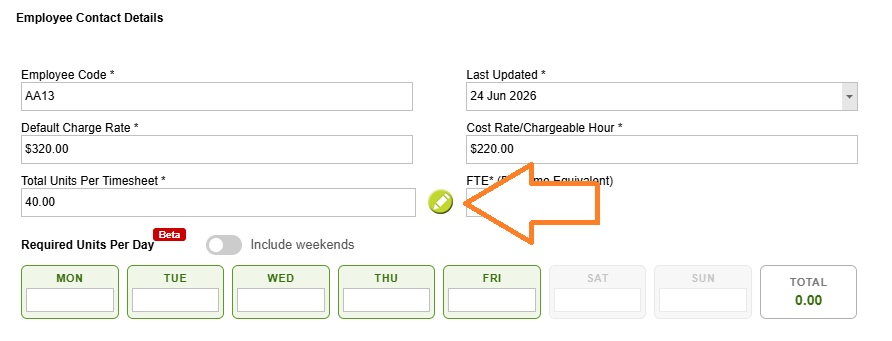
In the example below, when Total units per timesheet = 40.00
Required units per day = 40 ÷ 5 working days
Required units per day =8 units per day
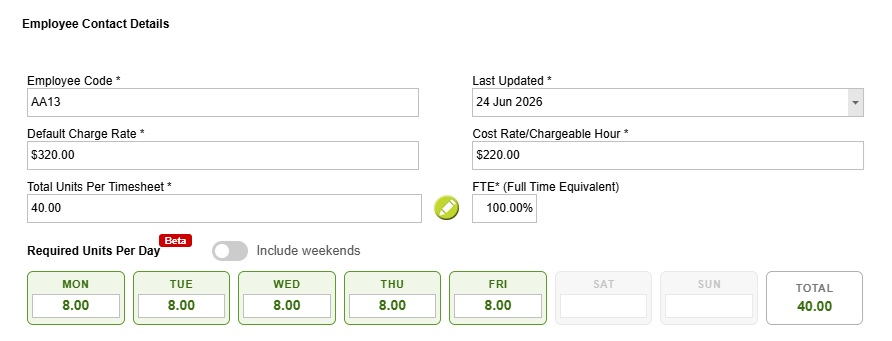
You can also enter required units per day manually. This is useful when an employee does not work the same number of hours each day. For example, if an employee does not work on Wednesdays, you can set Wednesday to 0.00 units and distribute the remaining required units across the other working days according to their employment agreement.
Limitations to Required units per day
Required units are calculated on a per-day basis within a 7-day week. Even if your timesheet period spans multiple weeks, it is not possible to automatically set recurring patterns such as every second Friday having zero required units.
For casual employees, daily required units can still be entered. In these cases, the values should be treated as a guide or expectation rather than a contractual requirement.
Sending reminder emails when required units are not met
Timesheet reminders help ensure employees complete their timesheets on time by automatically sending email reminders when they have not entered their required Total Units per Timesheet.
Reminder emails are only sent when a timesheet exists for the period and the employee has not met their required total units. Reminders can be sent before the end of a timesheet period, on the period end date, or after the period has finished.
Read more about Sending Timesheet Reminders here

Changing required units for historic timesheets
Any updates to required units only take effect from when the change is made. This includes the required units for any current timesheet periods – these will not be updated. The change will take effect from the next newly created timesheet period.
If you need to retrospectively change the required units for an employee for any previous timesheet periods you will need to contact the Abtrac support team to do it for you.
Reporting on required hours (timesheet units)
The following reports are based on required timesheet period units.
Dashboard: Current Timesheet Period
From the Home screen >> Current Timesheet Period dashboard widget shows the percentage of incomplete time with respect to the required hours.

Listing of Incomplete Timesheets
This is a missing time report. – From Reports >> Performance Reports >> click on ‘Listing of Incomplete Timesheets’ in the Timesheet Entries section to view a list of incomplete timesheets between selected dates.

Timesheet Summary screen
You can also view within the timesheet screen of an employee the total units worked, hours available and extra hours worked with respect to the required units.

Productivity and Utilisation reports
Many Hours Worked and Productivity reports include percentages based on Required Hours or Standard Hours.
These calculations are most accurate when the report date range matches one or more complete timesheet periods. In this situation, Abtrac can calculate Standard Hours directly from the employee’s Units Per Timesheet setting.
However, when a report is run for a calendar month, quarter, or other date range that does not align with timesheet periods, the selected dates may include partial timesheet periods. In these cases, Abtrac may need to pro-rata the employee’s required hours.
For example, a monthly report may contain three complete timesheet periods plus portions of two additional periods. If only Units Per Timesheet have been configured, Abtrac cannot determine exactly how the required hours should be distributed within those partial periods and must estimate the Standard Hours figure.
As a result, percentages based on Required Hours or Standard Hours may vary slightly from the employee’s actual expected hours.
To improve the accuracy of these calculations, configure both:
- Units Per Timesheet, and
- Daily Required Units
When Daily Required Units are available, Abtrac can calculate required hours for the exact dates included in the report. This allows Productivity and Hours Worked reports to produce accurate Standard Hours calculations even when reporting by calendar month or other date ranges that do not align with timesheet periods.
See also How Standard Hours are Calculated in Employee Productivity Reports
Abtrac KB# 2189