
Timesheet Journal Lines can be used to split a single timesheet line into three lines for partial billing or to adjust unbilled WIP before invoicing. This allows you to “hold over” part of a timesheet entry from an invoice while still billing a portion of it.
For example, if someone has entered eight hours in one timesheet entry and you want to invoice five hours but hold over the remaining three hours until next month, timesheet journal lines can be used to achieve this.
This helps tidy up, structure, and present timesheet data clearly, ensuring flexible and accurate billing.
Example – Partial Billing Without Write-Off
Sometimes, the unbilled amount is more than what you want to invoice now, but you don’t want to write off the difference.
Example:
- Timesheet line: 6 hours @ $150 = $900
- You only want to invoice $300 this month, and to invoice the rest next month without writing it off.
Abtrac creates two new lines:
- -$600 (to reduce current invoice)
- +$600 (to carry forward to the next month)
As a result:
- You invoice: $900 – $600 = $300
- The remaining $600 stays as WIP for future billing
This lets you control billing timing without losing value.
How to Create Journal Lines
Creating an Invoice
Create an Invoice from –
Invoices >> Generate Invoices screen or
Invoices >> Manage WIP >> Unbilled Work Quick Summary screen
In the Invoice Management screen >> Invoice Lines, Narratives and Amounts section >> Unbilled Items, select the timesheet line you want to split, then click Create Journal Lines button.

The Create Journal Lines pop up box opens.
Creating Journal Lines
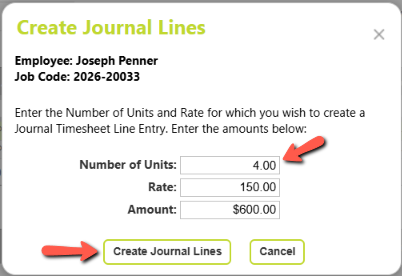
In the pop up box, enter the ‘Number of Units’ for the WIP portion to be deferred.
Now click the Create Journal Lines button in the box to create the new lines.
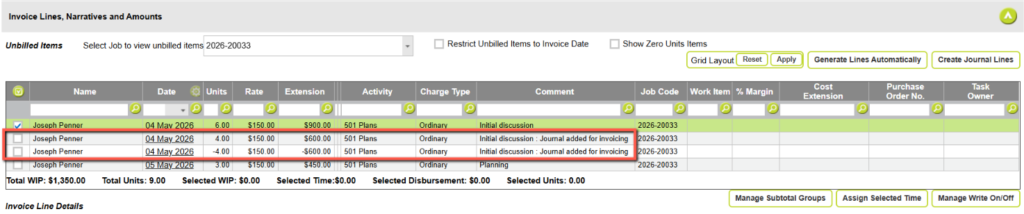
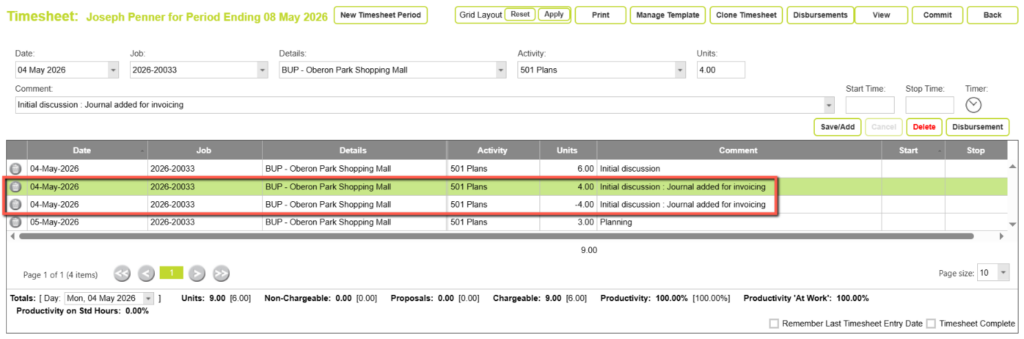
Journal Lines in the Timesheet
The new lines created will be added to the timesheet lines as shown in the below screenshot.
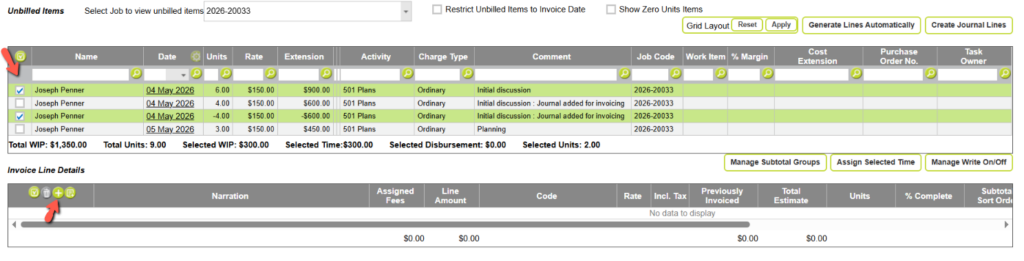
Creating Invoice Lines
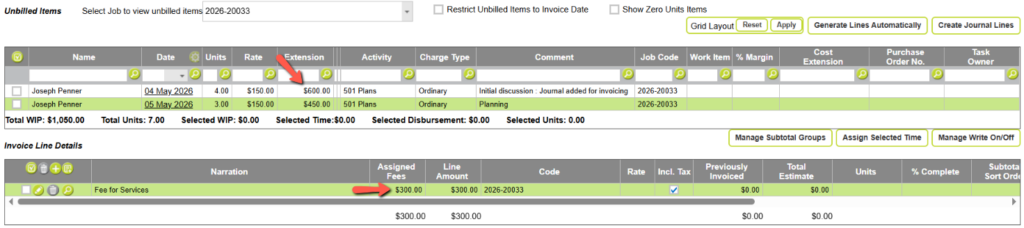
Back in the Invoice Management screen, select the unbilled item lines for the original and the deducted amounts >> then select the ‘+’ button in the ‘Invoice Line Details’ table.
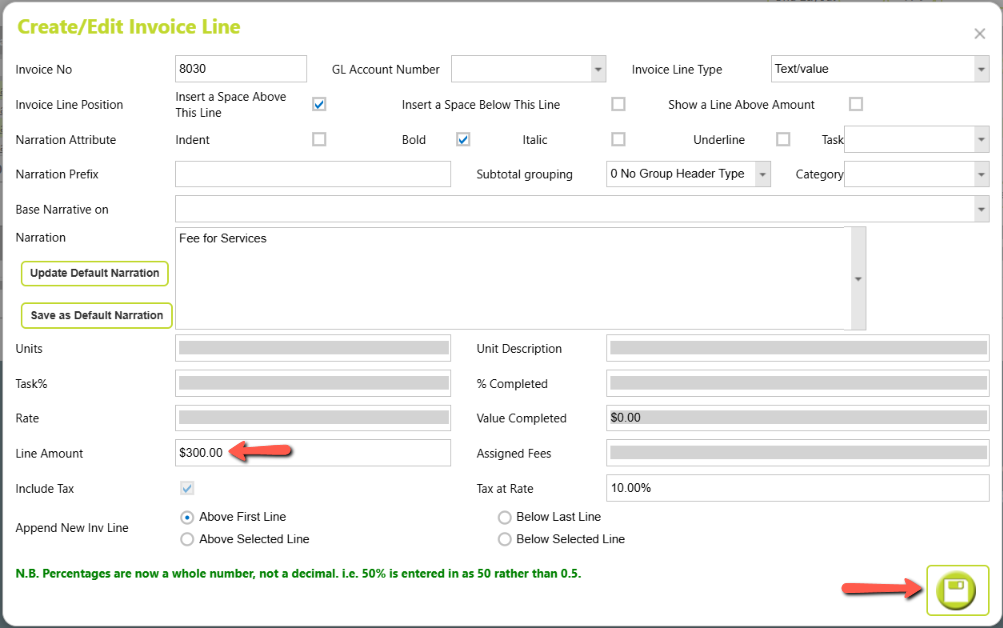
The Create/Edit Invoice Line pop up box appears.
Here you can see the amount that will be invoiced after the deduction, which is $300.00 ($900.00 – $600.00).
Check to confirm the details and click save.
The remaining amount stays as WIP for future billing.

Abtrac KB# 2248