
Xero tracking categories provide an additional way to analyse invoice revenue in Xero. Abtrac can automatically map information already recorded against your projects and invoices, such as Office, Team, Department or Job Manager, to corresponding Xero tracking categories when invoices are shared. This article explains how to configure these mappings and choose the appropriate Abtrac information to transfer.
About Xero tracking categories
Xero tracking categories provide an additional way to analyse financial information beyond your Chart of Accounts.
When sharing invoices from Abtrac to Xero, you can configure Abtrac to automatically populate Xero tracking categories using information already associated with the invoice or project.
For example, you might map:
- Abtrac Invoice Office → Xero tracking category ‘Office’
- Abtrac Team → Xero tracking category ‘Team’
- Abtrac Department → Xero tracking category ‘Department’
- Abtrac Job Manager → Xero tracking category ‘Job Manager’
- Abtrac Client Owner → Xero tracking category ‘Client Owner’
This allows information already recorded and maintained in Abtrac to be automatically applied to the corresponding tracking category when invoices are shared with Xero.
Before setting up Xero Tracking Categories
Before adding tracking categories to Xero, consider what you want to report on and where that reporting is best managed.
Abtrac already holds detailed information about your projects and invoices and provides a range of options for filtering, grouping and analysing invoice revenue. Depending on the report, this can include Invoice Office, Project Team, Client, Project, Job Owner, Job Owner 2, Project Type, Department, Client Type and Invoice Owner, along with invoice dates and other project and invoice information.
If the purpose of a Xero tracking category is simply to recreate reporting that is already available in Abtrac, you may not need to transfer that information to Xero at all.
For financial reporting, Abtrac also provides flexible GL account code mapping. Different account codes can be assigned automatically based on Office, Department, Job Type, Job Stage/Task or Disbursement, as well as selected manually for individual invoice lines. These codes are then transferred with the invoice to your accounting system.
Read more about how your Accounts codes are applied to Abtrac invoice lines here
Choose the right place for your reporting
As a general guide:
- Use Abtrac for detailed project and invoice reporting, such as revenue by office, team, department, project type, job manager, client or project.
- Use GL account codes when revenue needs to be financially classified into different sales or income accounts in Xero. Abtrac can automate much of this classification through its GL code mapping rules.
- Use Xero Tracking Categories when there is a genuine requirement to carry an additional reporting dimension into Xero.
Map Xero tracking categories to Abtrac invoices
From Accounting > Interface Settings > open your Xero interface using the Settings button

Scroll to the Tracking Category 1 and Tracking Category 2 settings.
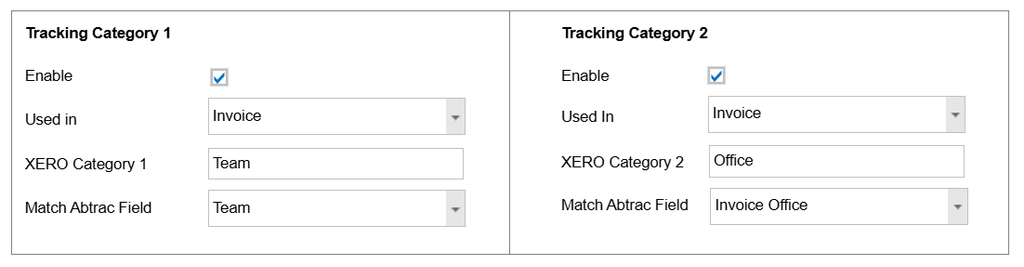
For each tracking category you want to configure, enable mapping by checking the box. In the Used In option, select Invoice if the tracking information is to be transferred when invoices are shared with Xero.
In XERO Category, enter the name of the corresponding Tracking Category Name in Xero.
From Match Abtrac Field, select the Abtrac field that should determine the tracking option.
The available Abtrac fields include:
- Default Office
- Invoice Office
- Client Owner
- Job Manager
- Team
- Department
Tracking Category Mapping Example
A Xero tracking category may use different terminology from the corresponding information in Abtrac. For example, a Xero tracking category named Group, Stream or Team could all correspond to the Team field in Abtrac.
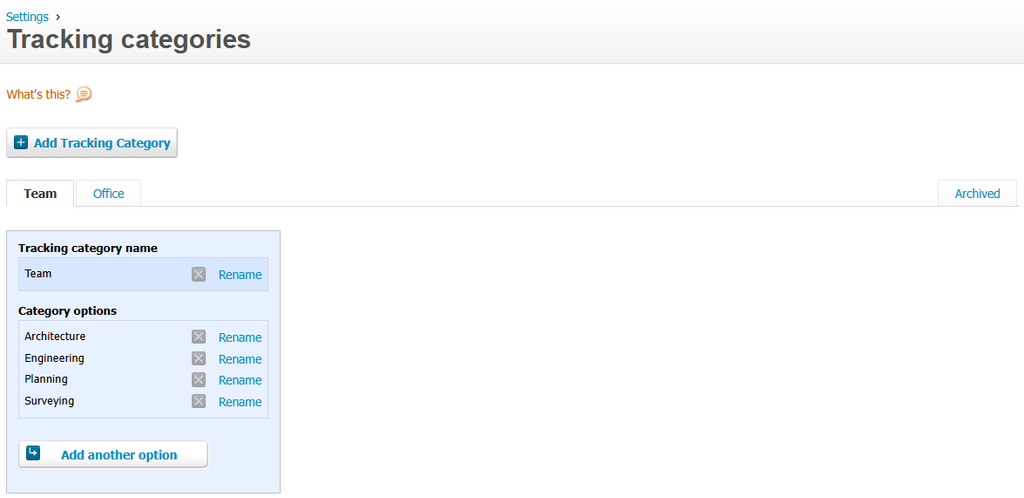
If Team is selected as the Match Abtrac Field, Abtrac uses the team associated with the project to populate that Xero tracking category when the invoice is shared.
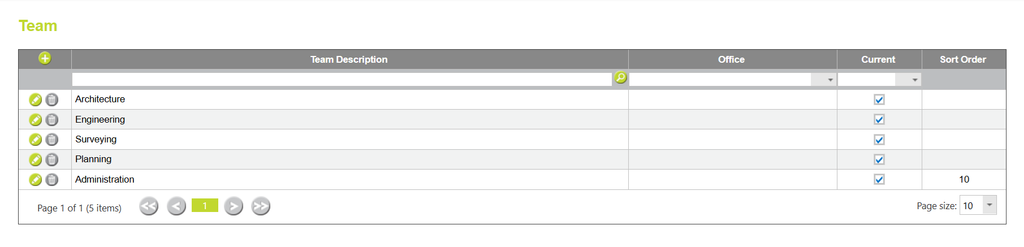
For example, if a project belongs to the Surveying team in Abtrac:
Abtrac Team: Surveying → Xero Tracking Category: Team → Xero Tracking Option: Surveying
This mapping happens automatically, so there is no need to manually add the team classification to individual invoice lines.
Using a second tracking category
If required, you can repeat the process under Tracking Category 2 to transfer another Abtrac classification.
- Tracking Category 1: Abtrac Invoice Office → Xero category Office
- Tracking Category 2: Abtrac Department → Xero category Department
When an invoice is shared, Abtrac uses the Invoice Office and Department already associated with the invoice or project to populate the corresponding tracking categories in Xero.
What about Invoice Line Category?
You may notice Invoice Line Category is also available under Match Abtrac Field.
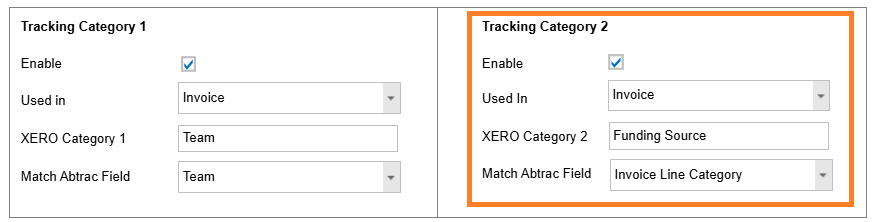
This option works differently from the fields above. Instead of Abtrac determining the tracking value automatically from the project or invoice, it allows a category to be manually assigned to individual invoice lines.
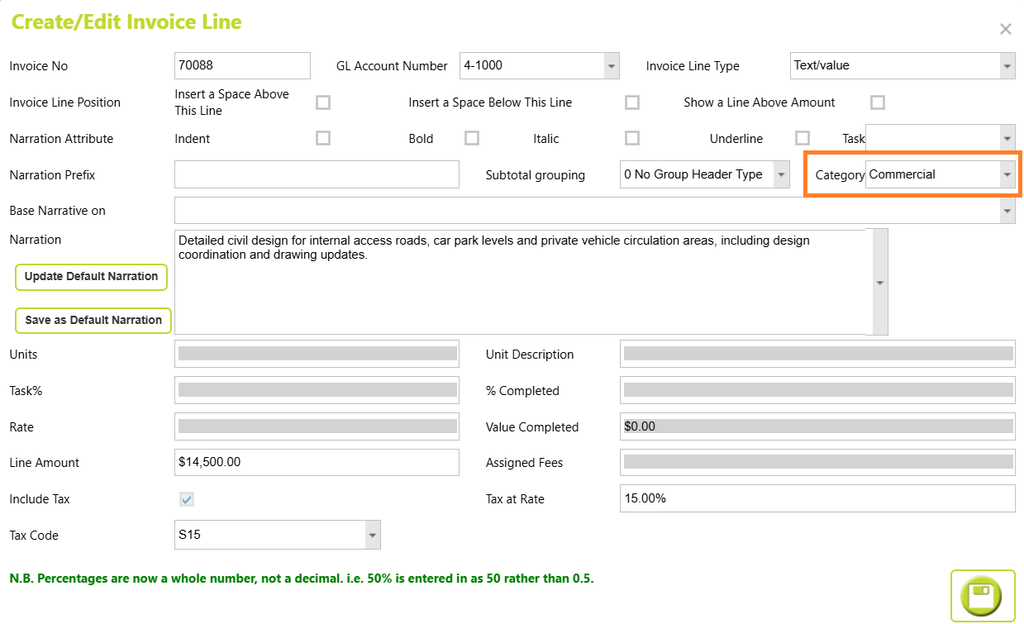
For most organisations, we recommend using the automatic tracking options above instead.
If you have a specific requirement to assign different Xero tracking options to individual invoice lines, see Using Invoice Line Categories with Xero.
Abtrac KB# 2292