
Invoice Line Categories are an optional classification tool for organisations with specialised accounting requirements.
They can be linked to Xero tracking categories (and optionally GL account codes) but should generally only be used where Abtrac cannot determine the required accounting classification from existing project, task or invoice information.
For standard reporting by office, team, department or job manager, or for allocating invoice revenue to different GL accounts, Abtrac’s existing reporting and mapping options will usually provide a more automated and consistent solution than this feature.
What are Invoice Line Categories?
Invoice Line Categories provide an additional way to manually classify individual invoice lines in Abtrac.
Depending on your accounting configuration, an Invoice Line Category can be used to:
- determine the GL account code applied to an invoice line;
- populate a Xero tracking category when the invoice is shared; or
- support both GL coding and Xero tracking where required.
However, most organisations do not need to use Invoice Line Categories.
Abtrac can already determine accounting information from your invoice, project, task and disbursement configuration. Where possible, we recommend using these existing mappings rather than introducing an additional manual classification at invoice-line level.
Use:
Abtrac reporting
for detailed project and business reporting.
Automatic Xero tracking mapping
when an existing Abtrac value such as Office, Team, Department or Job Manager needs to appear as a Xero tracking category.
GL account code mapping
when you need invoice revenue allocated to different income/revenue accounts in Xero.
Invoice Line Categories
only when individual invoice lines genuinely require a separate Xero tracking classification that can’t be determined using the options above.
Before using Invoice Line Categories
First consider what you’re trying to achieve.
I want to report by Team, Office, Department or Job Manager
Use Abtrac reporting.
If this information is also required in Xero, configure your Xero tracking categories to automatically use the corresponding Abtrac field.
Don’t manually categorise invoice lines to reproduce information Abtrac already knows.
Read more about Abtrac + Xero tracking categories here
I want different revenue types posted to different Xero accounts
Use GL account code mapping.
GL codes can be determined from existing Abtrac information, including your invoice configuration, project settings, tasks and disbursement types.
This generally provides a more reliable and automated method of assigning revenue accounts than manually categorising invoice lines.
Read more about GL Account Code mapping here
My invoice lines require a classification Abtrac can’t determine automatically
This is where Invoice Line Categories may be useful.
For example, two invoice lines generated from the same type of task may need to be treated differently for accounting purposes, with no other information available in Abtrac to determine the appropriate classification.
A Category can then be manually selected against the invoice line and used to determine the required accounting treatment.
Example where manual category classification may apply:
Imagine a consultancy has a Xero tracking category:
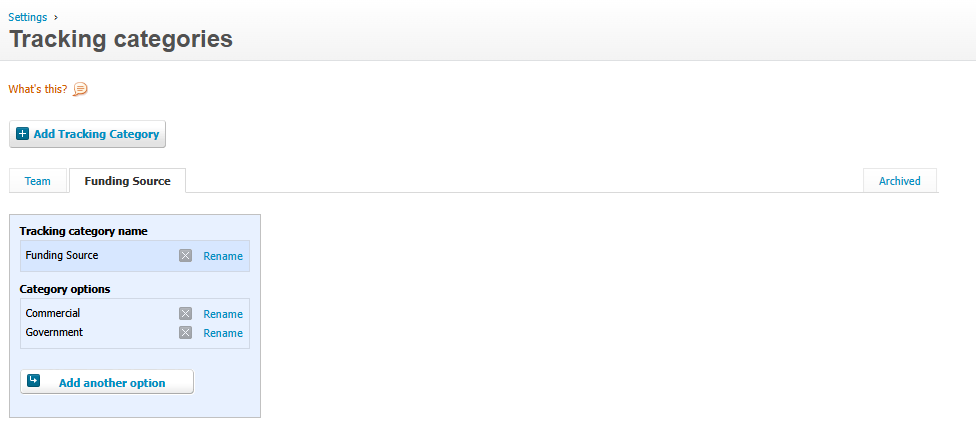
Funding Source
- Commercial
- Government
- Internal
That might have absolutely nothing to do with the project’s Team, Office, Job Manager, Task or GL code.
And perhaps one invoice contains:
- $5,000 Consulting → Government
- $2,000 Additional Services → Commercial
In this case you can deliberately add an accounting/reporting classification that Abtrac could not otherwise infer.
Maintain your Category list
You can create and maintain a list of Categories from the Categories maintenance page.
Recommendation: Only introduce Invoice Line Categories where you have a specific accounting requirement that cannot be handled using Abtrac’s existing project, task, GL code or automatic Xero tracking mappings.
From Administration > Maintenance > choose Category.
Categories that are not mapped automatically can be added manually by typing the category options into the maintenance page.
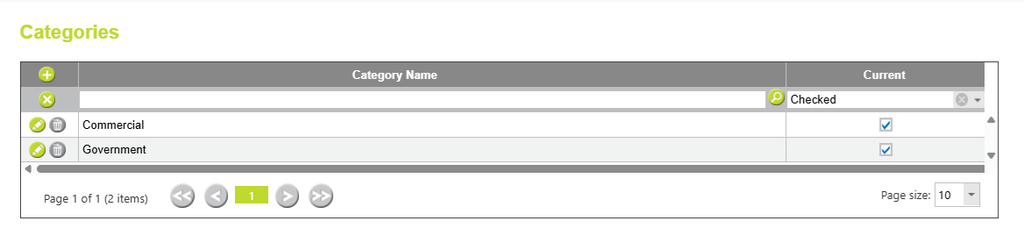
The category option must be an exact match to the Tracking Category created in your Xero account, including spelling and spacing.
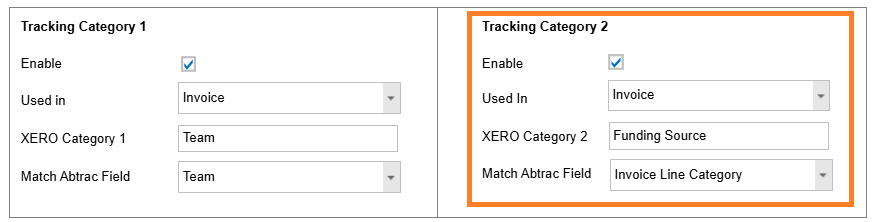
These invoice line categories must also be enabled as a manual mapping option from Accounting > Interface Settings. Setting the Xero Category Name to match to the Abtrac field of Invoice Line Category.
Assigning Categories to Invoice Lines
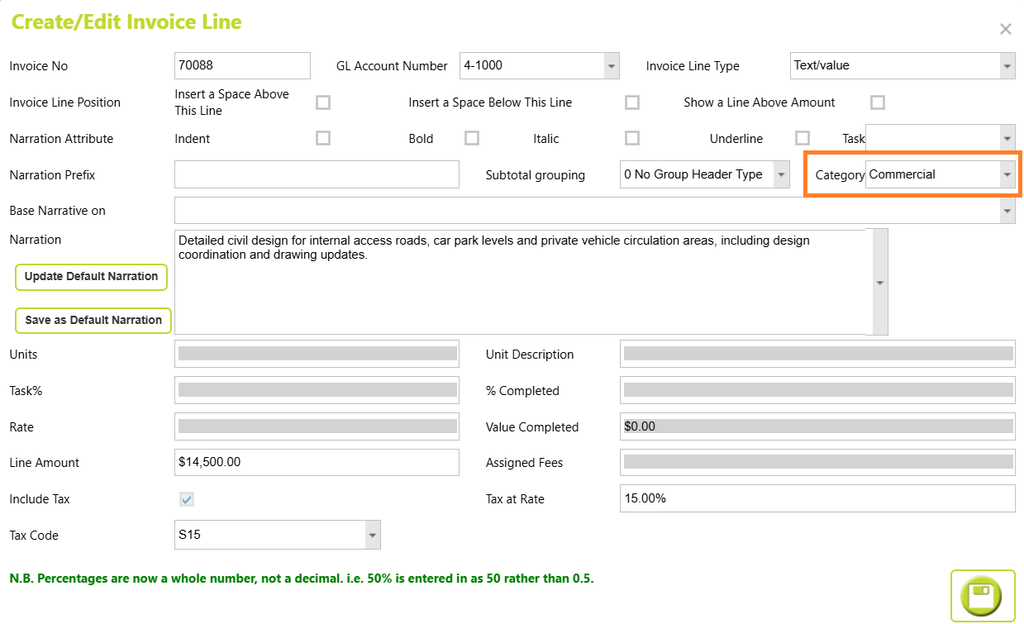
Once your list of categories have been set up, you can assign a tracking category to individual invoice lines.
From Invoices > Edit invoice line details, select the required tracking category for each invoice line. When the invoice is sent to Xero, the tracking category can then be used in Xero to report on revenue by category.
Abtrac KB# 2291