
The Approve Timesheets page allows managers and administrators to review employee timesheets before they are committed (locked). It provides a quick overview of which timesheets are complete, whether employees have entered their required hours, and whether each timesheet is ready to be committed. From here timesheets for staff can be committed in bulk.

Using the Approve Timesheets menu
From Time & Disbursements > choose Approve Timesheets > Approve Timesheets.
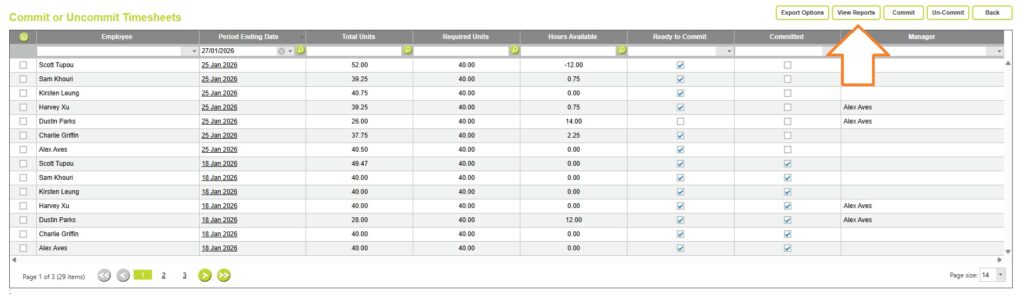
The Approve Timesheets page displays one row for each employee’s timesheet in a selected period, providing a summary of its completion and committed status.
It allows managers and administrators to quickly identify incomplete timesheets, review individual entries, and commit multiple timesheets in a single action.
View Employee details
Each row on the Approve Timesheets page represents a single employee’s timesheet for a timesheet period.
The Employee column displays the employee the timesheet belongs to, you can filter by an Employee name in the header menu.

View Timesheet Information
The Period Ending Date shows the end date of the timesheet period. You can filter by date, or view all timesheets before or after a selected date here from the Date Filter options.

Click on a timesheet period ending date to open the timesheet and review all time and disbursement entries for the selected employee before approving or committing it.
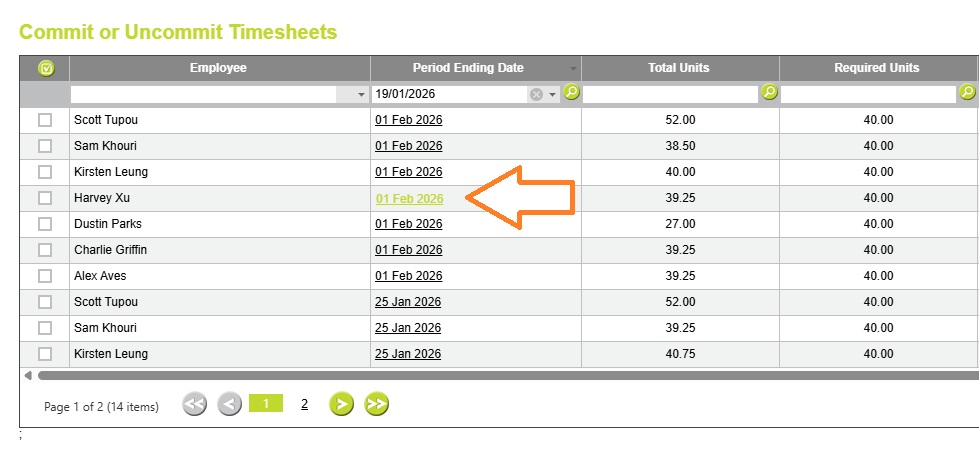
From within a timesheet you can check:

- Hours worked
- Jobs and tasks entered
- Leave
- Comments
- Any missing or incorrect entries
Once any required changes have been made, return to the Approve Timesheets page to commit the timesheet.
You can also review and check timesheet contents from the Bulk View or Bulk Edit timesheets reports.
See Total Units, Required Units and Hours Available
The Total Units, Required Units and Hours Available columns provide a quick overview of each employee’s timesheet progress without having to open the timesheet. They allow managers to see how many hours have been entered, how many are expected, and whether any time is still outstanding, making it easy to identify incomplete timesheets at a glance.
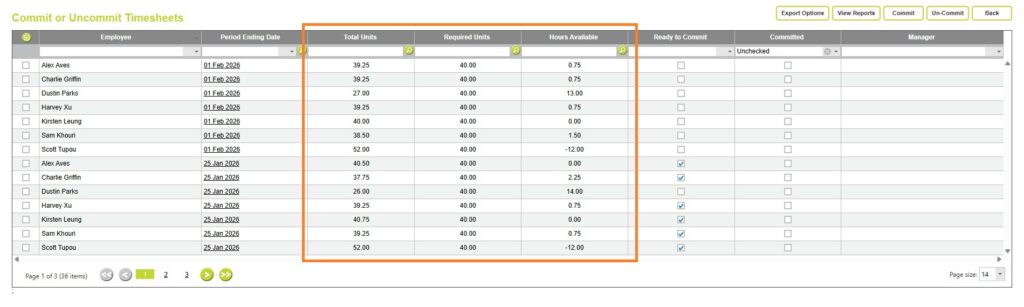
Each of the units columns can be filtered to view only timesheets that meet (or don’t meet) the required numbers.
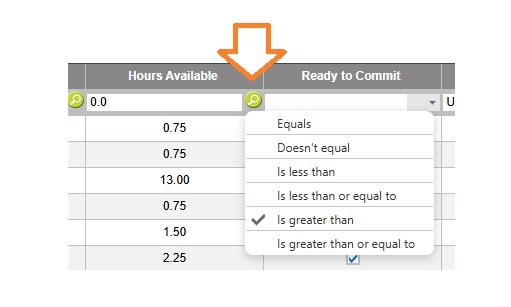
Total Units
Total Units shows the total number of hours or units the employee has entered for the timesheet period.

Required Units (Units Per Timesheet)
Required Units displays the number of hours or units the employee is expected to complete for that period.

The required Units Per Timesheet are set per employee from Administration >> Employees >> Employee Details.
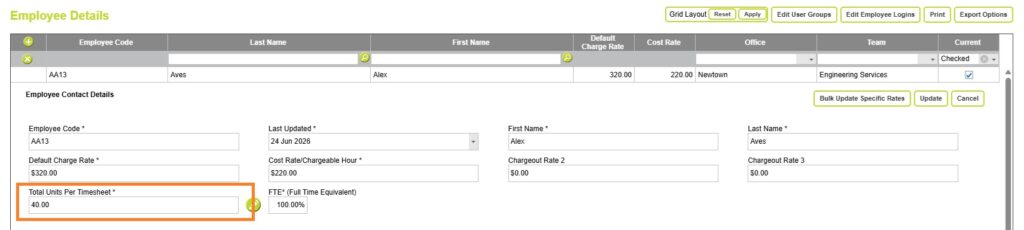
Read more about Required Units per Timesheet here
Hours Available (Remainder Units)
Hours Available shows the difference between the required units and the total units entered.
Required Units – Total Units Entered = Hours Available

A value greater than zero indicates the employee still has hours to enter before the timesheet is complete.
A negative value indicates than an employee has worked over their required units.
About Ready to Commit, Committed and Manager filters
The Ready to Commit, Committed and Manager columns provide a quick overview of each timesheet’s approval status and responsibility without having to open the timesheet. They show whether a timesheet is ready to be committed, whether it has already been locked, and who is responsible for reviewing and approving it.
Ready to Commit
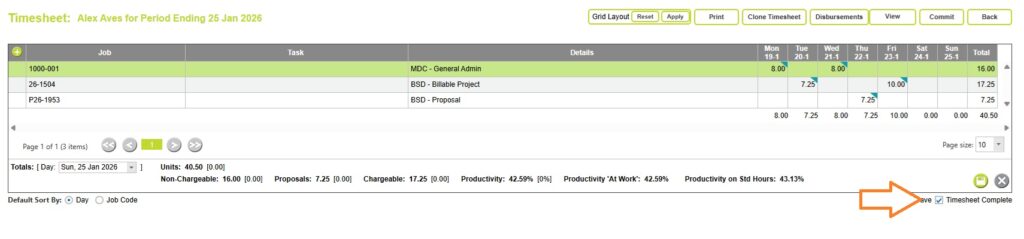
The Ready to Commit column reflects the same Timesheet Complete field found within the timesheet itself.

Employees can tick the Timesheet Complete checkbox to indicate to their manager or administrator that they have finished entering their time and the timesheet is ready for review and committing.
Committed
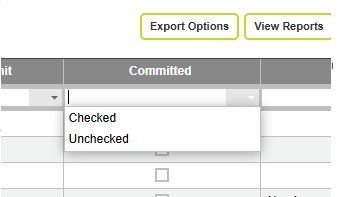
The Committed column shows whether the timesheet has already been committed (locked). Once committed, a timesheet can no longer be edited unless it is first uncommitted by a user with the appropriate permissions.
You can’t commit or uncommit timesheets from this column – you’ll need to use the buttons in the page header.

Toggle the filter options to view all timesheets, only committed or uncomitted timesheets.
Employee Manager
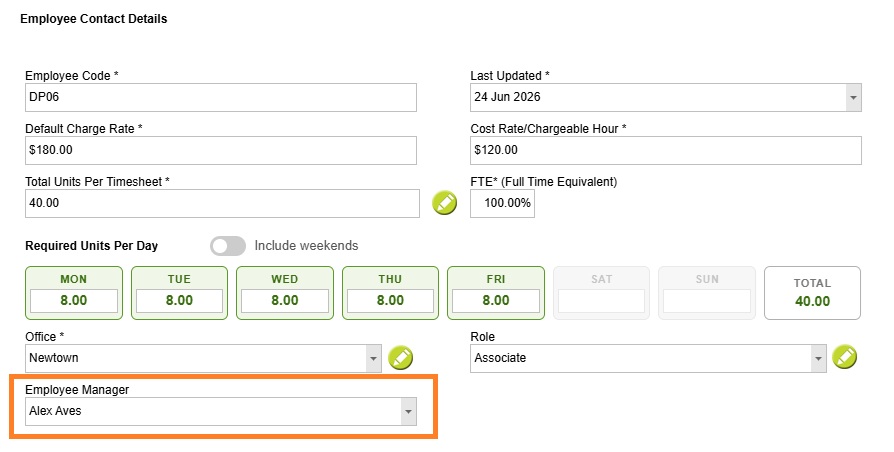
The Manager column displays the employee’s assigned manager, making it easier to identify who is responsible for reviewing and approving the timesheet. Employees assigned as Managers in the Employee Details page will only be able to view and commit timesheets for Employees which they are assigned to.

Employees with permission to view others timesheets from the Employee Hierarchy menu can view timesheets for all employees that they are able to view, regardless of whether they are assigned as a manager or not.
Read more about Employee Managers here
Committing timesheets
Committing a timesheet locks it to prevent any further changes and indicates that it has been approved for the period.
Committing Timesheets from the Approve Timesheets Page
To commit multiple timesheets, from Time & Disbursements > choose Approve Timesheets > Approve Timesheets:
Select the timesheet(s) you want to commit, then click the Commit button.

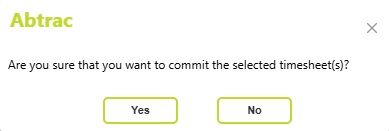
A confirmation message will appear asking “Are you sure that you want to commit the selected timesheet(s)?” Select Yes to commit and lock the timesheets, or No to cancel without making any changes.
Uncommitting Timesheets from the Approve Timesheets Page
From Time & Disbursements > choose Approve Timesheets > Approve Timesheets:
Select the timesheet(s) you want to uncommit, then click the Un-Commit button.

A confirmation message will appear asking “Are you sure want to uncommit the selected timesheet(s)?” Select Yes to un-commit and unlock the timesheets, or No to cancel without making any changes.
Committing a Timesheet from the Timesheets Page
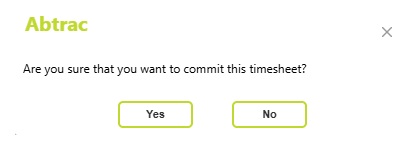
To commit a timesheet from within the Timesheets page, click the Commit button.

A confirmation message will appear asking “Are you sure you want to commit this timesheet?” Select Yes to commit and lock the timesheet, or No to cancel without making any changes.
Approve Timesheets: Export options
You can export timesheet approval data to either a XLSX or a CSV file:
- Click the Export button (top right of the page)
- The exported file will reflect your current filter settings

Approve Timesheets: Report options
From this page you can also link directly to the Listing of Incomplete Timesheets report to identify employees who have not completed their timesheets.
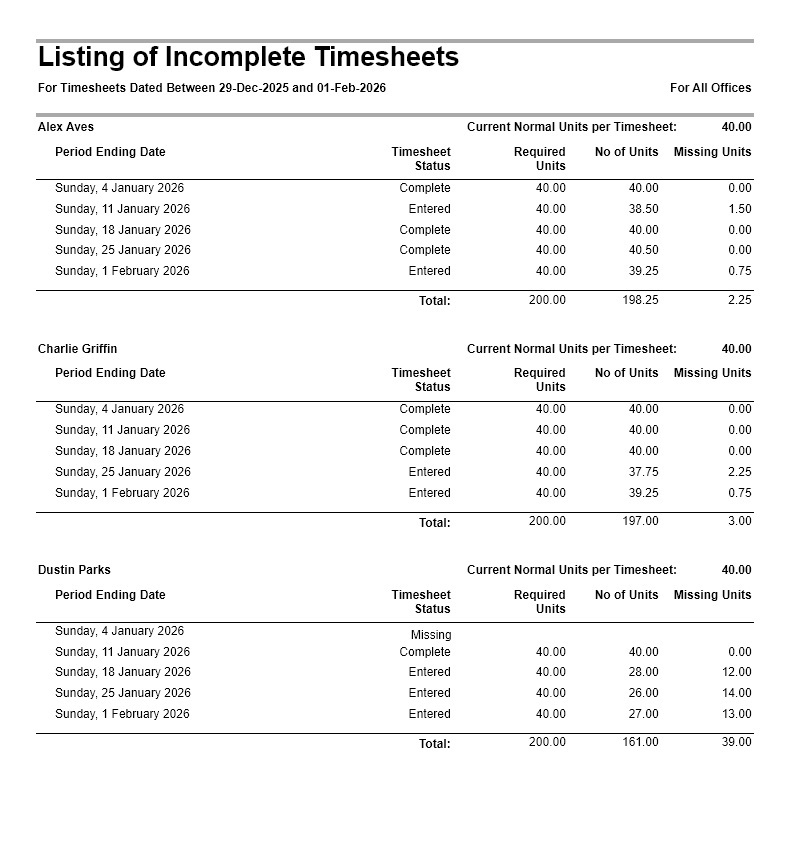
Read more about the Listing of Incomplete Timesheets report here
Who can access this page?
User Groups and Privilege settings
Access to this page is controlled by the Timesheets Commit privilege in User Groups > Manage Privileges.

Users with this permission can commit and uncommit timesheets.
Employee Hierarchy and Employee Managers
If a user is also set as an Employee Manager from the Employee Details page, these users can only see the employees they manage, making it easy to review and approve their team’s timesheets.
Employees who belong to the default Abtrac system Admin user group can view timesheets for all employees, regardless of manager assignments.
Abtrac KB# 2217