
The Listing of Incomplete Timesheets report helps identify missing timesheets and incomplete timesheet entries for a selected period. It highlights employees who have not yet created a timesheet for a period, as well as those who have created one but have not entered their required hours.
The report can include all employees or be limited to specific staff members. It can also hide completed or committed timesheets, making it easy to focus on outstanding timesheets that still require action.
Listing of Incomplete Timesheets Report
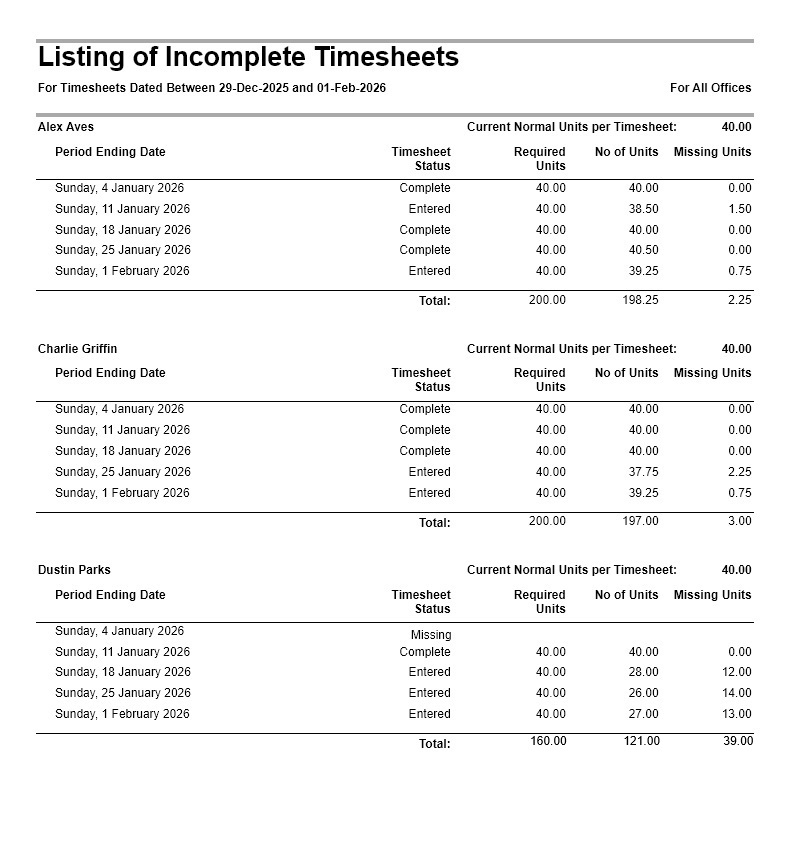
The Listing of Incomplete Timesheets report identifies employees with missing timesheet hours for a selected period, making it easy to follow up before payroll, invoicing, or reporting.
Go to Reports > Performance Reports > from the ‘Timesheet Entries’ section, click on ‘Listing of Incomplete Timesheets’.
Select the required date range.
Listing of Incomplete Timesheets Report – Filter, Sort and Grouping Options
You can also optionally filter this report by Employee Office, Team, and Employee, and group by Team.
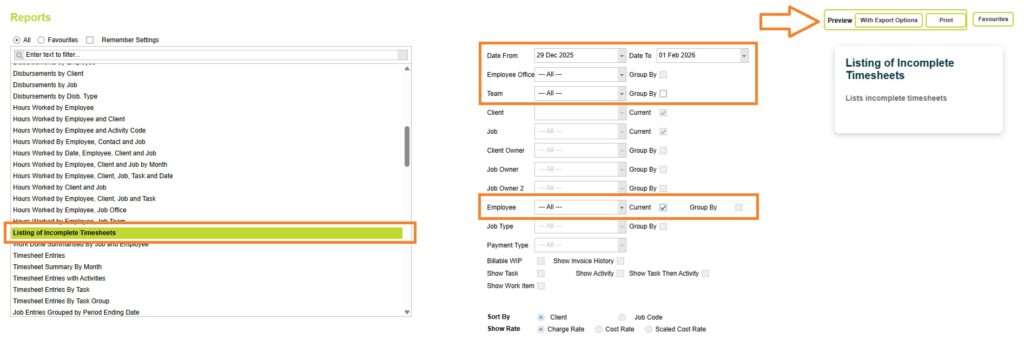
Now click on the Preview button and select one of the preview options (Print or with Export options).
Next, select any additional report options.
You can choose whether to: Include timesheets that met the required units, exclude timesheets ticked as completed, exclude committed timesheets. You can also hide employees who do not have required units specified in the Employee detail page.
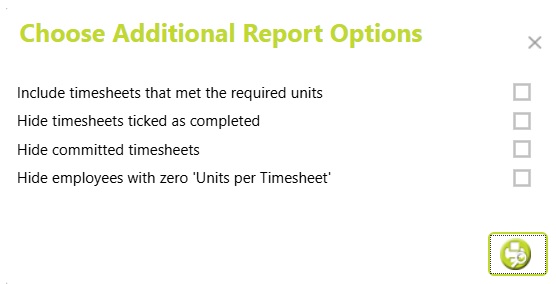
Click on the preview button to preview the Listing of Incomplete Timesheets report.
Understanding the data
The Listing of Incomplete Timesheets report is grouped by employee.
For each employee, it lists every timesheet within the selected date range, showing:
- The Timesheet period ending date.
- The current status of the timesheet (Missing, Entered, Complete).
- The employee’s required units for that period.
- The number of units entered.
- Any missing units.
- Totals for the reporting period.
At the end of each employee’s section, totals are displayed for:
- Required Units – The total units expected across the reporting period.
- No of Units – The total units entered.
- Missing Units – The total shortfall for the reporting period.
This allows managers to quickly identify employees who are consistently under their required hours and determine how much time is still outstanding.
Timesheet Status
Timesheet Status indicates whether the employee has created a timesheet and entered the required number of units for the period. The possible values are Missing, Entered, and Complete.
- Missing – No timesheet exists for the employee for that period, even though other employees in the same office have created timesheets for the same timesheet week. This indicates the employee has not yet started their timesheet.
- Entered – A timesheet has been created and time has been entered, but the total units recorded are less than the required units for that period.
- Complete – The total units entered are equal to or greater than the required units for the timesheet, indicating the employee has met their expected hours.
Required Units
The number of hours or units the employee was expected to enter for that timesheet. If an employee’s required units per timesheet have changed over time, the report uses the required units at the time that particular timesheet was created.
No of Units
The total units entered on the timesheet.
Missing Units
The difference between the required units and the units entered.
Missing Units = Required Units – Entered Units
A value of zero indicates the employee has met or exceeded their required units.
Filter options
Include timesheets that met the required units
By default, the report focuses on incomplete timesheets.
Enable this option to include timesheets where the employee has entered all required units. This can be useful when reviewing an employee’s complete timesheet history for the selected period.
Hide timesheets ticked as completed
Excludes timesheets that employees have marked as Completed, when running this report for the current period this option allows you to focus on timesheets that are still being worked on.
Hide committed timesheets
Excludes committed (locked) timesheets from the report. This is useful when reviewing only timesheets that are still awaiting approval or commitment.
Hide employees with zero ‘Units per Timesheet’
Excludes employees who do not have required units specified in the Employee detail page.
This option is useful for hiding employees who are not expected to complete timesheets, or those who work casual hours and are not contracted to a set requirement each timesheet period.
Abtrac KB # 2268