
The Aged Debtors Report provides a summary of outstanding debtor balances, grouped into ageing periods based on the invoice date. It helps you identify overdue accounts, monitor cash flow, and prioritise debtor follow-up activities.
The report can be run as either a 3-month or 6-month ageing analysis and provides a snapshot of debtor balances as at a selected date.
The Aged Debtors report is only available with Abtrac’s Debtor Management module.
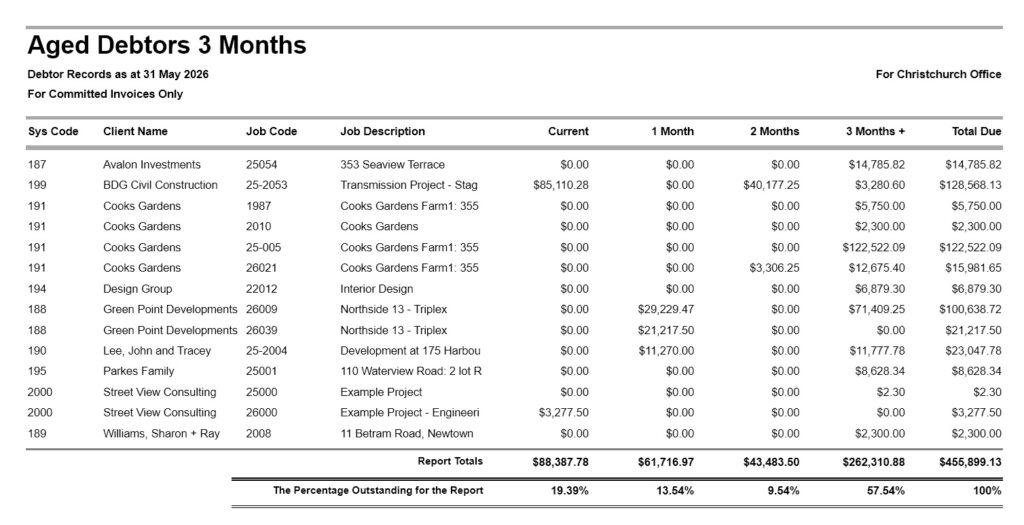
Aged Debtors Report
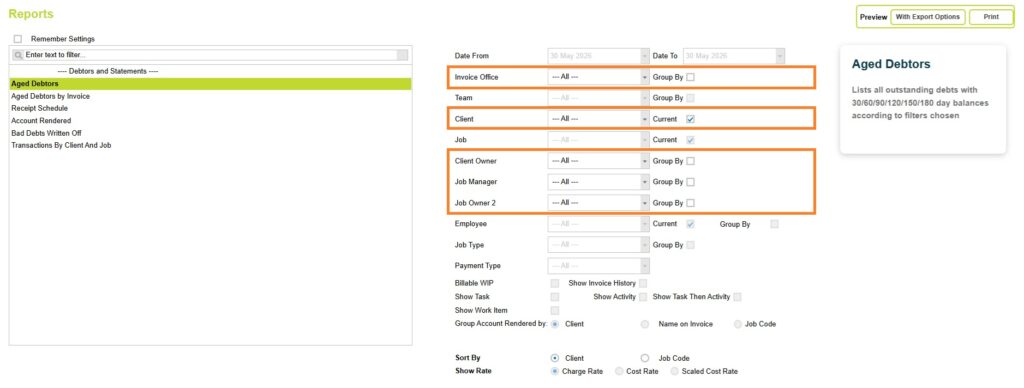
Go to Debtor Management >> Debtor Reports >> click on ‘Aged Debtors’ then select any filter options. You can set the date range, and aging perioed in the next step.
Aged Debtors Report – Filter, Sort and Grouping Options
You can also optionally filter, and group this report by Invoice Office, Client Owner, Job Owner 1, and Job Owner 2, and filter by Client Name.
Now click on the Preview button and select one of the preview options (Print or with Export options).
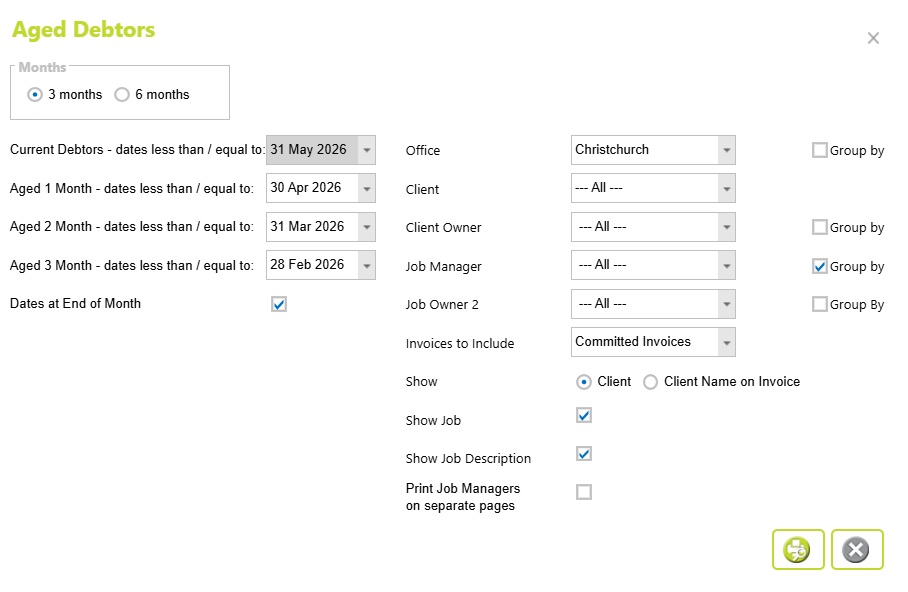
Next choose your Date range, and additional sorting options.
You can choose whether to display ageing periods over 3 or 6 months, and optionally calculate ageing using month-end dates.
The same filter options from the main reports menu are displayed in the pop up.
In addition you can also control which invoices are included in the ageing calculation, such as All, Uncommitted or Committed Invoices.
Here you can choose whether the report displays the Client name or the Client Name on Invoice, and optionally include the Job Code and Job Description.
Click on the preview button to preview the Aged Debtor report.
Understanding the data
The report lists each client with outstanding invoices and shows how much is owing within each ageing period.
Typical columns include:
- Sys Code
- Client Name
- Job Code
- Job Description
- Current
- 1 Month
- 2 Months
- 3 Months+
- Total Due
- Client or Job Owners
At the end of the report, totals are provided for each ageing column, along with the percentage of the total outstanding debt represented by each ageing period.
How ageing periods are calculated
Ageing periods based on the invoice date. The report uses a selected “as at” date to determine which invoices fall into each ageing category.
For a 3-month report run as at 30 May 2026:
| Ageing Category | Description | Invoice Date Cut-off |
| Current Debtors | Outstanding invoices that fall within the current ageing period | 30 May 2026 or later |
| Aged 1 Month | Outstanding invoices aged one month | 30 April 2026 or earlier |
| Aged 2 Months | Outstanding invoices aged two months | 30 March 2026 or earlier |
| Aged 3 Months+ | Outstanding invoices aged three months or more | 28 February 2026 or earlier |
These cut-off dates are automatically calculated based on the report date and selected ageing period.
Grouping by Owners
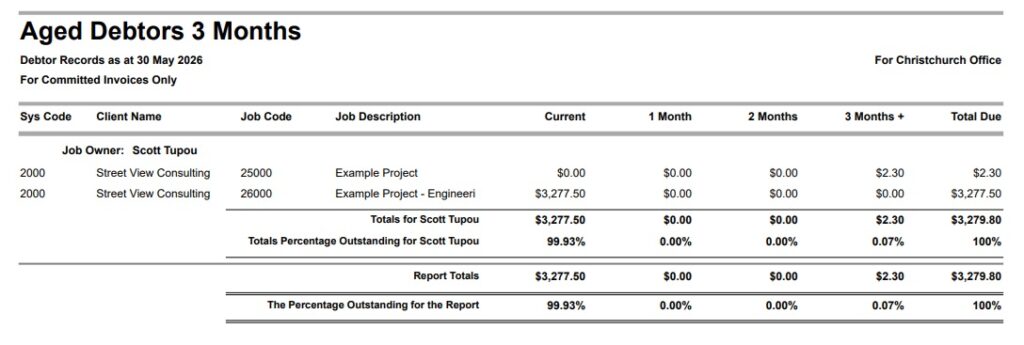
When the report is grouped by Client Owner, Job Owner1, or Job Owner 2, separate totals and percentage breakdowns are also displayed for each group, allowing you to analyse outstanding debt by Owners.
Sys Code
The client’s system code in Abtrac, from the Client Details page.
Total Due
The total outstanding balance for the client (and job, if displayed), including tax, across all ageing periods and regardless of invoice age. This will balance to data with the equivalent filters on the Debtor Control or Invoices and Payments pages.
Report Totals
Totals are provided for each ageing column. These are the totals outstanding including tax. These reconcile to data with the equivalent filters on the Debtor Control or Invoices and Payments pages.
Percentage Outstanding
The percentage outstanding shows how much of the total debt is represented by each ageing period. This helps you understand the age profile of your outstanding debt and identify whether balances are primarily current or overdue. The percentages are calculated using the Report Totals and will always add up to 100%.
Abtrac KB # 2256