
The Invoice Payments page in Abtrac is the standard payment tracking feature included with your subscription. It allows you to record, view, and manage invoice payment statuses in a simple, streamlined way.
For more advanced debtor management—such as detailed payment tracking and partial payments—see the Invoices and Payments article (available with the Debtors add-on module).
About Invoice Payments
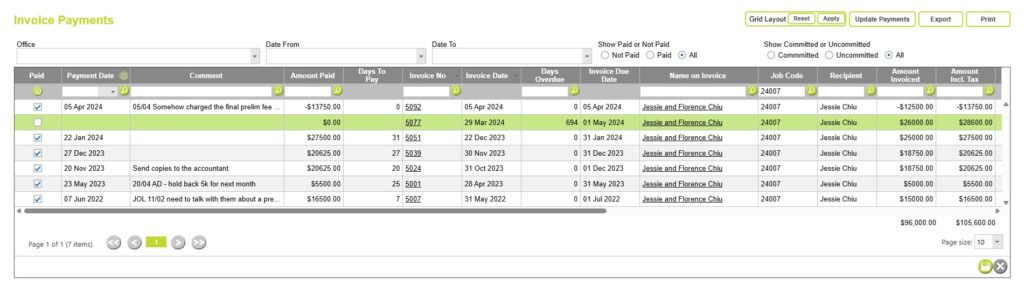
To open the Invoice Payments page go to Invoices > Invoice Payments
From here you can view all invoices and update their payment status.
The Invoice Payments page allows you to:
- Mark invoices as paid in full
- Record or update payment dates
- Add payment comments
- Filter invoices by various criteria
- Export or print invoice payment data
- View whether invoices have been sent to your accounting system(and which batch number they belong to)
Recording Manual Invoice Payments
To record a payment, locate the invoice in the list and tick the Paid checkbox on the invoice line.
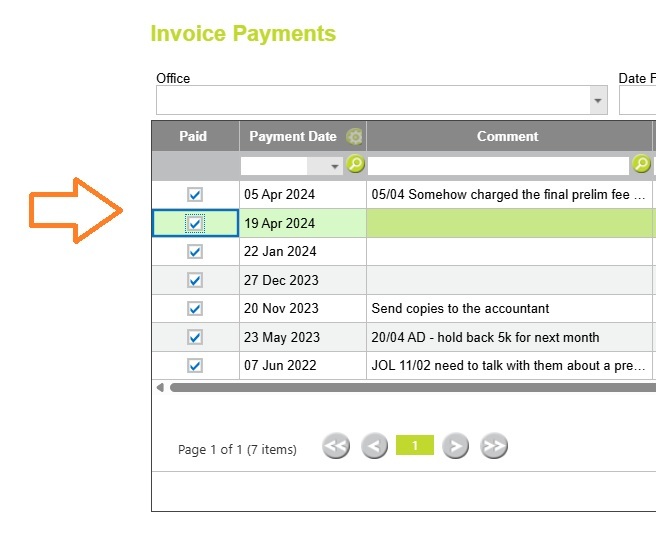
The Payment Date will default to today’s date, but you can change this if needed.
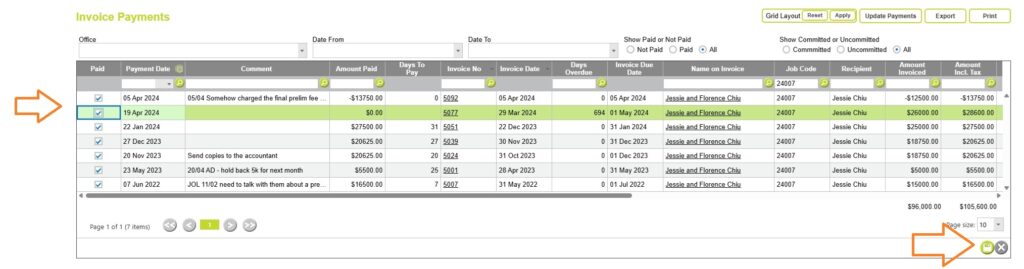
The Amount Paid will initially display as $0.00. Once you save using the button at the bottom right, it will automatically update the Amount Paid to match the total invoice amount (including tax).
You can tick multiple invoices as paid and save them all at once.
Full Payments Only (No Partial Payments)
On the Invoice Payments page, the payment amount cannot be edited — when paid it will always match the full invoice total.
If you need to record partial or overpayments, this is available with the Invoices and Payments add-on, included in Abtrac’s Debtor Management module. You can purchase this feature by following the steps here: How to activate Abtrac’s Debtors Module
Adding Payment Comments
The comments shown on this page are the Job Billing Comments, which flow from the job to the Manage WIP page and then to the invoice.


You can add to or overwrite these with payment-related notes when recording a payment.
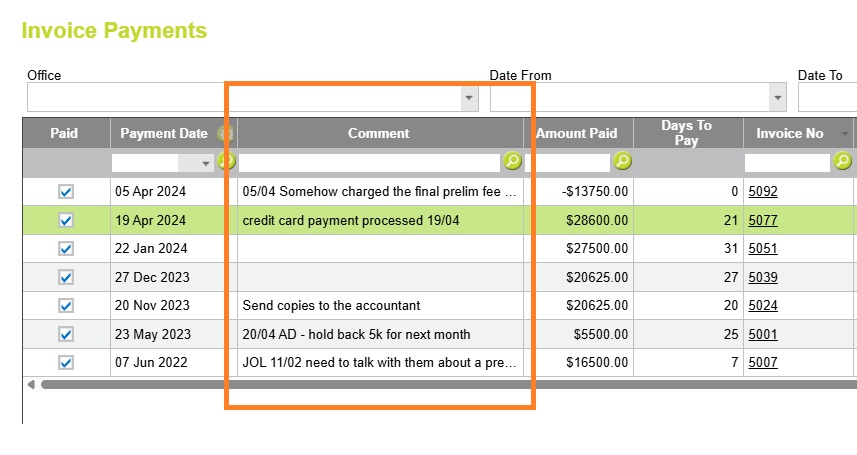
These comments will then display on the Load Invoice page and within the invoice header details on the Invoice Management page.

Filtering Invoice Payments
Use the filters in the header to refine the list of invoices:
- Office
- Date Range (Date From / Date To)
- Paid Status (Paid / Not Paid / All)
- Committed Status (Committed / Uncommitted / All)
These filters apply to both the on-screen list and any exported or printed reports.

Customising onscreen options – User Control Settings
Like most screens in AbtracOnLine, you can change the display order of these fields from Administration >> Settings >> User Control Settings >> choose the ‘Invoice Payments’ page.
See all the options here: User Control Settings: Invoice Payments
Update Payments (only available with the accounts link)
With a subscription to the Abtrac accounts link you can also update payments back into Abtrac from your accounting software. (This is a paid add on to your subscription)
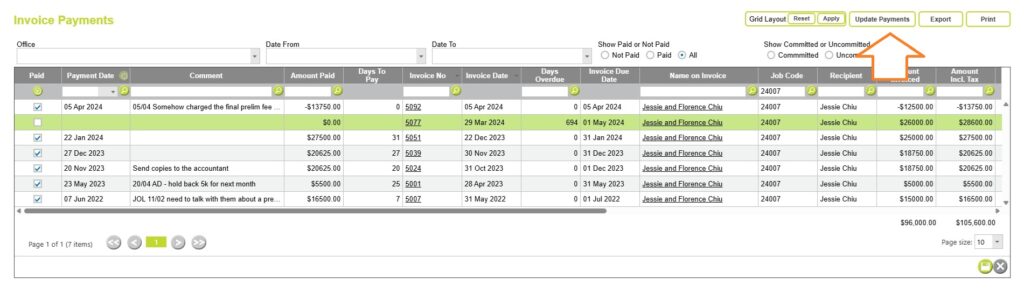
Clicking on update payments gives the following prompt to check your settings before proceeding.

Only invoices that are paid in full in your accounting system are also automatically marked as paid in Abtrac, and a payment date is applied.

A confirmation of the number of attempted and successful payment matches is shown once the sync is completed.
Please note when using the update payments option any subsequent manual adjustments or credits from your accounting system will not be re-synced and applied to Abtrac once a payment has been synced.
Partial payments, underpayments, or overpayments from your accounts are not supported in this basic payments page page
Exporting Invoice Payment Data
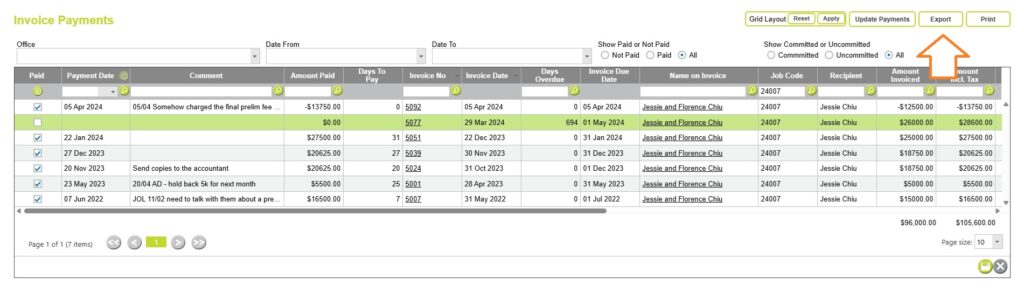
You can export invoice payment data to a CSV file:
- Click the Export button (top right of the page)
- The exported file will reflect your current filter settings
Printing the Invoice Payments Report
To generate an Invoice Payments Report, From Invoices > Invoice Payments > click the Print button and select Invoice Payments Report.
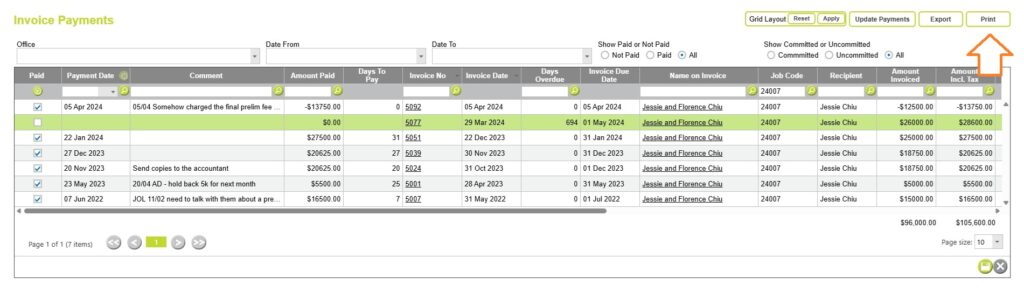
The report will include invoices based on the filters you select, such as office, date range, paid status, and committed status.
This allows you to quickly focus on the invoices you need to review or share, whether you’re tracking overdue payments, verifying committed amounts, or reconciling your records. The report provides a comprehensive view of each invoice, including client details, financial amounts, status information, and any comments recorded during billing or payment.
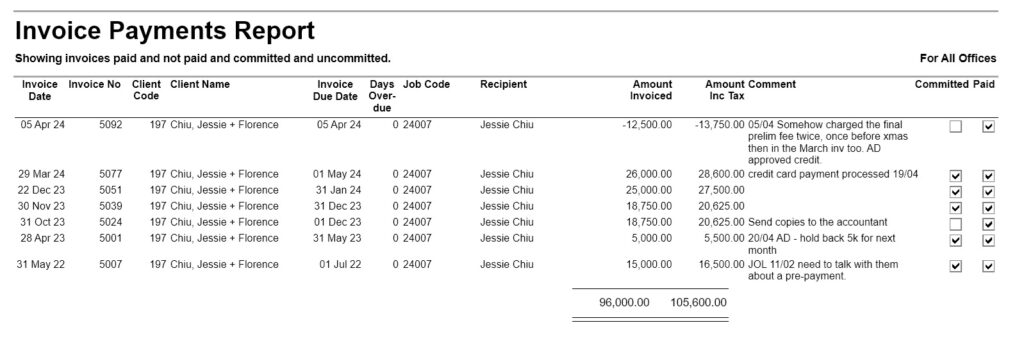
Report fields include:
- Client Code
- Client Name
- Days Overdue
- Job Code
- Recipient
- Amount Invoiced
- Amount Incl. Tax
- Comment
- Committed Status
- Invoice Date
- Invoice Number
- Invoice Due Date
- Paid Status
Abtrac KB # 2197