
Invoice Payment Reminders in Abtrac allow you to send reminder emails for overdue invoices directly from the Debtor Control page.
Invoice Reminders in Abtrac aren’t fully automatic in the sense that they can’t be set up and left to run on their own. However, they are designed to streamline the reminder process by allowing you to select and send reminders in bulk, without needing to manually attach invoices, choose recipients, or prepare individual emails each time.
Reminder emails can be sent individually or grouped together and can include invoice PDFs and Account Rendered statements.
Reminder history is automatically recorded against each invoice, helping you track debtor follow-up activity.
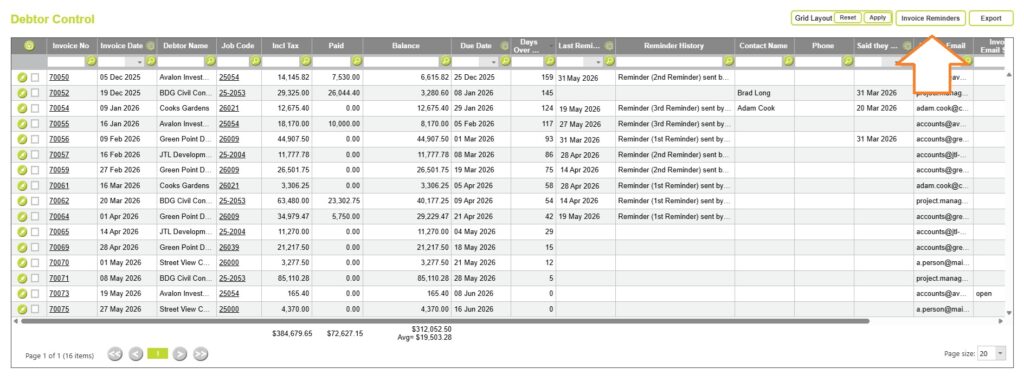
Debtor Management > Invoice Reminders
Abtrac Invoice reminders are handled in through the Debtor Control section in Debtor Management.
Go to Debtor Management > Debtor Control to view all outstanding invoices. You can customise the fields shown in this screen via User Control Settings.
Learn more about the Debtor Control page here
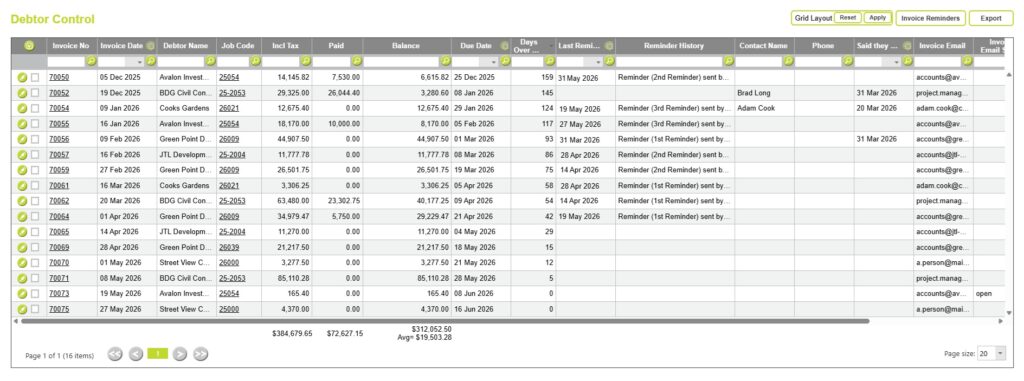
Select invoices to send payment reminders
Use the checkboxes on the left-hand side of the Debtor Control table to select one or more overdue invoices.
Once selected, click the Invoice Reminders button on the top right.

Abtrac will ask you to confirm that the selected invoices are committed, and that they have an overdue balance (not overpaid) before continuing.
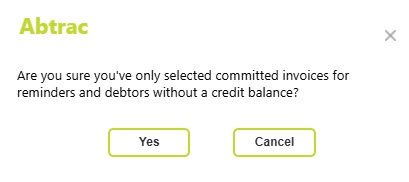
Click on the ‘Yes’ button and the Invoice Reminder send options pop up appears.
Invoice Reminder Send Options
The Invoice Reminder window allows you to choose how reminder emails are grouped and what supporting documents are included.
Reminders can be sent individually for each invoice, grouped by job, or combined into a single email for each invoice recipient.
Depending on the grouping option selected, you can also attach invoice PDFs and Account Rendered statements to provide clients with additional information about their outstanding balances.
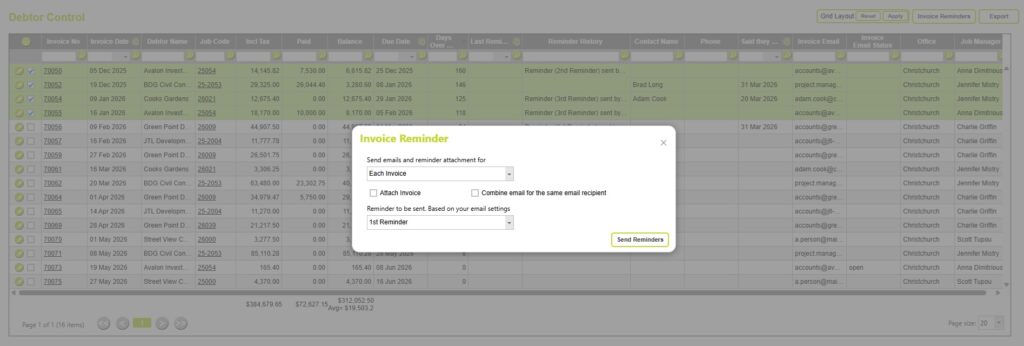
Send one payment reminder per Invoice
Select ‘Each Invoice’ to send a separate reminder email for each selected invoice.
This option is useful when reminders need to be tracked individually. You can attach the invoice to the reminder email, and even when sending individual invoice reminders you can combine email reminders where the email recipient address is the same.

Group payment reminders by Job
Send a single reminder email containing all overdue invoices for the same job.
This reduces the number of emails sent when a project has multiple outstanding invoices. With this option you can automatically attach both invoices and an account rendered for the job to the reminder email.

Group payment reminders by Invoice Name
Send a single reminder email containing all overdue invoices for the same invoice recipient name (typically the client), although this setting is driven by the Name on Invoice – not Client Name.
This option is useful where a client has multiple jobs or projects with outstanding balances. With this option you can automatically attach both invoices and an account rendered for the job to the reminder email.

Attach supporting documents to reminder emails
You can choose to automatically include:
Invoice PDFs
Attach a copy of each overdue invoice to the reminder email.
Account Rendered(Statement)
When grouping reminders by Job or Invoice Name, you can also attach an Account Rendered statement showing the client’s outstanding balance. Take care when choosing this option that your Account Rendered template is set up to show job details (if applicable).
Read more about setting up Account Rendered templates here
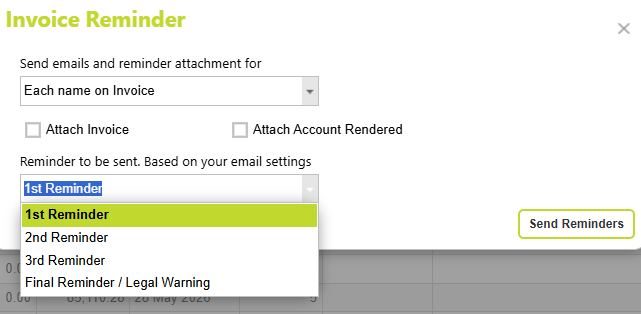
Select a Reminder Email template to be sent
Choose the email template you wish to use.
Templates are configured in: Administration > Settings > Email Settings
Read more about Setting up invoice reminder template emails here
Review reminder emails before sending
Once you’ve confirmed your settings in the Invoice Reminder options box > click Send Reminders

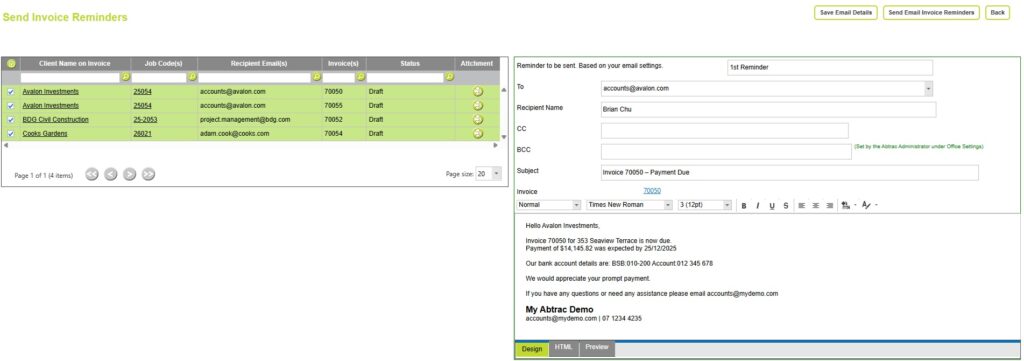
Abtrac will open the Send Invoice Reminders screen.
From here you can:
- Preview attached invoices, or accounts rendered
- Open the reminder email
- Edit the email wording
- Make final changes before sending
Reminder emails are sent to the same invoice recipient email address used on the original invoice.
To edit an individual email
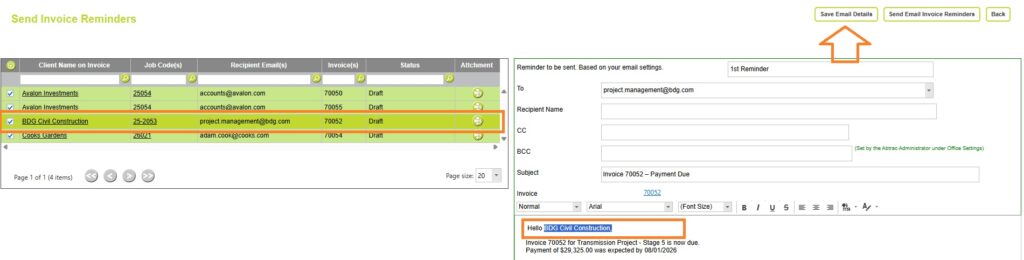
To edit an individual email reminder. Click on the relevant Client or Invoice row on the left.
Make your changes in the table on the right.
Click Save Email Details.
Send Reminder Emails
When you are satisfied with the reminders, click Send Email Invoice Reminders
Once successfully sent, the status on the Send Invoice Reminders page updates to Email Sent.
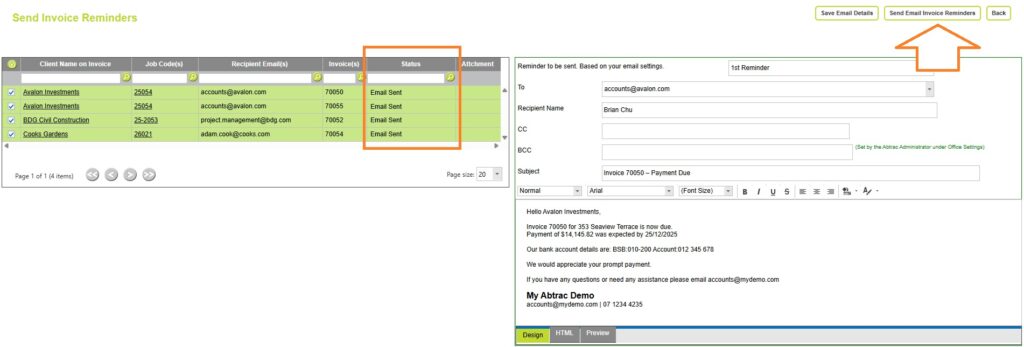
This same Email Status can also be seen from the Email Notifications page.

Viewing Invoice Reminder History
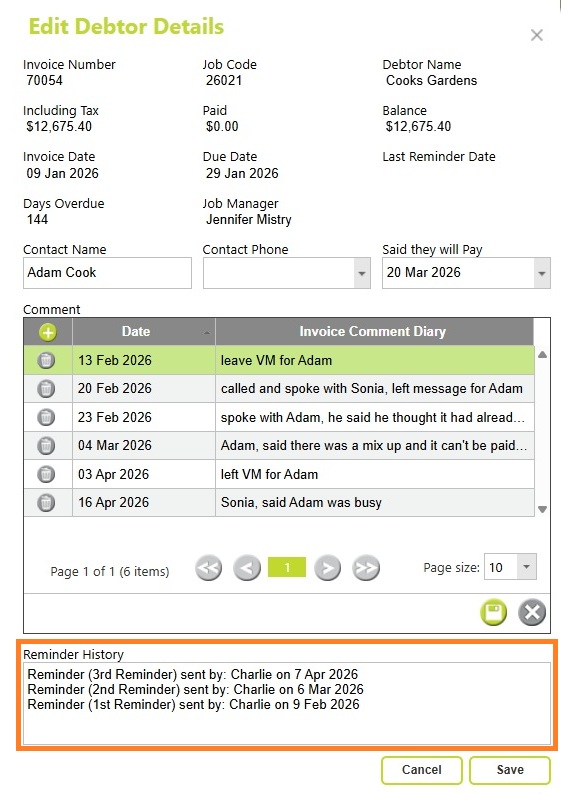
Abtrac automatically records each reminder sent, including the reminder date and the reminder template used.
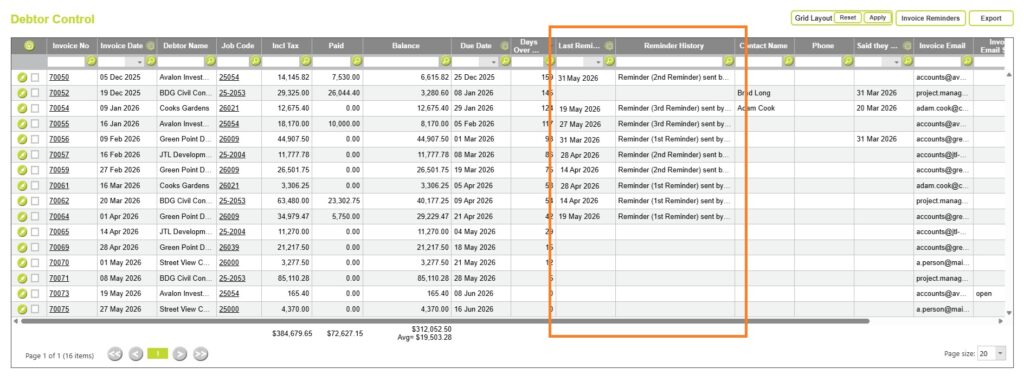
You can view this information from the Last Reminder Date and Reminder History columns in the Debtor Control page. The Reminder History and Date columns can be filtered or sorted, making it easy to track the progress of your debtor recovery process.
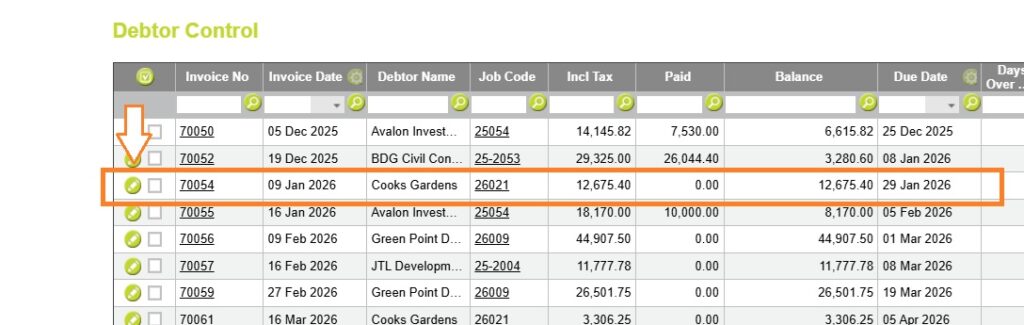
More detail is also visible in the Reminder History section of the Debtor Details screen.
Abtrac KB# 2154