
Timesheet reminders help ensure employees complete their timesheets on time by automatically sending email reminders when they have not entered their required Total Units per Timesheet.
Reminder emails are only sent when a timesheet exists for the period and the employee has not met their required total units. Reminders can be sent before the end of a timesheet period, on the period end date, or after the period has finished.
Enable Timesheet Reminders
Employees with Timesheet Reminders enabled will automatically receive an email if they have not completed their required Total units per Timesheet.
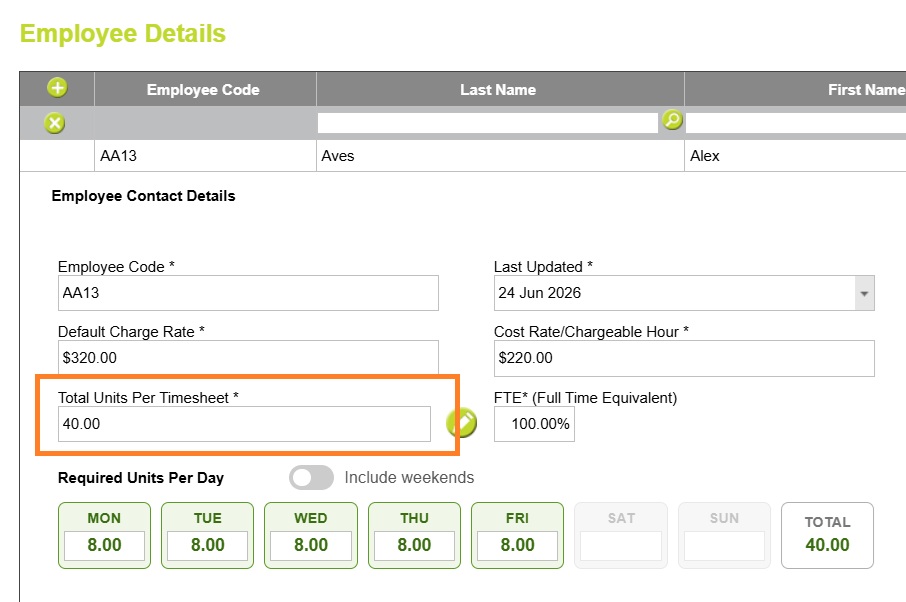
Read more about Timesheet required units here
Set Timesheet reminders for all Employees
To enable timesheet reminder emails for all employees, go to: Administration > Settings > System Settings > Employees

Enable Timesheet Reminders and enter the number of days relative to the end of the timesheet period that reminder emails should be sent.
This setting becomes the default for all employees.
Set or Remove Timesheet reminders for selected Employees
You can override this setting for individual employees by going to:
Administration > Employees > Employee Details
Enable Timesheet Reminder Emails and enter the number of days relative to the end of the timesheet period that reminder emails should be sent. Or remove reminders for selected employees, by unchecking the Send Timesheet Reminder Emails box.

Setting Reminder Dates
The Days After End of Timesheet Period setting determines when Abtrac checks whether an employee has entered their required timesheet units and, if not, sends them a reminder email.
The value is based on the end date of the employee’s timesheet period.
- Enter 0 to send the reminder on the final day of the timesheet period.
- Enter a positive number to send the reminder after the timesheet period has ended.
- Enter a negative number to send the reminder before the timesheet period ends.
For example, if an employee’s weekly timesheet period ends on Friday:
| Setting | Reminder Sent |
|---|---|
| -2 | Wednesday (2 days before period end) |
| 0 | Friday (the period end date) |
| 1 | Saturday (1 day after period end) |
| 3 | Monday (3 days after period end) |
Negative values are useful if you want to encourage employees to complete their timesheets before the end of the week, while positive values allow staff a grace period before receiving a reminder.

When Are Timesheet Reminder Emails Sent?
Timesheet reminder emails are only sent when all of the following conditions are met:
- A timesheet has been created for the timesheet period.
- The total units entered on the timesheet are less than the employee’s required units.
- The reminder date configured in System Settings has been reached.
Reminder emails are not sent if:
- No timesheet has been created for the period.
- The timesheet has met or exceeded the employee’s required units.
If an employee has committed or marked their timesheet as complete, but the total units are still less than their required units, they will still receive a reminder email. Reminder emails are based on whether the required units have been met, not whether the timesheet has been committed or marked as complete.
Customise the Reminder Email
You can customise the email employees receive by creating a Timesheet Reminder email template.
Go to:
Administration > Settings > Email Settings
Select Timesheet Reminder as the Email Type and edit the subject and message as required.

If no custom template has been created, Abtrac will use the default Timesheet Reminder email.
See Email Templates for more information about creating and managing email templates.
Default Timesheet Reminder Email
If a custom template has not been configured, employees will receive Abtrac’s standard Timesheet Reminder email.

Abtrac KB# 2264