
The My Settings page in Abtrac allows you to personalise how the system behaves for your user login. These settings control things like how your timesheets display, how grids behave, how may rows appear in your pages by default, and how certain features (such as timers and invoicing) function.
Changes made here apply only to your user profile and do not affect other users. For team-wide consistency, use System Settings instead.
Accessing User Specific Settings
To open your personal settings > from the Login Icon in the top right of the page > choose Edit My Settings.

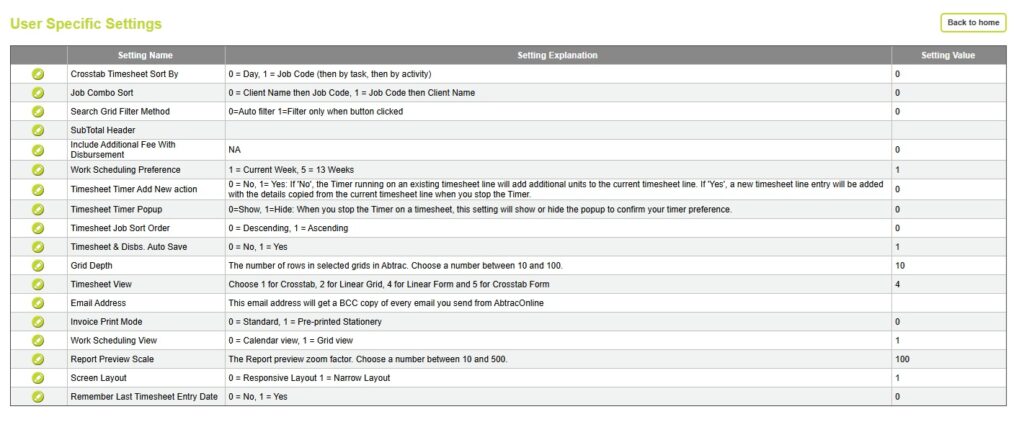
From Edit My Settings > The User Specific Settings table lists all the features you can customise and have remembered for your login. Each option—such as sorting, display, and data entry—comes with a default set by Abtrac or your system administrator. You can override these defaults to save your own preferences each time you log in.
Timesheet Settings
These settings control how your timesheets behave and display.
Crosstab Timesheet Sort By
Controls how entries are ordered in Crosstab timesheets:
- 0 = Day
- 1 = Job Code (then Task, then Activity)
Timesheet View
Choose your preferred timesheet layout:
- 1 = Crosstab
- 2 = Linear Grid
- 4 = Linear Form
- 5 = Crosstab Form
Timesheet Job Code drop down sort order
Controls the order job codes appear in the timesheets pick list of projects:
- 0 = Descending
- 1 = Ascending

Job Combo (Details) drop down sort order
Controls how jobs are listed in the form and grid drop down options:
- 0 = Client Name, then Job Code
- 1 = Job Code, then Client Name

Timesheet & Disbursements Auto Save
- 0 = No – changes must be saved manually
- 1 = Yes – changes are saved automatically
Remember Last Timesheet Entry Date
- 0 = No – defaults to today’s date
- 1 = Yes – remembers the last date you entered
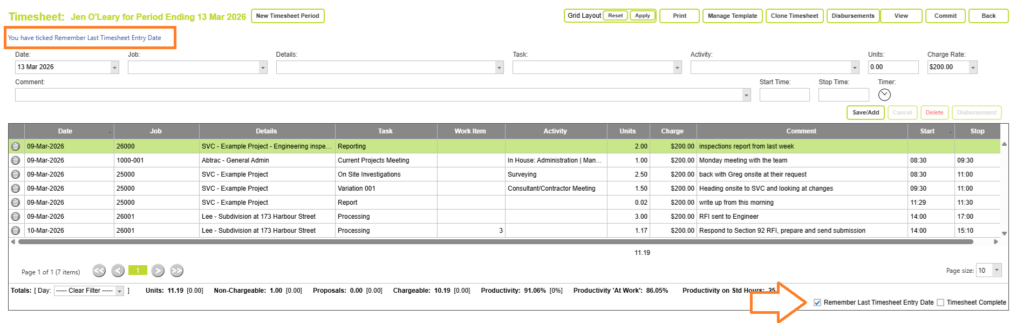
When using the form view you can leave the date field blank. If left blank, Abtrac will default to today’s date.
If the “Remember Last Timesheet Entry Date” option is enabled in your settings, Abtrac will remember the last timesheet entry date – within that timesheet. You can do this from the checkbox at the footer of your timesheet in Linear Form View, or from within the My Settings page.
Timesheet Timer Settings
These settings affect how the built-in timer behaves.

You can read more about the Abtrac timer option here
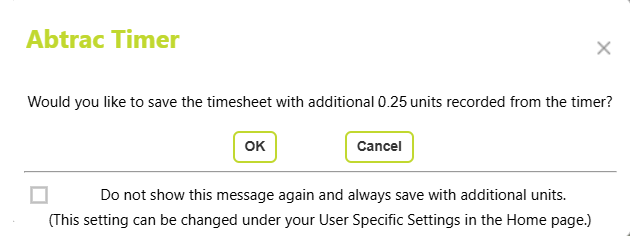
Timesheet Timer Add New Action
Determines what happens when you stop a timer:
- 0 = No – adds time to the existing entry
- 1 = Yes – creates a new timesheet line using the same details
Timesheet Timer Popup
Controls whether a confirmation popup appears when stopping the timer:
- 0 = Show popup
- 1 = Hide popup
Search, Grid & Display Settings
Search Grid Filter Method
Controls how filtering works in grids, particularly the Search Clients and Jobs page:
- 0 = Auto filter (filters as you type)
- 1 = Manual filter (requires clicking a filter button)
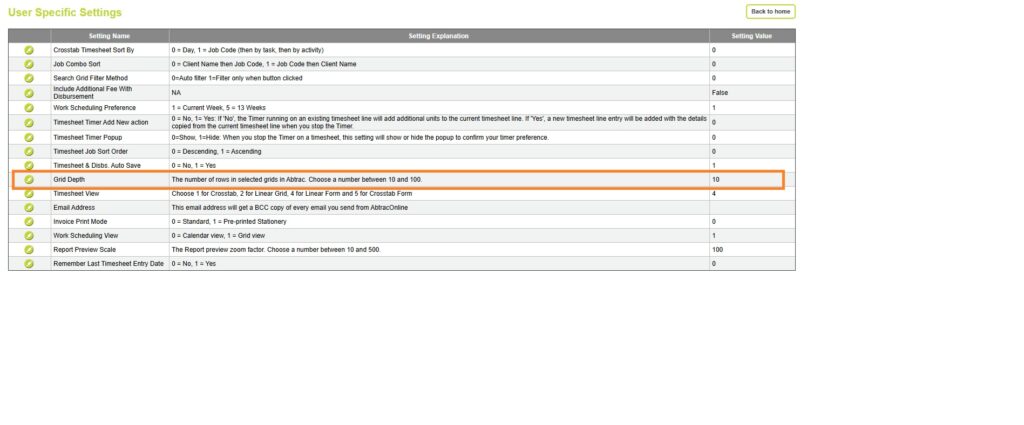
Grid Depth
Controls how many rows display in all grids, tables. including how many rows you see in your timesheet. :
- Choose between 10 and 100 rows
Report Preview Scale
Sets the zoom level for report previews:
- Choose between 10% and 500%
Work Scheduling Settings
Work Scheduling Preference
Controls the default scheduling timeframe:
- 1 = Current Week
- 5 = 13 Weeks
Work Scheduling View
Choose how schedules are displayed:
- 0 = Calendar View
- 1 = Grid View
Invoicing & Financial Settings
Invoice Print Mode
Controls how invoices are formatted for printing:
- 0 = Standard
- 1 = Pre-printed Stationery
Include Additional Fee With Disbursement
Determines whether additional fees are included with disbursements when invoicing.
SubTotal Header
Used in reporting and grid displays to control subtotal labelling (if applicable).
Email Settings
Email Address (BCC)
Any email entered here will receive a BCC copy of all emails that the logged in user sends from Abtrac.
When BCCing emails the order of preference is first the address from ‘User Specific Settings’, and then the address from Administration > System Settings > Invoices.
Video: Personalising your Abtrac workspace, Tips for new users
Abtrac KB# 2053 / AV# 0028