
About Activities
In Abtrac, Activities describe the type of work being performed when entering timesheets.
They sit alongside Jobs (Projects), which represent the overall project, and Tasks (Stages/Phases), which define the main parts of that project and where budgets are usually set.
Activities capture the specific type of work being done—such as drafting, site visits, or meetings.
In terms of how data flows in Abtrac, activities sit underneath jobs and tasks. This means they add extra detail for reporting and invoice descriptions, but they don’t control budgets or the overall billing structure.
Instead, activities are used to:
- Expand on time entries (sometimes used in place of a more detailed timesheet comment)
- Control the rates charged (for example, different rates for field work vs office work)
- Keep time recording consistent across your business
- Reporting – some (not all) reports in Abtrac will optionally include activities, including Timesheet entries reports.
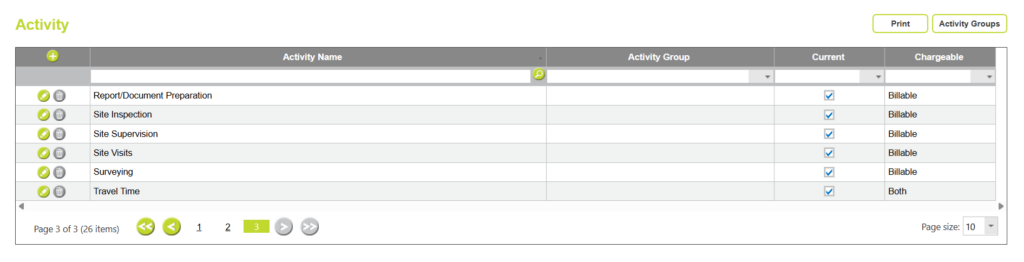
How to create a list of Activities
You can add activities for use in timesheets from Administration > Maintenance > Activity
Click on the ‘add’ button to add a new activity.

Activity Name
Activity name is required and will show on timesheets and reports. Examples of activities in Abtrac may be: Drafting, Fieldwork, Travel, Break, Meeting etc
Activity Current
The Current status of an activity controls whether it is available to be used, when activities are not current that are no longer visible when logging time.
Activity Chargeable State
The chargeable option for activities controls when activities appear on your timesheets. It ties activities into billable or non-billable projects, reducing the list of options that appear for each type.
Each activity can be defined as:
- Billable
- Non-billable
- Both
This determines where the activity can be used:
- Billable activities are available on billable jobs
- Non-billable activities are available on internal/non-billable jobs
- Both are available everywhere

Activity Groups
Activity group can be set up by clicking on the ‘Activity Groups’ button indicated on the top right of the screen. Activity groups are mainly used for arranging the order of Activites in the drop down lists within timesheets.
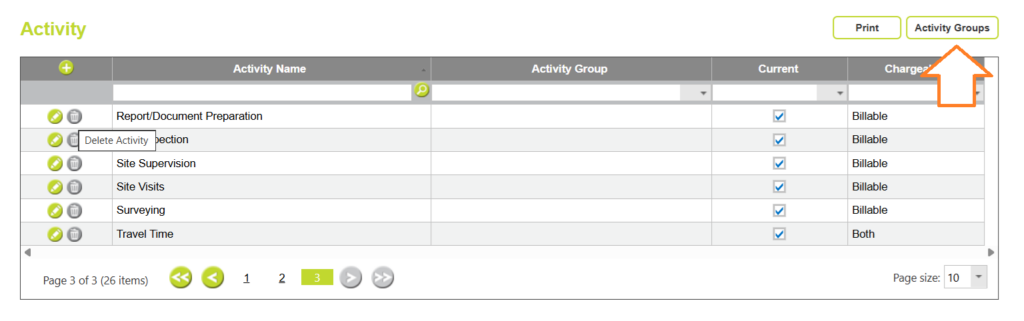
From the Activity Groups window click ‘add’, add a new activity group and click ‘save’.

When to use Activities and when to use Tasks
Tasks differ from Activities in that the Task is generally a specific stage or area of work with a specific value, whereas the Activity is what you are doing and can be the same for many projects.
Generally your project tasks will match those items detailed on your original fee proposal letter. It’s the bit of the project you are working on – and can budget against.
Read more about choosing Tasks or Activities here
Limit Activities for Projects in Timesheets
You can restrict which activities appear in timesheets by setting their billable type in Administration > Maintenance > Activity.
Each activity can be defined as Billable, Non-billable, or Both, which controls where it can be used.
- Billable activities appear only on billable jobs.
- Non-billable activities appear only on internal or non-billable projects.
- Both makes the activity available everywhere.
These categories are link to the Billable state of a project which is controlled from the Billable check box in the Job details page.

Some activites (like meetings) might apply to both billable and non-billable projects, hence the option to mark activities as both.
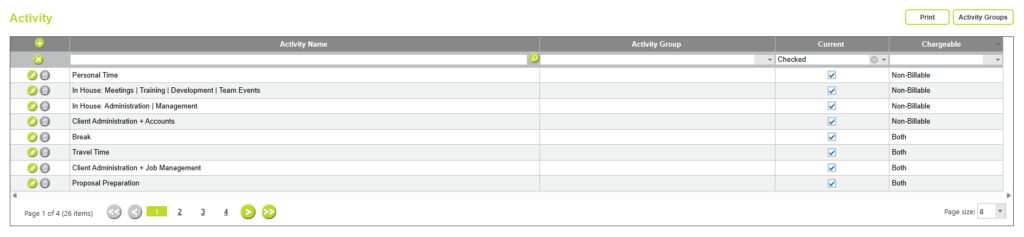
For example, an Internal Admin project might include activities such as meetings, invoicing, or training.
These are useful for tracking internal work but usually aren’t relevant for client-facing, billable jobs.
By marking them as non-billable, they won’t appear when staff are entering time against billable projects. This makes the activity list shorter, keeps timesheet entry simple, and helps prevent mistakes, ensuring only relevant activities are used for each type of project.

Limit Activities for Specific Tasks in Timesheets
Enable Task based Activities
Before you can link activities to tasks, you need to enable the feature in system settings.
Go to Administration > Settings > System Settings > choose the Timesheets tab > Tick the checkbox for “Activity codes based on task”.

Link Activities to Tasks
Then from the Tasks page within a Job, you can link Activities to selected Tasks.
Select a task line, right-click, and choose Associate Activities.
Choose the plus button to build a curated list of activity options for the selected task.

Close the pop up, and save changes to the Tasks page.
Now, when entering timesheets, staff will only see the activities linked to the selected task.
For example:
- A Design task might allow only Drafting and Client Meeting activities,
- A Site task might allow Site Visit and Inspection.
- An Internal Admin task might allow Meetings, Invoicing, or Training.
This link prevents irrelevant activities from being used, and makes reporting clearer.
Controlling charge rates based on activities
Abtrac allows you to set specific charge rates that override the default employee rate depending on context, including for activities. When a timesheet line is entered, Abtrac checks for specific rates in a defined order — with project activity rates and employee activity-specific rates taking priority over more general rates.
Project Activity Charge Rates
You can set activity-specific charge rates at the project level via the Project Details screen. These rates apply to all employees working on that project and override default rates when the associated activity is used in a timesheet.
Employee Specific Activity Rates
Abtrac also supports employee-specific activity charge rates. These are defined in Administration > Employees > Employee Specific Activity Rates and allow you to apply a particular rate for an individual employee when they record a specific activity in their timesheet. These rates apply across all projects for that employee when the activity is used.
When multiple specific rates might apply (e.g., task, project activity, client activity, employee activity), Abtrac uses a hierarchy to determine which rate is applied on a timesheet line.
Read more about variable rates in Abtrac here
Abtrac KB # 2244