
The Employee, Client and Job by Month report shows a monthly breakdown of hours worked by employees over the past 12 months (up to the selected date).
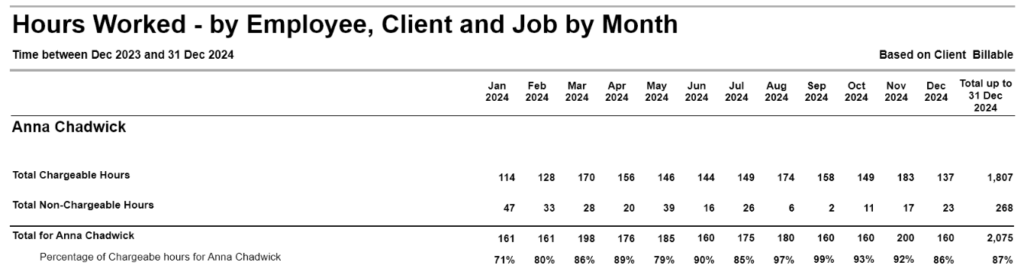
The report is grouped by employee and separates time into chargeable and non-chargeable hours, making it easy to assess employee productivity and utilisation rates. It also calculates the percentage of chargeable hours worked by each employee for each month.
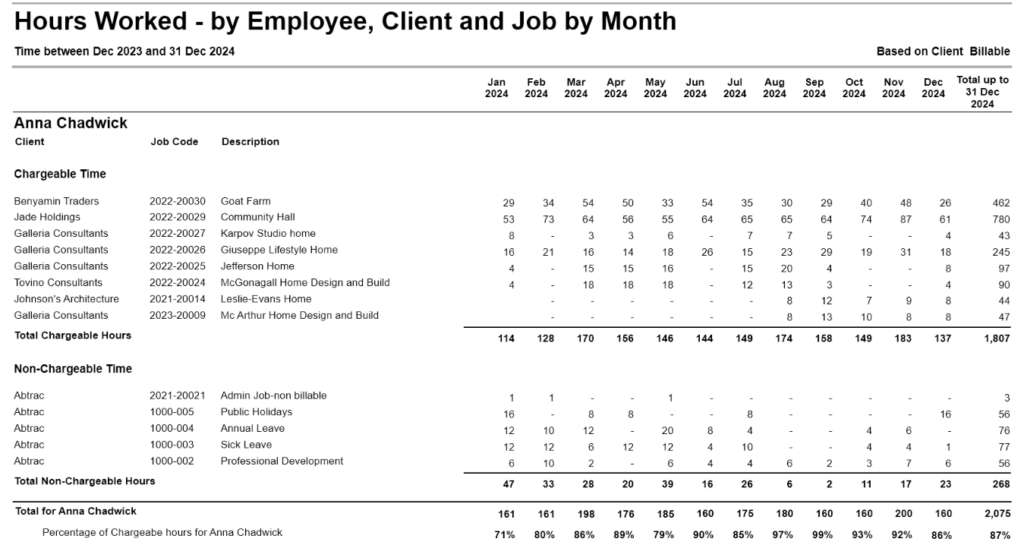
In the detailed view, hours can be itemised by client and job, helping you identify patterns in non-chargeable time and track trends month by month. Alternatively, the report can be viewed as a summary of total hours worked.
Hours Worked by Employee, Client and Job by Month Report: Summary View
Hours Worked by Employee, Client and Job by Month Report: Detailed View
How to generate the Hours Worked by Employee, Client and Job by Month Report
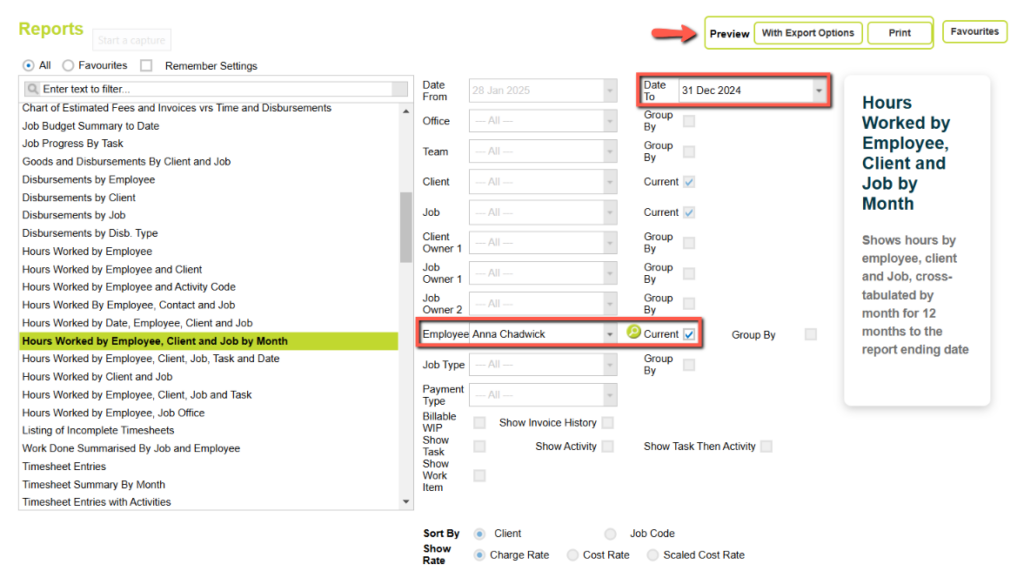
From Reports >> Performance Reports >> search for or select Hours Worked by Employee, Client and Job by Month from the Timesheet Entries section >> select the required Date To.
The report will count back 12 months from the Date selected, you cannot enter a Date From.
This report can be filtered by Employee.
Tick the ‘Current’ box for ‘Employee’ to select a specific employee from the current employees’ list in the dropdown. Untick the box to choose from all employees, whether current or non-current.
In this example, one employee is selected from the current employees’ list.
Once the dates and filters have been chosen, click on either of the preview options to view the ‘Choose Additional Report Options’ box.
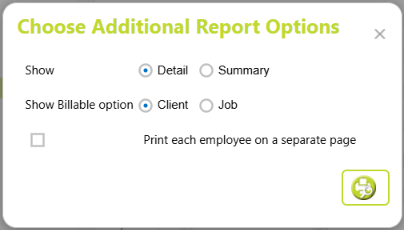
Choose the required criteria here and click on the print button to preview the Hours Worked – by Employee, Client and Job by Month Report.
Show Billable option
You can choose to determine chargeable work at the client level or at the project level.
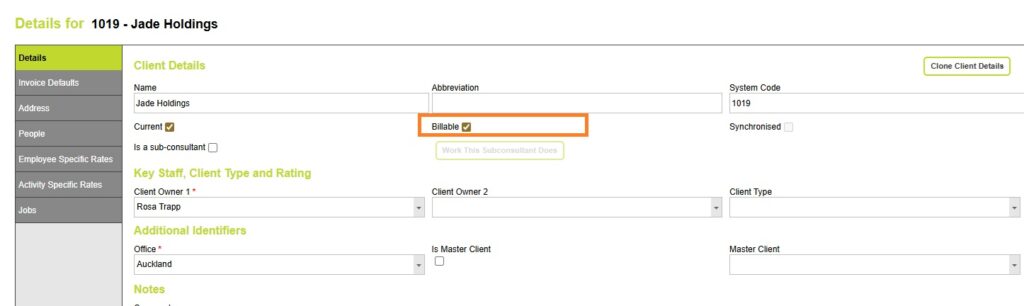
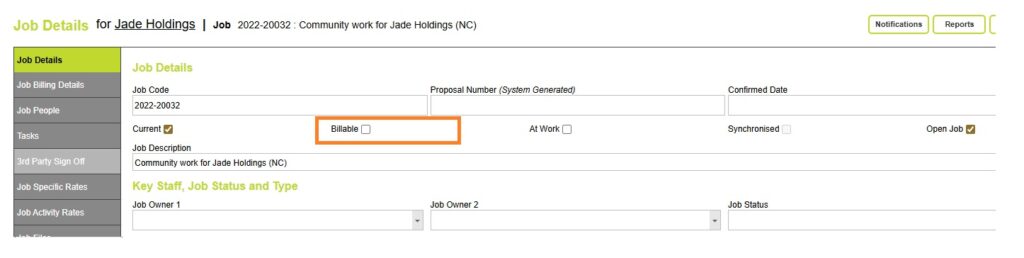
If you select billable client hours, then all work for that client is treated as chargeable – including any non-billable jobs for that billable client. These might be proposal work, pro bono, or community projects.
If you instead choose billable project hours, any projects marked as non-billable will be counted as non-chargeable, even if the client has other billable projects.
Billable Client:
Non Billable Job for the Billable Client:
Show detail
Show details will list each Client Name, Job Number and Job Description, plus gives a total hours worked by month, and for the entire 12 months for each project.
Subtotals are given for Chargeable and Non-Chargeable Hours.
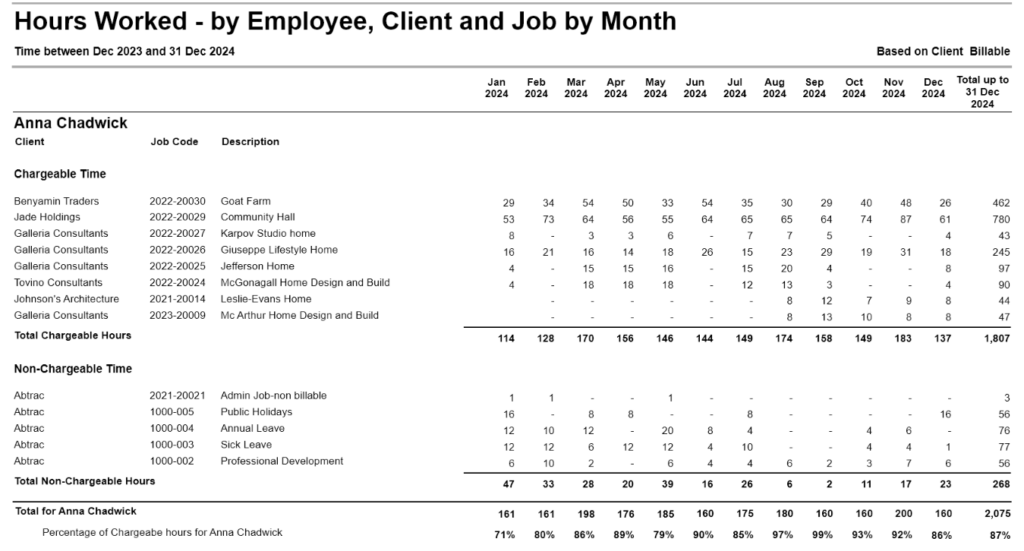
Show Summary
The report displays as below when the Show Summary option is selected in the ‘Choose Additional Report Options’ box. Only the total chargeable and non-chargeable hours per month and for the 12 month period are displayed.
Understanding the data
This report contains the following information-
- Employee Name
- Client (Name)
- Job Code
- Description (Job Description)
- Hours by Month
- Total (up to selected date)
- Total Chargeable Hours
- Total Non-Chargeable Hours and
- Percentage of Chargeable hours for the employee
Employee Name
Employee name comes from Administration >> Employees >> Employee Details screen.
Client (Name)
From Clients, Contacts & Jobs >> Search Clients and Jobs >> click on any ‘Contact Name’ to view the client Details for page.
The client name for this report comes from the ‘Details’ tab in the Details for client page.
Job Code and Description (Job Description)
From Clients, Contacts & Jobs >> Search Clients and Jobs >> Job Code and Job Description can be found here, corresponding to the contact name.
Hours by Month
These are the hours spent by the employee for the month on chargeable and nonchargeable jobs, rounded to the nearest whole number.
Total (up to selected date)
This is the total hours spent by the employee for the month.
Total Chargeable Hours
These are the total hours spent by the employee on billable jobs for the month.
Total Non-Chargeable Hours
These are the total hours spent by the employee on non-billable jobs for the month.
Total Hours for Employee
These are the total hours spent by the employee on both billable and non-billable jobs for the month.
Percentage of chargeable hours
The percentage of chargeable hours per month is based on total hours and is calculated as shown below.
The calculation for the Percentage of chargeable hours is:
(Chargeable hours ÷ Total hours) x 100
Video: Hours Worked by Employee, Client and Job by Month Report
The other Hours Worked Reports in Abtrac are:
Hours Worked by Employee Report
Hours Worked by Employee and Client Report
Hours Worked By Employee and Activity Code Report
Hours Worked by Employee, Contact and Job Report
Hours Worked by Date, Employee, Client and Job Report
Hours Worked by Employee, Client, Job, Task and Date Report
Hours Worked by Client and Job Report
Hours Worked by Employee, Client, Job and Task Report and
Hours Worked by Employee, Job Office Report
Abtrac KB # 2122 / AV # 0035