
The Referred From field lets you record the person or organisation that referred a job to your business.
You can select an existing referral source from the drop-down list, or add referral information directly from the Job Details page. Once recorded, referral information can be used to report on jobs received through referrals and the fees earned from those jobs.
Recording a referral person or company against a job
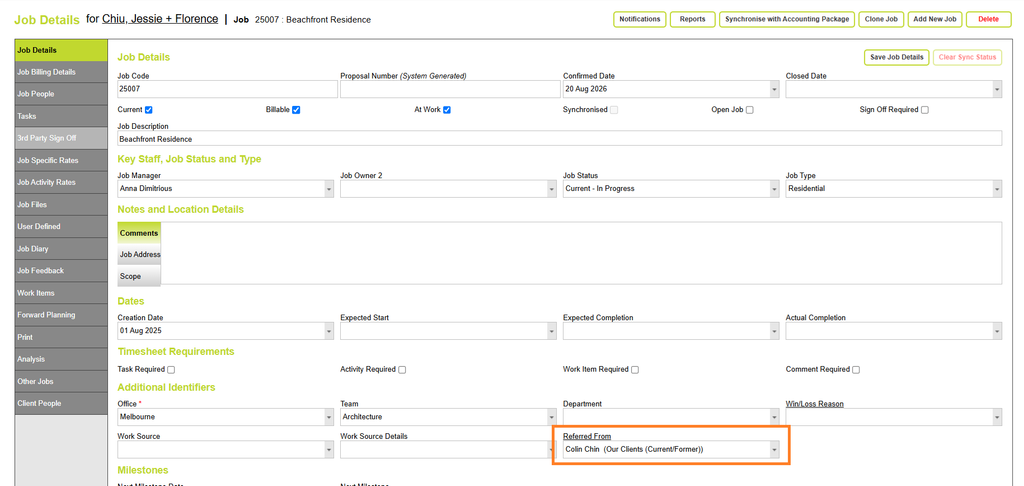
On the Job Details page, the Referred From field is under Additional Identifiers.
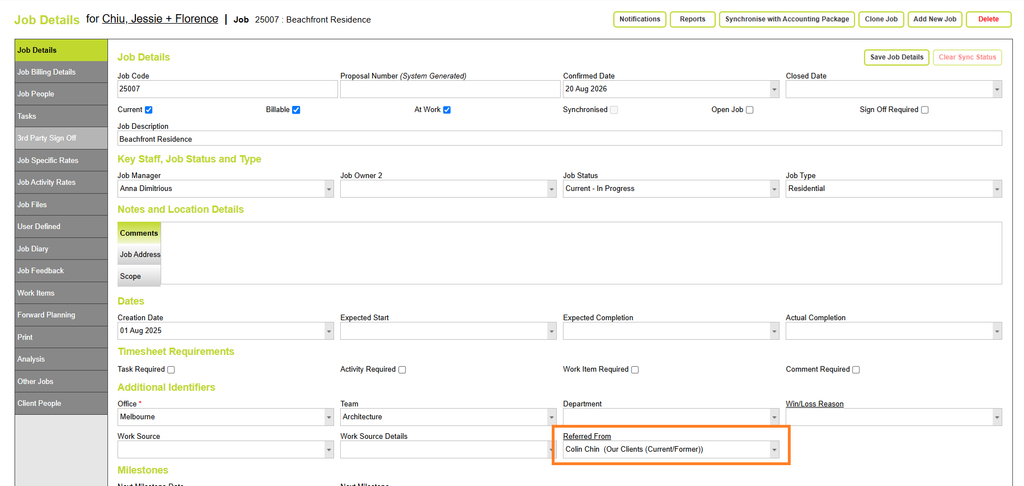
Select a Referred From source
Select the referral source from the drop-down list. The list displays the Referred From Name and, where recorded, their Referred From Company.
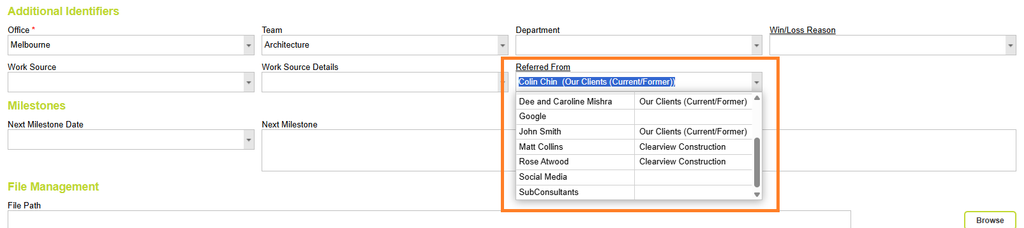
The selected referral source is saved against the job and can then be used in referral reports.
Add a new Referred From source
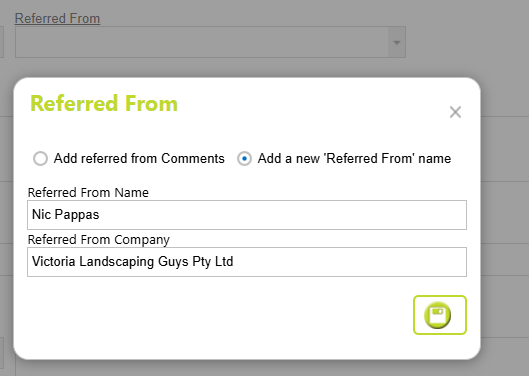
If the person who referred the job is not already in the list, click the Referred From heading next to the field.
This opens the Referred From window.
Select the option to : Add a new ‘Referred From’ name
This allows you to add a new referral source person and company, who can then be selected from the Referred From list for future projects.
Add referred from Comments
You can add additional comments about a referral to be included in the referral reports. These comments are separate from the Referred From person or company recorded against the job.
To add comments, click the Referred From heading next to the field. This opens the Referred From window.
Select ‘Add Referred From Comments’, then enter your comments.
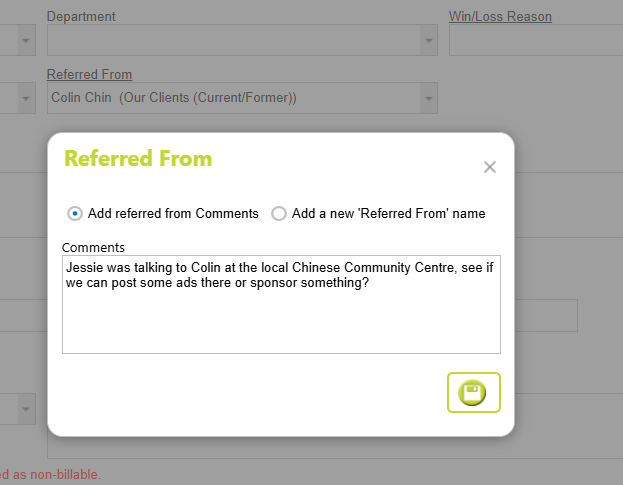
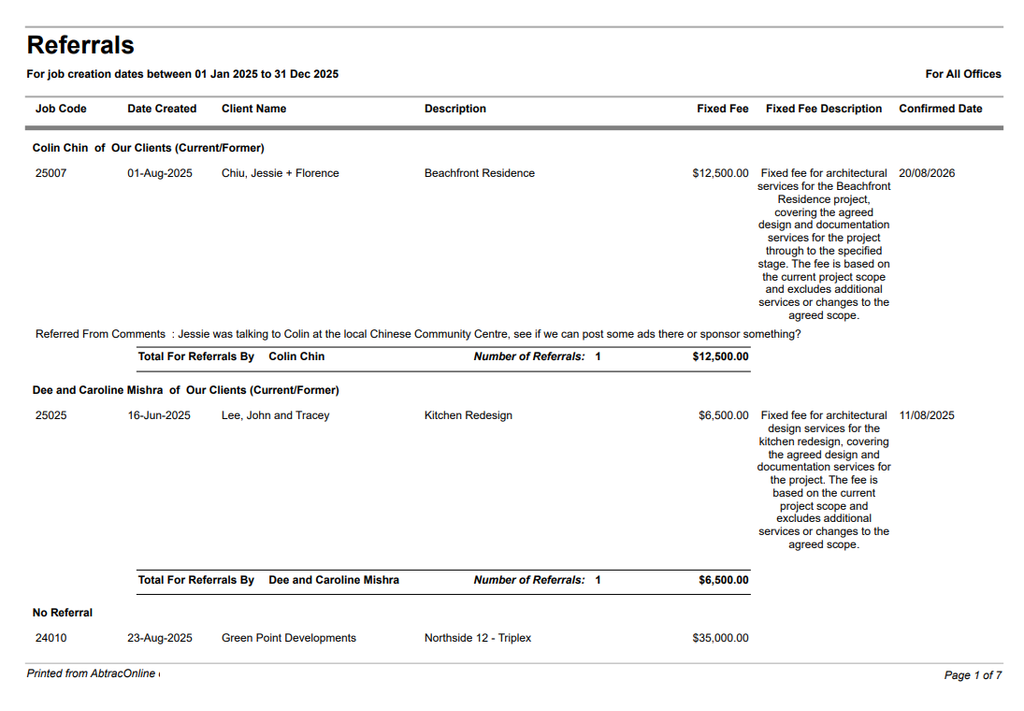
These comments are included in the Referrals reports below, but are not displayed on the job details page (unless you open the Referred From pop up window).
Maintain your Referred From list
You can also create and maintain your Referred From list from the Maintenance menu.
From Administration > Maintenance > choose Referred From.
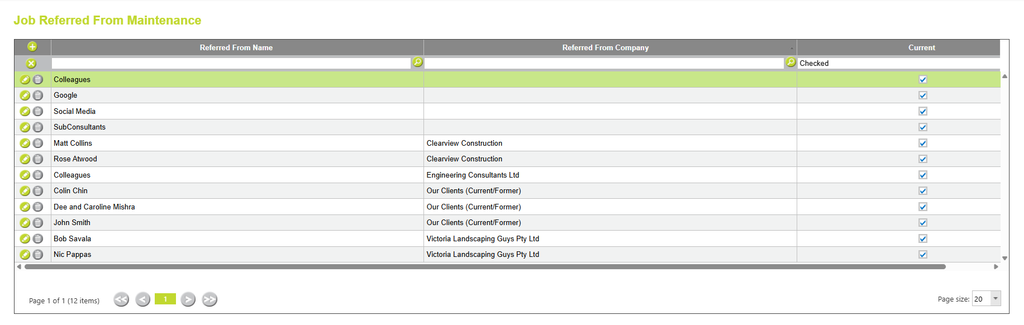
From the Referred From maintenance screen, you can add new referral sources, including the person’s name and, optionally, their company. You can also edit or delete existing referral sources. The people and companies in this list are available to select in the Referred From field on your jobs.
Referred From reporting
There are two reports that can be used to report on referrals. They use different criteria, so the results may not be the same.
Referrals Report
The Referrals report is based on the job creation date. It shows jobs created during the selected reporting period and includes the Referred From source recorded against each job.
Read more about the Referrals report here
Fees Earned by Referee and Job Report
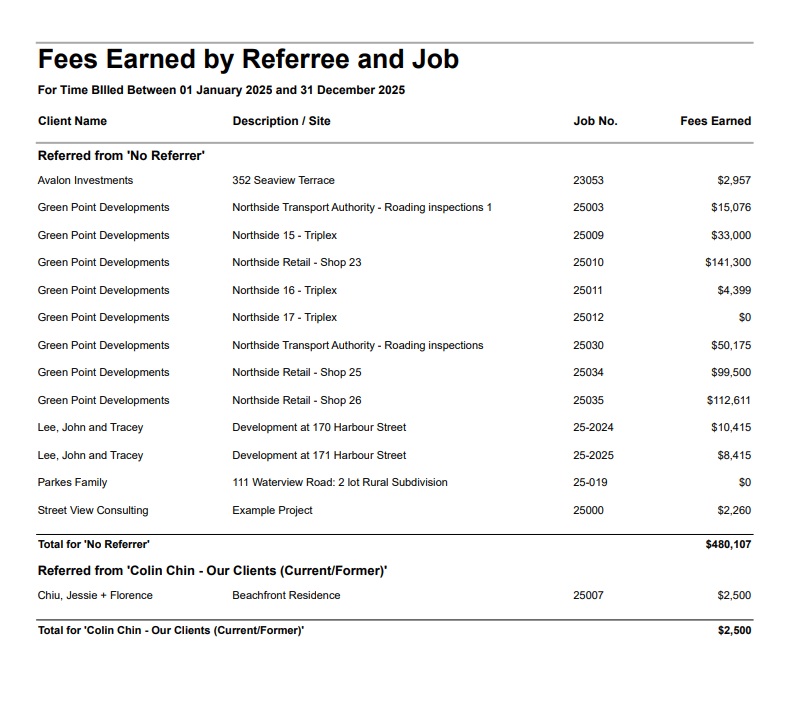
The Fees Earned by Referee and Job report shows the fees earned from timesheet lines that have been assigned to invoices for jobs associated with a referral source.
A job can therefore appear in the Referrals report but not yet appear in the Fees Earned by Referee and Job report. This can happen if no invoices have been created for the job, or if timesheet lines have not yet been assigned to an invoice. The Fees Earned amount is calculated from the timesheet lines assigned to invoices.
For example, a job may have been created and referred during the reporting period, but if it has not yet been invoiced, there will be no fees to show in the Fees Earned report.
Abtrac KB # 2228