
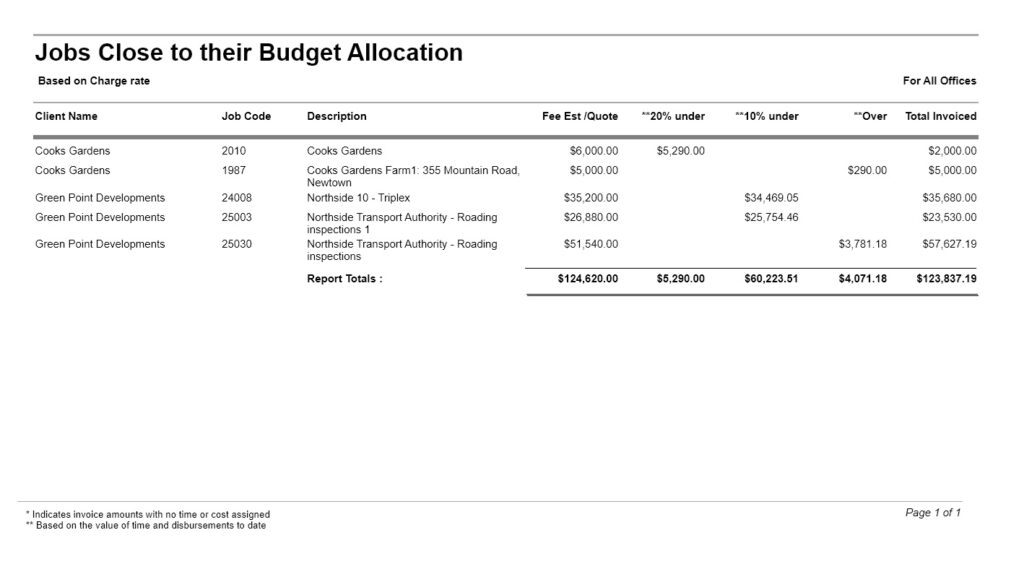
The Jobs Close to Their Budget Allocation report helps identify jobs that are approaching or have exceeded their fee budget.
The report compares each job’s Fee Estimate (budget) against the total value of time and costs recorded to the job, including both billed and unbilled transactions. This allows project managers to monitor budget consumption and identify projects that may require review before the budget is exceeded.
Although the report includes a Total Invoiced column for reference, the invoiced amount is not used when determining whether a job is close to or over budget. Budget status is based solely on the Fee Estimate compared with the total value of time and costs incurred on the job.
The report is particularly useful for proactive project management, helping you identify jobs that are nearing their fee limit and those that have already gone over budget.
How to generate the Projects Close to Their Budget Allocation Report
The Jobs Close to Their Budget Allocation report can be accessed from the Management Analysis section in the reports page.
Go to Reports >> Performance Reports >>from the ‘Management Analysis’ section, click on ‘Jobs Close to Their Budget Allocation’.
You cannot select a date range, this report will show all current projects.
Jobs Close to Their Budget Allocation Report – Filter, Sort and Grouping Options
You can optionally filter this report by Job Office and Job Manager, and Group by Job Manager.
Choose to display values as charge or cost rates.
Select Billable WIP only, to only show current Jobs Close to their Budget who also have unbilled time/work in progress (WIP).
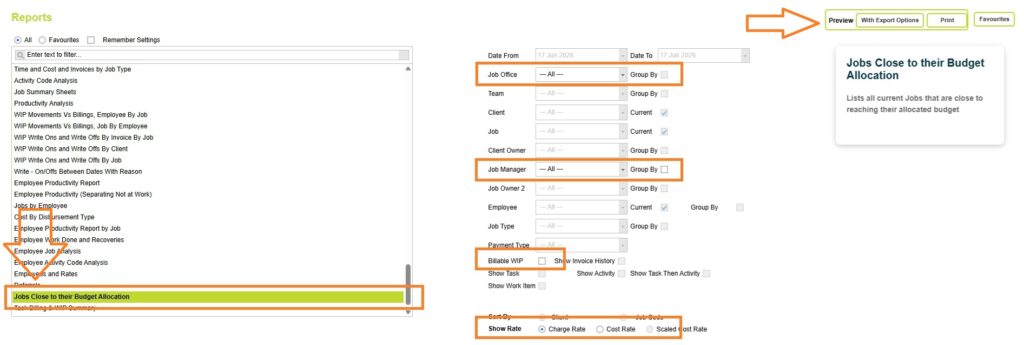
Once you’ve selected your options, choose Print or Preview with export options to load the Jobs Close to Their Budget Allocation report.
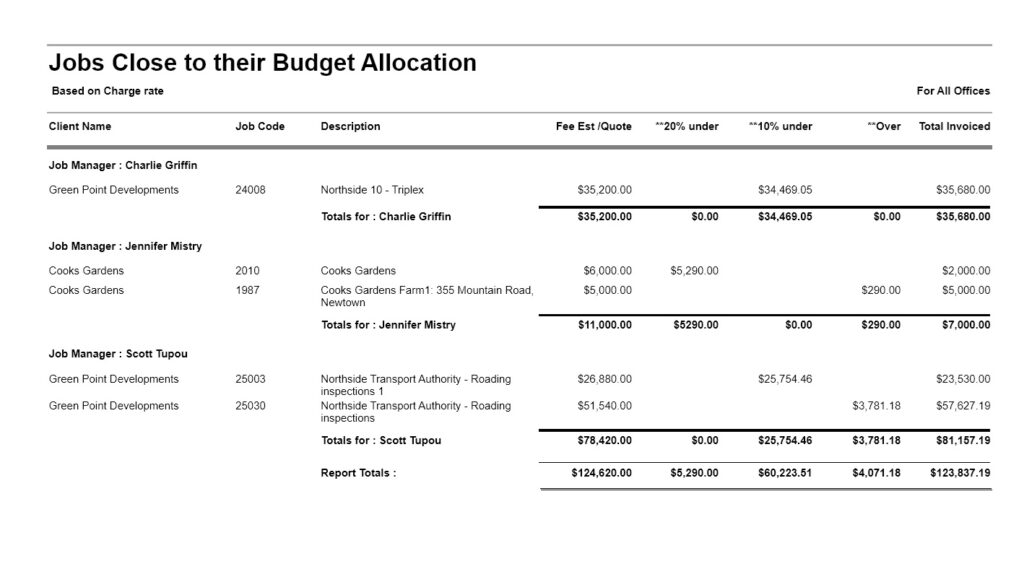
Jobs Close to Their Budget Allocation Report – grouped by Job Owner 1
When filtered or grouped by Job Owner 1, the Jobs Close to Their Budget Allocation report provides managers with a focused view of the projects they are responsible for.
It is commonly used during monthly WIP and project performance reviews to identify jobs that are approaching or have exceeded their budget, allowing managers to take corrective action before project profitability is affected.
Understanding the data
The report is based on the job’s fee estimate (budget) and the value of the total time and cost incurred against the job.
It also displays the total invoiced against the job.
Columns include:
- Client Name
- Job Code
- Description
- Fee Est / Quote
- 20% Under
- 10% Under
- Over
- Total Invoiced
At the end of the report, totals are provided for each budget status column, along with a total invoiced amount.
Fee Est / Quote
The Fee Estimate or quoted fee entered against the job billing details page.
How the Budget Status is Calculated (over or under budget)
The report compares Fee Estimate minus Total Time and Cost Incurred
Budget Remaining (Value of Time) = Fee Estimate – Total Time & Cost
The remaining budget percentage determines which column the job appears in.
Percentage Remaining = (Budget Remaining ÷ Fee Estimate) x 100
20% Under
Displays jobs with between 10% and 20% of their budget remaining.
The value shown is the total Time and Cost incurred on the job to date (as cost or charge rate extensions, depending on the report filter options).
10% Under
Displays jobs with less than 10% of their budget remaining, but which have not yet exceeded the budget.
The value shown is the Total Time and Cost incurred on the job to date (as cost or charge rate extensions, depending on the report filter options)..
Over
Displays jobs where the Total Time and Cost incurred exceeds the Fee Estimate.
The value shown is only the amount over budget, not the total value incurred.
Total Invoiced
The total amount invoiced for the job. Invoice Amount (excl Tax).
Examples of Budget Allocation Calculations
Jobs Between 10% and 20% Remaining
If a job has between 10% and 20% of its budget remaining, it will appear in the 20% Under column.
Example
| Fee Estimate | Total Time & Cost | Budget Remaining | Report Column |
|---|---|---|---|
| $100,000 | $85,000 | 15% | 20% Under |
The report will display $85,000 in the 20% Under column.
Jobs With Less Than 10% Remaining
If a job has less than 10% of its budget remaining but has not yet exceeded the budget, it will appear in the 10% Under column.
Example
| Fee Estimate | Total Time & Cost | Budget Remaining | Report Column |
| $100,000 | $95,000 | 5% | 10% Under |
The report will display $95,000 in the 10% Under column.
Jobs Over Budget
If the Total Time and Cost incurred exceeds the Fee Estimate, the job will appear in the Over column.
Example
| Fee Estimate | Total Time & Cost | Amount Over Budget | Report Column |
| $100,000 | $110,000 | $10,000 | Over |
The report will display $10,000 in the Over column.
Data that is excluded from the Jobs Close to Their Budget Allocation report
Non-current Jobs
If a project has been made non-current it will be excluded from the Jobs Close to Their Budget Allocation report – even if there is still unbilled time for the project.
Jobs that have more than 20% of the budget remaining
If a project is not within 20% of the budget (or over budget), it will be excluded from this report.
Optional exclusion – Jobs without any WIP (unbilled time)
You can also optionally exclude any jobs close to budget that do not have any unbilled time, by selecting the Billable WIP only option in report filters.

Abtrac KB # 2263