
The Penalty Invoices page in the Debtors module allows you to quickly apply late payment penalties to overdue invoices.
This feature is designed to be simple and efficient, enabling users to select outstanding invoices and generate penalty invoices based on a percentage of the remaining balance.
Penalty invoices are created individually per invoice, rather than calculating interest or penalties across an entire client account.
Debtors Management > Penalty Invoices
From Debtor Management >> choose Penalty Invoices.
Here you can view all outstanding invoices available to penalise.
About Penalty Invoices
For each invoice, the report shows the Client Name, Job No, Invoice No, and Invoice Date, along with the Gross Amount originally invoiced, the Gross Paid amount received to date, and the remaining Outstanding balance that is eligible for penalty calculation.
Penalty invoices must be created individually for each selected invoice and cannot be generated in bulk.
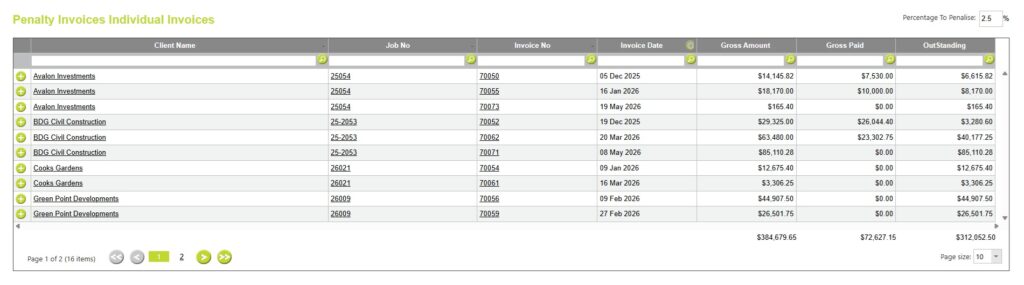
Select a penalty percentage
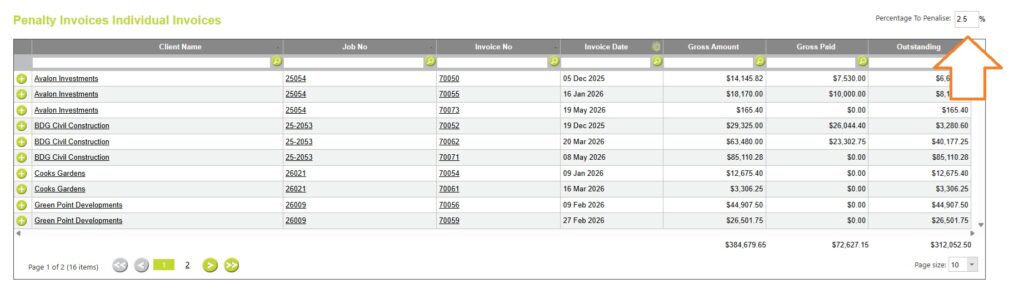
At the top of the page, you will see the field: Percentage To Penalise
Enter the percentage rate you want to apply (for example, 2.5%). This percentage is applied to the outstanding balance of each selected invoice.
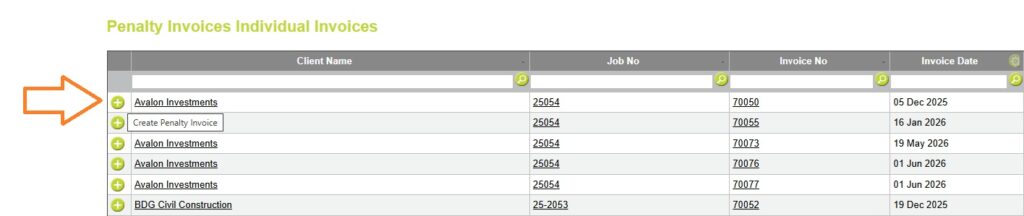
Select the Invoices to be penalised
To create a penalty invoice. Click the plus button (+) next to the Client Name for an invoice.
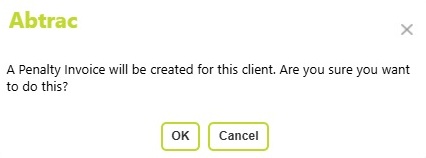
You’ll be asked to confirm your action before the penalty invoice is created.
Abtrac will automatically create a penalty invoice based on the outstanding balance of the selected invoice at the time the penalty is applied. The penalty amount is calculated by multiplying the outstanding balance by the percentage entered on the Penalty Invoices page.
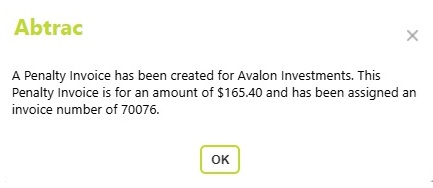
A confirmation message is displayed showing that the penalty invoice has been successfully created, together with the invoice number and penalty amount.
View and send penalty invoices
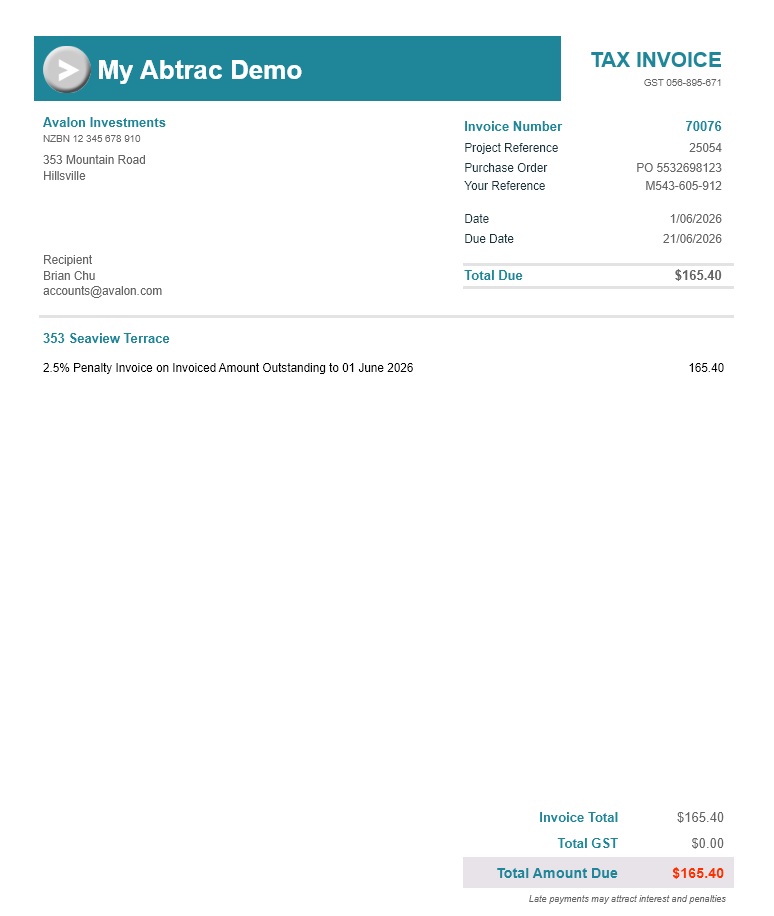
Penalty invoices are created as tax-free (No GST) invoices and are initially created as uncommitted invoices. They can then be reviewed, committed, and emailed from the Load Invoice page in the same way as any other invoice.
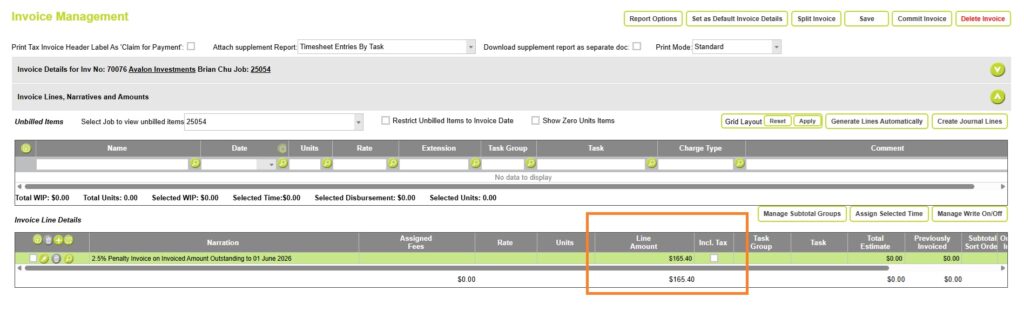
The invoice line narration is automatically generated and includes both the penalty percentage and the date the penalty was calculated. For example:
“2.5% Penalty Invoice on Invoiced Amount Outstanding to 01 June”
The percentage and date shown in the narration will vary depending on the penalty being applied.
Abtrac KB # 2255