
Office Disbursements in Abtrac are disbursements that are not attributed to a specific employee (and are not included in reimbursement reports).
Office disbursements are entered by administration staff, project managers, or finance staff who have permissions for the Office Disbursements page, rather than by employees within a timesheet.

Office disbursements are are commonly used when costs originate from suppliers or invoices rather than from employee activity.
Typical examples include:
- Title Searches
- Consent Fees
- Resource Consent Charges
- Accommodation Bookings
- Equipment Hire
- Courier Expenses
- Supplier Purchases
Office disbursements are often entered individually but can also be imported in bulk.
How to enter Office Disbursements
Creating an Office Disbursement Sheet
To create or maintain Office Disbursements, go to Time & Disbursements > Office Disbursements. From here you can create a new Office Disbursement Sheet or open an existing sheet.
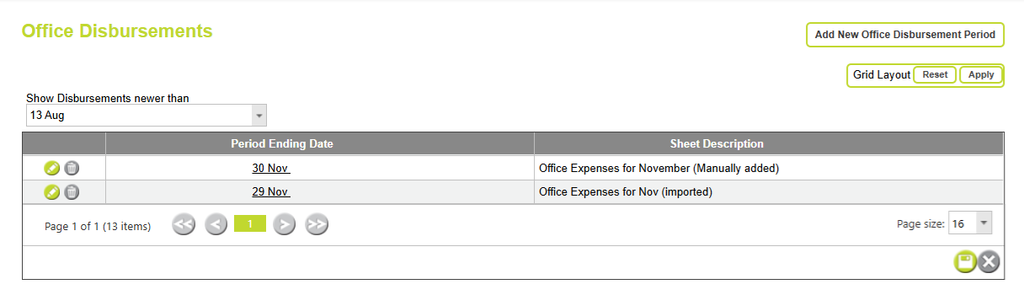
Unlike employee timesheets, Office Disbursement Sheets are not restricted by the Timesheet Period settings configured in System Settings. While employees may only be able to create timesheets for specific period ending dates, Office Disbursement Sheets can be created for any date.
Many organisations create a monthly Office Disbursement Sheet and enter all supplier costs for that month into a single sheet. For example, a sheet dated 30 November may contain all office disbursements recorded during November. Some organisations create separate sheets for manually entered costs and imported costs, provided each sheet has a unique date.
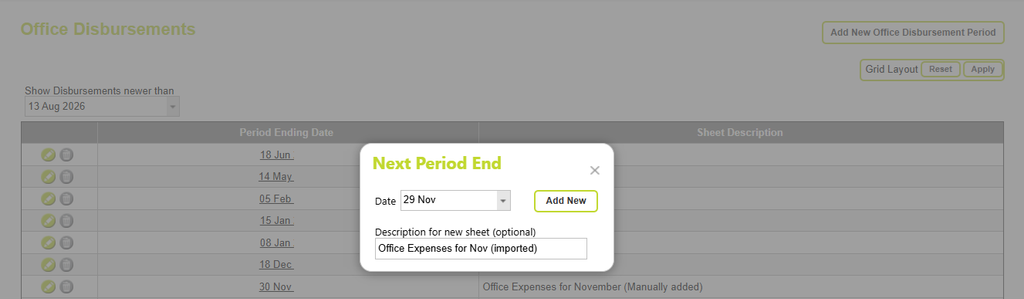
Office Disbursement Sheets can also include a Description. The description is optional but can be useful for identifying the intended contents of a sheet, particularly where multiple Office Disbursement Sheets exist within the same period. For example, descriptions such as “November Supplier Invoices”, “Imported Credit Card Transactions”, or “November Subconsultant Costs” can help distinguish the purpose of each sheet.
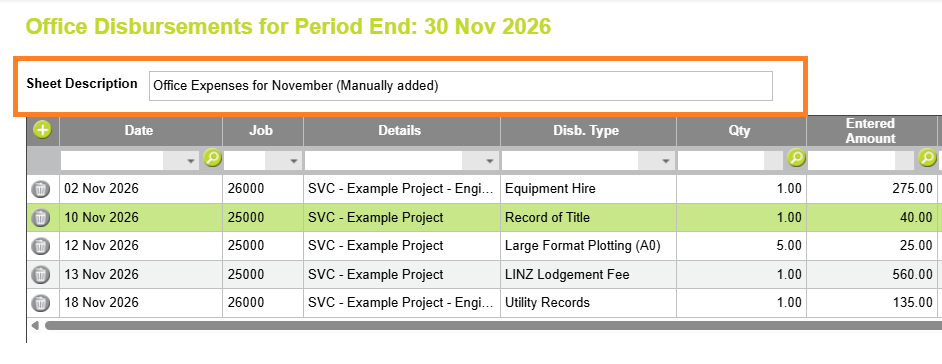
Although the sheet itself has a single date, individual Office Disbursement entries within the sheet can be recorded against any transaction date. For example, a September accommodation invoice can be entered into a November Office Disbursement Sheet while still retaining its original September transaction date.
Each Office Disbursement Sheet date must be unique. You cannot create multiple sheets with the same date.
Entering an Office Disbursement
Once an Office Disbursement Sheet has been created, click + Add to create a new disbursement entry.
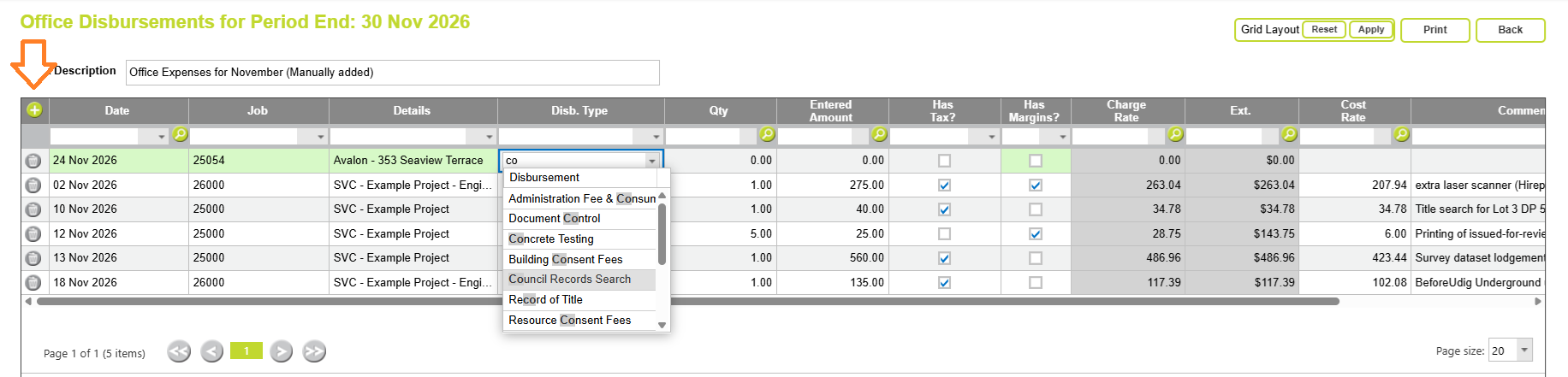
At a minimum, you must enter a Date, Project, Disbursement Type, Quantity and either an Entered Amount or Charge Rate, depending on the configuration of the selected Disbursement Type. Additional fields may be required based on your company’s Disbursement Type settings and System Settings.
As information is entered, Abtrac automatically calculates associated values such as Charge Rate, Tax, Margin and Extension based on the rules configured for the selected Disbursement Type.
Office Disbursement Fields
The fields available when entering an Office Disbursement will vary depending on your User Control Settings and the configuration of the selected Disbursement Type.
The table below describes the most common fields available.
| Field | Description |
|---|---|
| Date | The date the expense occurred. This can be different from the Office Disbursement Sheet date and is used for reporting and historical tracking. |
| Project | The project code that will receive the cost. This determines where the disbursement is allocated for project costing and invoicing. |
| Details | Project details |
| Task Group | The Task Group within the project that the cost should be allocated to. |
| Task | The specific task receiving the disbursement cost. |
| Activity | An optional activity code used for further categorisation and reporting. |
| Disbursement Type | Identifies the type of expense being recorded and determines how Abtrac calculates costs, margins, tax and charge rates. Disbursement Types are maintained in Administration > Maintenance > Disbursements. |
| Quantity | The number of units being charged. For example, 5 survey pegs, 38 km travelled, or 1 accommodation invoice. |
| Entered Amount | The amount entered by the user, usually taken directly from a supplier invoice or receipt. Depending on the Disbursement Type configuration, this amount may be used to calculate the Charge Rate automatically. |
| Has Tax? | Indicates that the Entered Amount already includes GST or sales tax. Abtrac can remove the tax component before calculating the amount to charge to the client, preventing tax from being charged twice. |
| Has Margin? | Shows whether a markup, margin or adjustment has been applied to the charge rate. Availability depends on the Disbursement Type configuration and System Settings. |
| Charge Rate | The amount charged per unit to the project or client. This may be entered manually, populated automatically, calculated from the Entered Amount, or locked based on Disbursement Type rules. |
| Cost Rate | The cost value associated with the disbursement. This is used for project costing and profitability reporting. |
| Comment | Additional notes relating to the disbursement. Comments can help explain supplier charges or provide information that may later appear in reports or invoices. |
| Ext | The extension value or total charge for the disbursement. In most cases this is calculated as Quantity × Charge Rate. |
| Purchase Order | Subconsultant purchase order, can be selected from a drop down of available subconsultant purchase orders, or will be prefilled when posting subconsultant costs to disbursements. |
| Supplier Invoice No. | Records the supplier’s invoice number, making it easier to trace and verify costs against creditor invoices and supplier records. |
You may also see additional fields depending on your organisation’s configuration. Some companies use only basic project and cost information, while others capture purchase order references, supplier invoice numbers, task allocations and reporting details for every Office Disbursement entered.
Customising the Office Disbursement Screen
From Administration > Settings > User Control Settings, Abtrac administrators can control which columns are displayed when entering Office Disbursements. This allows organisations to simplify data entry by hiding fields that are not used, or expose additional fields where more detailed project costing and supplier tracking are required.
For example, some organisations may choose to display supplier-related fields such as Purchase Order and Supplier Invoice Number, while others may enable Task, Activity and Comment fields to support more detailed project allocation and reporting.

Read more about User Control Settings here.
Office Disbursements that are added in bulk
Importing Office Disbursements
Office Disbursements can be imported into Abtrac when project costs are maintained outside the system or received in bulk from suppliers. Common examples include LINZ purchases, title searches, utility plans, council fees, accommodation costs, and other supplier charges. Importing allows large volumes of project costs to be allocated to projects without manually entering each transaction, saving time and improving accuracy.
These can be imported from a file, with a mapping template saved based on your specifications.
Read Importing Disbursements for detailed instructions on preparing import files.
Creating Office Disbursements from Accounting Costs
Many organisations prefer to allocate supplier costs after bills have been entered into their accounting system. Abtrac can import supplier invoices, bills, credit card transactions, and selected GL transactions, allowing those costs to be allocated to projects and converted into Office Disbursements.
This reduces duplicate data entry and helps ensure project costs are based on actual supplier transactions. Once created, imported Office Disbursements are treated the same as manually entered disbursements and can be included in project costing, reporting, WIP, and invoicing.
For more information, see Importing Disbursements.
Subconsultant Invoices and Office Disbursements
Subconsultant costs can be recorded and then posted into Office Disbursements for charging to projects.
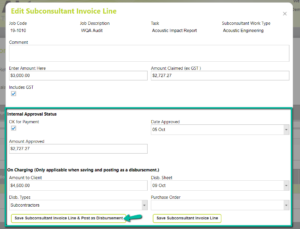
If you regularly outsource work to third parties – and they work on a number of projects with you, you may find it worthwhile to enter the costs as a Sub-consultant, managing and tracking the process with Sub-consultant reporting.
But if you outsource part of a job to a third party and they invoice you once or twice for their time and costs on a job, we advise simply entering them as Disbursements on an as required basis.
Read more about Subconsultant management in Abtrac here
Creating Office Disbursements from a single monthly expense value
Some organisations use Disburse Consumable Costs to distribute general business overheads across projects.
Rather than entering individual overhead expenses such as rent, rates, power, internet, and office costs against projects, a single consumable cost amount can be entered for a selected period. Abtrac then allocates that amount across projects based on their share of project activity and creates disbursement transactions automatically.
These generated disbursements can be included in project cost reporting and, where appropriate, recovered through invoicing.
This feature is primarily used by businesses that recover overheads separately from employee charge rates. Most organisations build overhead recovery into their employee charge rates and do not use Consumable Costs.
See also Disburse Consumable Costs
Reporting on Office Disbursements
Printing Disbursements for a single Disbursement sheet
From the office disbursements page, you can print a report of all the disbursements within a disbursement sheet.

How Employee and Office Disbursements Appear in Reports
Office Disbursements and Employee Disbursements are reported separately throughout Abtrac, although both ultimately contribute to project costs and client billing.
In Timesheet Entry Reports, Employee Disbursements display the employee’s name. Office Disbursements display Co Purchases instead, making it easy to identify costs that originated from suppliers rather than employees.
Within Invoices > Unbilled Timesheet Lines, Employee Disbursements appear as charge types such as Disbursement – Accommodation, while Office Disbursements appear as Goods – Accommodation.
In the Bulk Edit and Bulk View reports, Employee Disbursements display the employee name, while Office Disbursements display Disbursement in place of an employee name.
Understanding these distinctions can be useful when analysing project costs, reviewing unbilled expenses, or reconciling supplier charges against employee claims.
Abtrac KB # 2209