
Consumable Costs allow you to recover general business overheads, such as rent, rates, power, office supplies, and similar operating expenses, by distributing those costs across projects based on the work performed during a selected period.
Rather than entering individual overhead costs against multiple projects, you can enter a single Consumable Cost amount for a selected period and let Abtrac automatically allocate it across all projects with cost activity during that time.
Each project’s allocation is calculated according to its proportion of the total project cost value for the period. Abtrac then creates a disbursement transaction on each project, with the combined value of all generated disbursements equalling the original Consumable Cost amount entered.
Billable projects can recover their share of these costs through invoicing, while allocations assigned to internal or non-billable projects remain as company overhead costs.
This feature is used by a relatively small number of Abtrac users. Most businesses recover overhead costs through their employee charge rates and do not require separate Consumable Cost allocations.

Who should use this feature?
Disburse Consumable Costs is intended for businesses that:
- Calculate overhead recovery separately from employee charge rates.
- Calculate a total amount of general business costs each month.
- Want to distribute those monthly costs across all current projects (both billable and non-billable).
- Want the amount added to billable projects to be recovered within a client invoice.
- Spread shared business expenses fairly across project activity.Avoid manually entering small consumable transactions against multiple projects.Improve project profitability reporting by recognising a share of overhead costs on each project.
If your business already builds office overhead recovery into employee charge rates, you generally do not need to use this feature.
What are Consumable Costs?
Consumable costs can be used when a business wants to recover general business or office overheads separately from its normal employee charge rates.
For example, a business may calculate its general overhead costs for a selected period from its accounting system, including:
- Rent
- Rates
- Power
- Telephone and internet
- Other general office expenses
The business can enter the total amount as a consumable cost for the period (typically the current or previous billing month) and distribute that amount across its projects with time or disbursement entries for the same period.
See also building overheads into your employee charge rates
How the Consumable Costs allocation works
When a Consumable Cost amount is entered, Abtrac:
- Takes the total consumable cost entered for the period.
- Finds all projects with activity during that period.
- Calculates each project’s share of the total cost value.
- Creates a new disbursement transaction on each project.
- Ensures the total value of all generated disbursement transactions equals the consumable cost amount entered.
Assume you enter:
- Period: 1 June to 30 June
- Consumable Cost Amount: $3,000
And assume that during June there are 12 projects with activity.
Abtrac creates:
- 12 new disbursement transactions
- One on each project
- Total value of all disbursements = $3,000
How the consumable costs allocation percentage is calculated
The allocation is based on each project’s share of the total project cost value during the period.
Assume there are only four projects.
| Project | Cost Value During Period |
|---|---|
| Project A (Client Project) | $1,000 |
| Project B (Client Project) | $2,000 |
| Project C (Tender) | $500 |
| Project D (Administration) | $1,500 |
| Total Costs | $5,000 |
Consumable costs entered: $3,000
Step 1: Calculate Each Project’s Percentage
| Project | Cost Value | Percentage of Total Costs |
|---|---|---|
| Project A | $1,000 | 20% |
| Project B | $2,000 | 40% |
| Project C | $500 | 10% |
| Project D | $1,500 | 30% |
| Total | $5,000 | 100% |
Step 2: Apply Those Percentages to the Consumable Cost Pool
| Project | Percentage | Consumable Disbursement |
|---|---|---|
| Project A | 20% | $600 |
| Project B | 40% | $1,200 |
| Project C | 10% | $300 |
| Project D | 30% | $900 |
| Total | 100% | $3,000 |
Abtrac then creates four new disbursement transactions:
- Project A: $600
- Project B: $1,200
- Project C: $300
- Project D: $900
Total generated disbursements = $3,000.
What projects are included in the cost allocation?
Consumable Cost allocation is based on any projects that have activity during the selected period.
The totals activity costs for each project may include:
- Timesheets
- Employee disbursements
- Office disbursements
The Consumable Cost allocation also does not distinguish between billable and non-billable projects when calculating the allocation.
If a project contributes to the total cost pool (because it has timesheet or disbursements recorded for the period), it receives a share of the consumable cost allocation.
This means consumable costs may be allocated to:
- Client projects
- Internal administration projects
- Business development projects
- Tender and proposal projects
- Training projects
- Leave projects
- Meeting projects
Example
| Project Type | Consumable Allocation |
|---|---|
| Client Project | $1,200 |
| Client Project | $600 |
| Tender Project | $300 |
| Administration Project | $900 |
The client project allocations can be invoiced or recovered from clients if required.
The allocations applied to internal projects remain as company costs and are absorbed by the business.
How to create and apply monthly expenses to invoices (Disburse Consumable Costs)
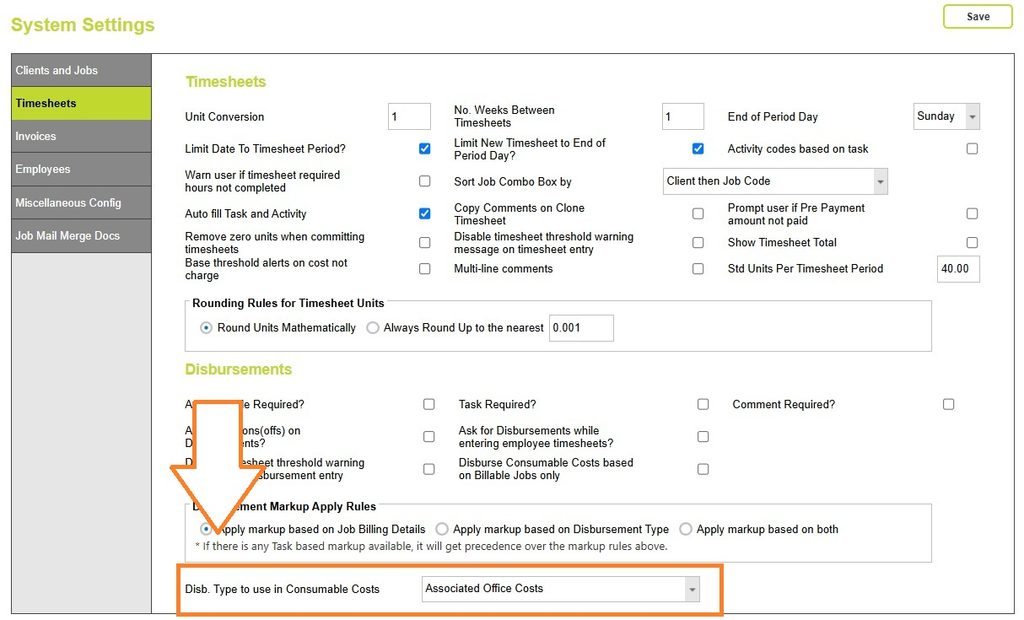
Set a Disbursement Type to use for Consumable Costs
Before using Consumable Costs, you need to set the Disbursement Type that will be used when creating the automatically generated disbursement entries.
Go to Administration > Settings > System Settings > Timesheets, and select a Disb. Type to use in Consumable Costs from the drop down list.
It’s recommended that you create a dedicated Disbursement Type specifically for Consumable Costs.
This makes it easier to identify automatically generated consumable cost allocations and avoids confusion with manually entered project disbursements.
When creating consumable cost allocations:
- Adjustment rates are not applied.
- Default charge rates configured in Maintenance > Disbursement Types are ignored.
- Allocated consumable disbursements are created using calculated values generated by the allocation process.
If required, additional disbursement types can be added from: Administration > Maintenance > Disbursement Types
Read more about Disbursement Types here
Enter your total costs for the period
From Time and Disbursements > Disburse Consumable Costs click the plus (+) button to create a new consumable costs record.
Enter:
- Start Date
- End Date
- Total Consumable Cost Amount
The amount entered should be the tax-exclusive value for the period.
Save the record.

Allocate costs and create disbursement lines
Once the consumable cost record has been saved, click Allocate Disbursements.
Abtrac will:
- Identify all projects with cost activity during the selected period.
- Calculate each project’s share of the total project cost value.
- Apportion the consumable cost amount across those projects.
- Create a new disbursement entries on each project.

A confirmation message will display, confirming that consumable costs have been disbursed.

The consumable cost record will then be marked as Allocated and the allocation date will be recorded.

Reviewing allocated consumable costs
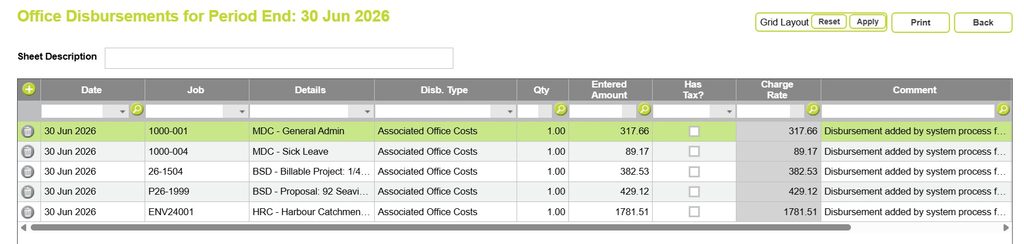
Consumable cost allocations are created as Office Disbursements using the Disbursement Type selected in System Settings.
If a suitable disbursement sheet does not exist for the allocation date, Abtrac will automatically create one.
The generated disbursement will have:
- A date equal to the end date of the consumable cost period.
- A quantity (Units) of 1.
- Equal cost and charge values.
- The comment:
“Disbursement added by system process for disbursing consumable costs”
Editing Allocated Disbursements
After allocation, the generated disbursement transactions can be reviewed and edited by users with the appropriate permissions from the Office Disbursements page.
Abtrac KB# 2285