
The Job Management widget gives you a quick way to search and review all your current, billable projects directly from the Abtrac Home Page.
The widget displays a list of jobs with information such as the job manager, estimated and actual hours, job values, invoicing and variances. You can search or filter the list using any of the available columns, making it easy to find the projects you are looking for without navigating through the main Job Manager.
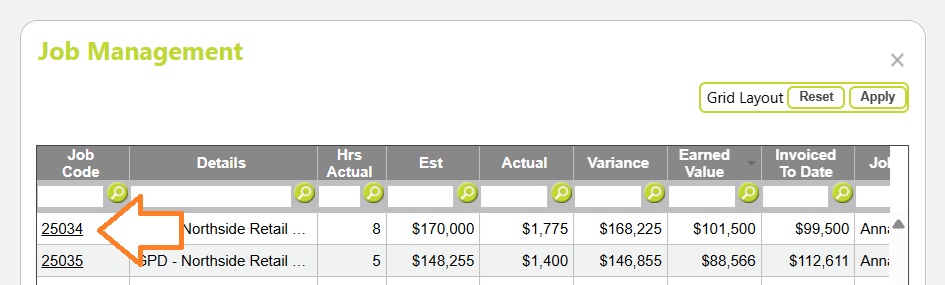
The Job Code is a hyperlink, so you can click it to go directly to the Job Details page for that project.
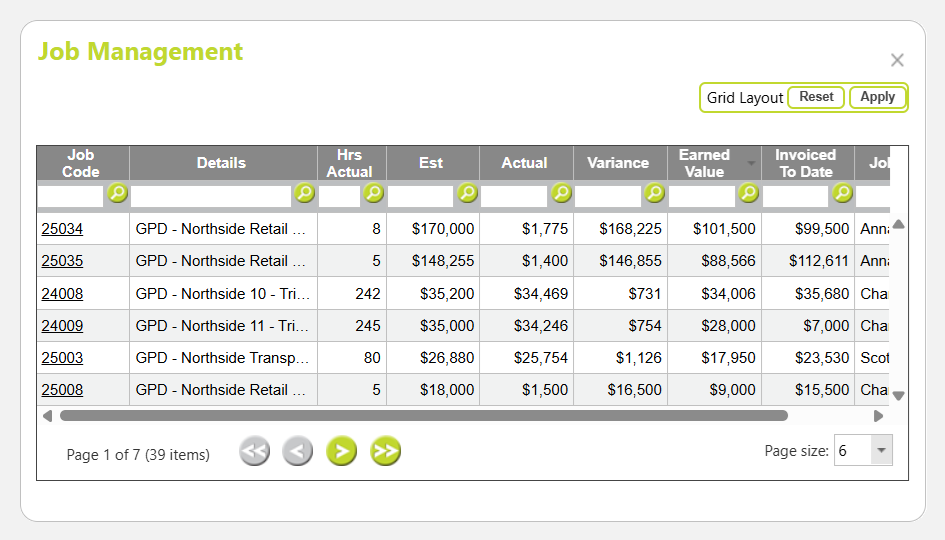
Job Management Widget
The Job Management Widget displays:
- A list of billable, current jobs and key project information.
- Job Managers, Job Office, Job Code and job details.
- Estimated and actual hours and values.
- Variance, earned value and invoiced-to-date information.
What you see in the Job Management widget is set up by your administrator through User Control Settings, where they can choose which columns are available to display.
See User Control Settings – Dashboard: Job Management Widget for information about configuring the available columns.
Search and filter jobs
Use the Job Management widget as a quick way to search and review your projects directly from the Home Page.
You can search, filter and sort the job list using any of the available columns, including Job Manager, Job Code, Details and other displayed information.
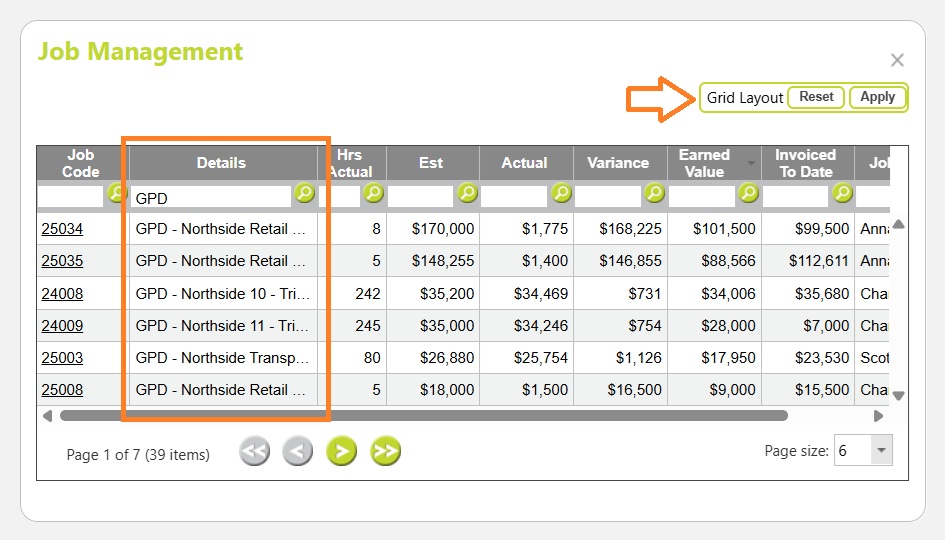
Use the Apply Grid option to save your current filters so they are remembered the next time you view the widget.
The widget provides a convenient way to find a project, review how it is tracking against its estimates, and access the full project information without navigating through the Job Manager.
Quickly find and open project details
Click the Job Code to open the Job Details page for that project.
Understanding the Job Management widget data
The available columns can include:
Office
The default office assigned to the job in the job details page.
Job Manager 1, Job Manager 2
The people responsible for managing the project, as assigned to the job details page. (Also called Job Owners, Projects Owners, Project Directors etc)
Job Code
The Job Code identifies the job and includes a hyperlink to the job.
Click the Job Code to open the Job Details page and view the full project information.
Details
The Details column displays information about the client and job, helping you identify the project you are looking for. Or search projects by text rather than the job code. It shows the Client Abbreviation plus the Job Description.
Hrs Est (Job Hours Estimated)
Hrs Est shows the total estimated number of hours for the job, rounded to a whole number. This value is calculated from the total estimated hours in the Job Tasks page.
Compare this with Hrs Actual to see whether the project is tracking within the estimated hours.
Hrs Actual (Job Hours Actual)
Hrs Actual shows the actual hours recorded against the job. This value is calculated from the total timesheet hours recorded for the project, and is is rounded to a whole number.
Comparing this with Hrs Est can help identify jobs where the hours recorded are higher or lower than expected.
Est (Estimate Value/Fee Estimate)
Est shows the estimated fee value for the job, taken from the Fee field on the Job Billing Details page. This can either be a single fee entered directly for the project, or the total of the fee estimates entered against the project’s tasks, including estimated disbursements where applicable.
For more information about setting up job and task fee estimates, see Creating and Managing Tasks – How to build project stage budgets
Actual (Total Time and Disbursements Charge rate Extension)
Actual shows the actual value of all time and disbursements recorded against the job, calculated as units x charge rate.
Variance
Variance shows the difference between the estimated and actual values.
This provides a quick indication of whether the current actual value is above or below the estimate.
Var. On Estimate
Variance shows the difference between the estimated and actual values.
This provides a quick indication of whether the current actual value is above or below the estimate.
Earned Value
Earned Value shows the value of work completed on the job based on the progress assessment recorded for the project tasks. The progress assessment is a percentage indicating how far through each task the project manager considers the work to be.
For projects using progress claim invoices, the Earned Value is posted from the Value Completed amount on the progress claim. You can also manually update the Earned Value from the Job Tasks page by right-clicking a task and entering or updating its Progress Assessment percentage.
This provides a useful way to compare the value of work completed with the project’s estimated value, actual value and invoiced amount when monitoring project progress.
Invoiced To Date
Invoiced To Date shows the total amount invoiced against the job to date, displayed as the Invoice Amount (excluding tax).
This provides a quick way to compare invoicing with the job progress and value of the work recorded on the project.
Job Management Widget Availability and Configuration
The Job Management widget is available on the Abtrac Home Page and may be displayed or hidden depending on user preferences and system configuration.
For information about managing access to Home Page widgets, see this article:
Home Page Widgets – Administrator Controls
Abtrac KB# 2282