
Invoice statuses and the Commit Invoice button both help manage invoice workflows in Abtrac, but they serve different purposes and can be used independently or together. Invoice statuses in Abtrac help you and your team keep track of where each invoice is up to — for example, Draft, Returned for Edits, Approved, or Committed.
You can customise these statuses to match your internal workflows and how you manage the processes of creating and approving invoices before they are sent to clients.
This is helpful when there is a team of people creating an invoice, but one final person signing off on the contents of the invoice.
Setting up invoice statuses
Invoice statuses are managed from Administration > Maintenance > Invoice Status.
From here, you can:
- Create and name your own invoice statuses
- Control the order they appear in lists
- Decide whether a status is current or inactive
- Choose whether invoices with that status can be sent to clients
- Lock invoices by marking a status as Committed

Options for invoice status
Sort Order
The sort order controls how statuses appear throughout Abtrac. You can adjust this at any time to better reflect your process.
Default Invoice Status
The default status applied to all newly created invoices is the status with the lowest sort order that is not marked as Committed.
Can be sent
Allows invoices with this status to be emailed to clients.
Committed
Locks the invoice so no further changes can be made. Once an invoice is committed, it cannot be edited.
Updating the status of an invoice
Updating or Assigning Invoice statuses: In Bulk (Multiple invoices)
To change the status of one or more invoices:
- Go to Invoices > Load Invoices
- Select the invoice(s)
- Click Manage Status at the top of the screen
- Choose the new status and apply it
This makes it easy to move invoices through your workflow as they’re reviewed, approved, and finalised.

Updating Invoice status: For a single Invoice
To change the status of a single invoice:
- Go to Invoices > Load Invoices
- Click on the invoice number
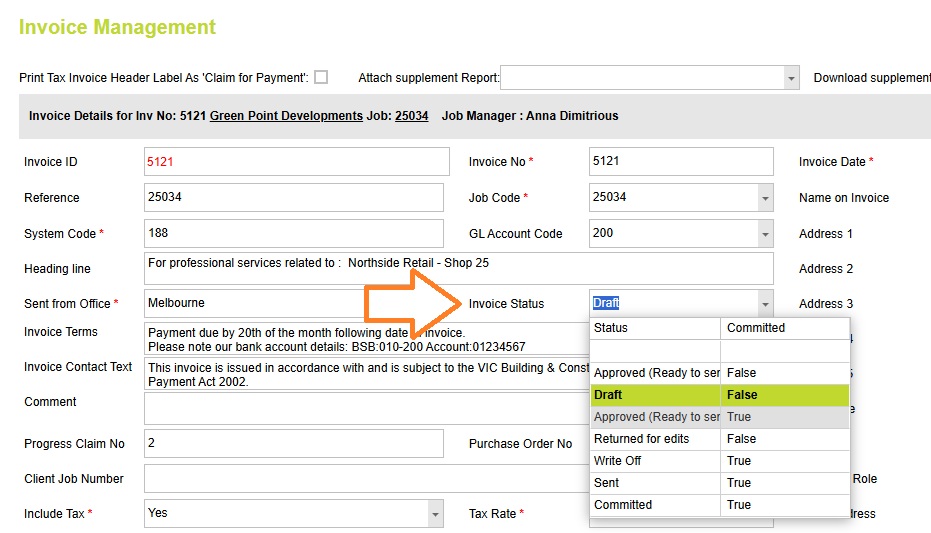
- From the Invoice Management page > in the Invoice Details section
- Choose the new status from the drop down options, and choose save.
When to Use Invoice Status vs the Commit Invoice Option
Invoice statuses and the Commit Invoice button both help manage invoice workflows in Abtrac, but they serve different purposes and can be used independently or together.
Invoice statuses are primarily about communicating progress during the life of an invoice, while committing an invoice is the action that formally locks it as complete. Which approach you use depends on how much structure and visibility your invoicing process requires.
Use invoice statuses when:
- Your invoices move through multiple review or approval stages (e.g. Draft, Awaiting Approval, Returned for Changes).
- Several people are involved and need visibility of where an invoice is up to before it’s finalised.
- You want to track and report on invoice progress, not just whether it’s finished or not.
- An invoice may still be edited while it’s being reviewed or approved.
Use the Commit Invoice option when:
- You want a clear “complete vs not complete” workflow without managing multiple statuses.
- The main requirement is to lock the invoice once it’s finished to prevent accidental changes.
- Your team finalises invoices quickly and doesn’t need formal approval stages.
- You want committing the invoice to be the single point of finalisation before sending or reporting.
In practice, many businesses use both: invoice statuses to manage and communicate progress up until completion, and the Commit Invoice action as the final step that locks the invoice.
For simpler workflows, committing alone may be sufficient, while more complex approval processes benefit from using statuses before the invoice is committed.
Read more about the commit invoice option here
Abtrac KB# 2096