
The Timesheet Entries with Activities report shows all time and disbursement entries recorded against projects within a selected date range.
It provides a detailed listing of every timesheet entry, including the employee, activity, comment, units and value, making it useful for reviewing work completed, checking WIP before invoicing, or providing clients with a detailed breakdown of work performed.
It is often used alongside the Manage WIP screen when preparing invoices.
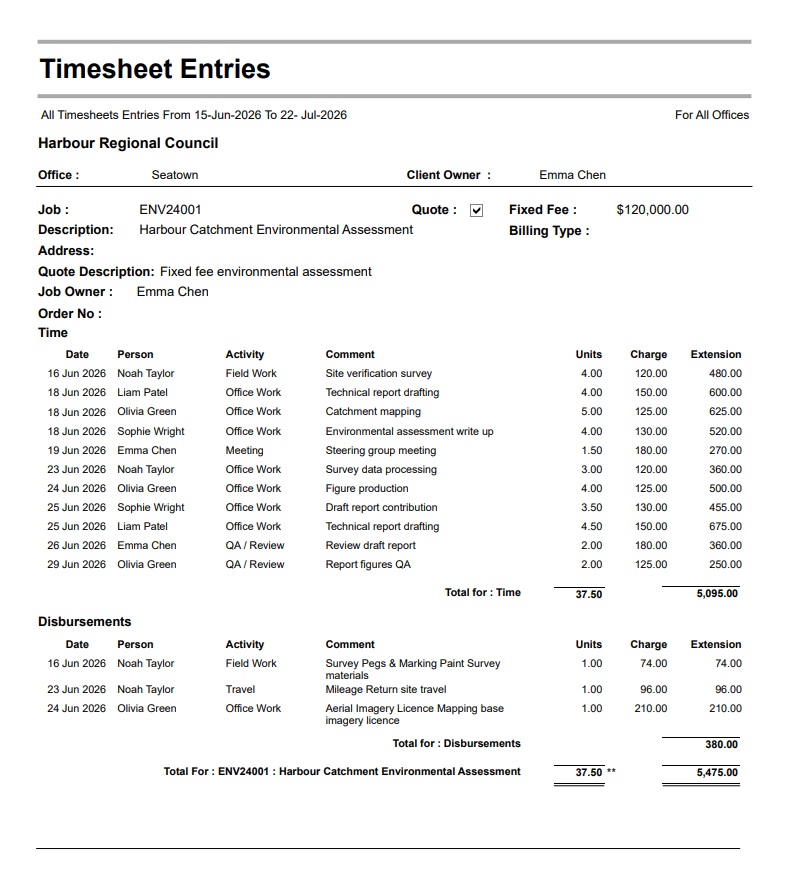
How to generate the Timesheet Entries with Activities report
From Reports >> Performance Reports >> search for or select Timesheet Entries with Activities from the Timesheet Entries section.
The report can also be run directly from the Manage WIP screen.
Timesheet Entries with Activities report – Filter, Sort and Grouping Options
Select your required report options:
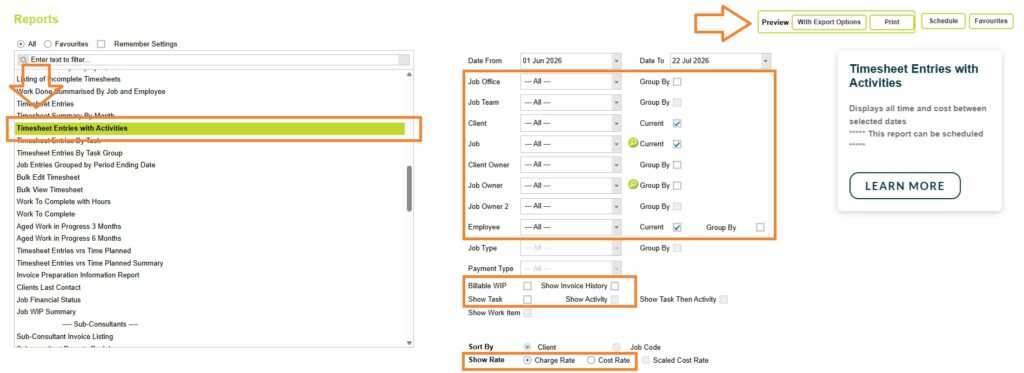
Filter options
The report can be run for any date range and filtered by Project Office, Project Team, Client, Project, Client Owner, Job Owner, Job Owner 2, and Employee.
Grouping options
The report can be grouped by Project Office, Client Owner, Job Owner, or Employee, making it easy to review work completed by office, manager, or staff member while still displaying the individual timesheet entries within each group.
Rate selection
You can also choose whether the report displays Charge Rates, showing the value that can be billed to the client, or Cost Rates, showing the internal cost of the recorded work, allowing the report to be used for both billing reviews and internal cost analysis.
Billable WIP Only
Shows only billable work that has not yet been invoiced up to the selected Date To. This is useful when reviewing outstanding work in progress before creating invoices.
Show Invoice History
Displays invoice information for billed timesheet entries, allowing you to see which entries have already been invoiced.
Show Tasks
Displays the project task (stage or phase) associated with each timesheet entry.
Once you’ve selected your reporting options, choose Print or Preview with export options to load the Timesheet Entries with Activities report.
Understanding the data
Report Header details
The report is grouped by client and project and includes project information from the job details and job billing details pages, including:
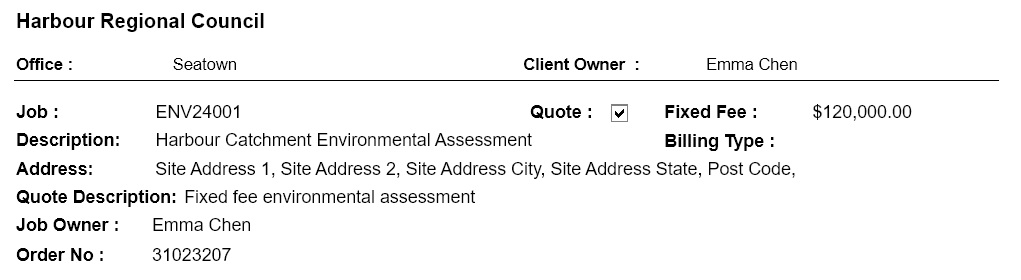
- Project Code and Description, Project Address (Site Address), Project Owner (Job Details)
- Quote Description, Quoted Project checkbox, Purchase Order Number, Estimated Fee, Billing Type (Job Billing Details)
Within the report, entries are separated into Time, and Disbursements sections, with subtotals provided for each before a final project total.
Each Time entry displays the Date, Employee, Activity, Comment, Units, Charge or Cost Rate, and Extension (Units × Rate).
Timesheet lines assigned to an invoice will be indicated with an asterisk * Denoting these lines as Billed items.
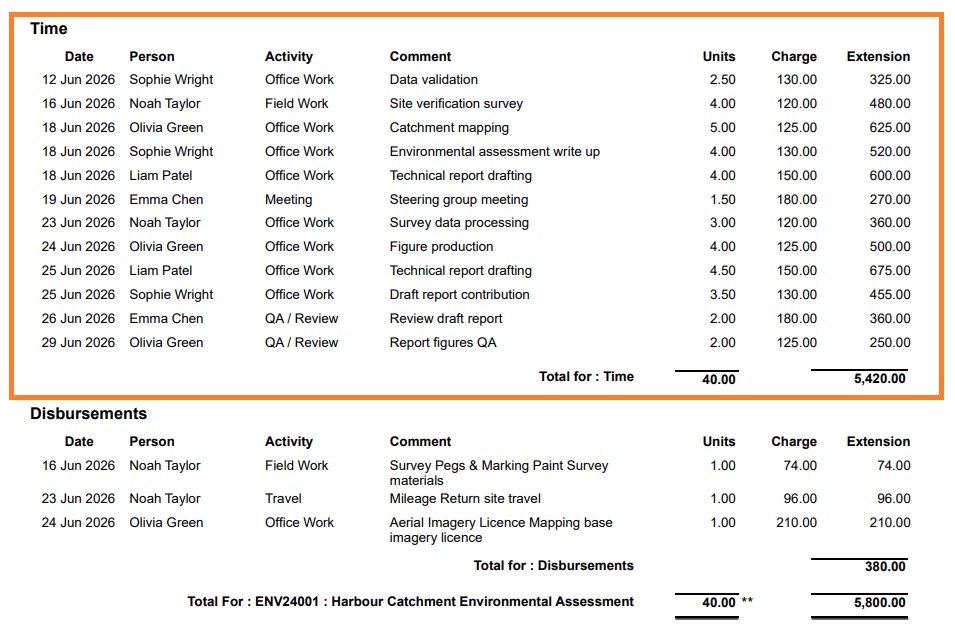
Each Disbursement entry displays the same information. The Activity column identifies the activity the disbursement was recorded against, while the Comment includes the disbursement type (for example, Mileage, Parking, or Courier) followed by the comment entered against the transaction.
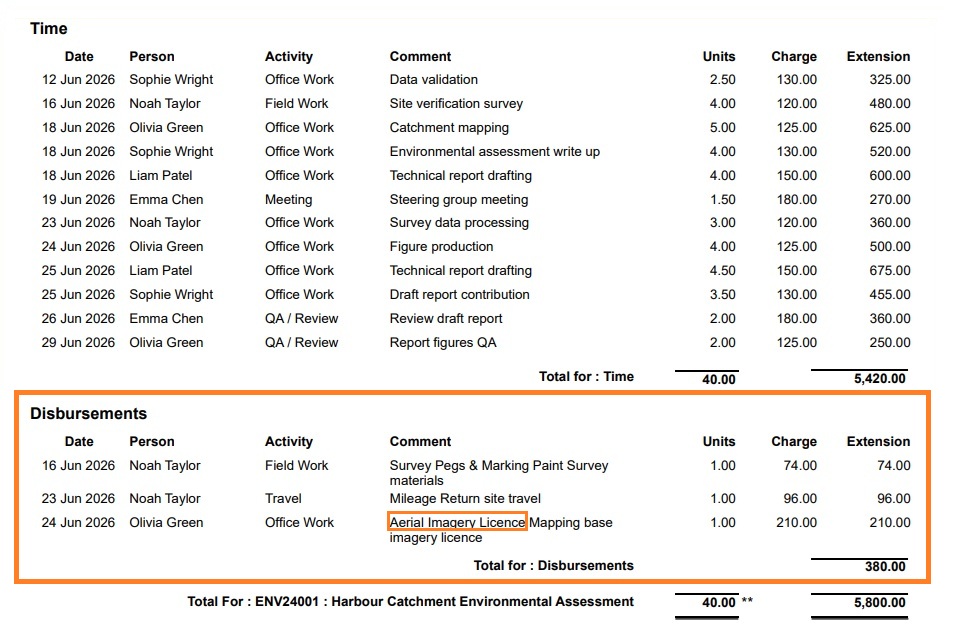

The report includes separate subtotals for Time and Disbursements, followed by an overall total for each project. The overall total is for all timesheet lines displayed on the report, regardless of whether lines have been billed or not. (Use the billable WIP only checkbox to restrict the report to unbilled lines only)
Total Work Completed (Job Summary)
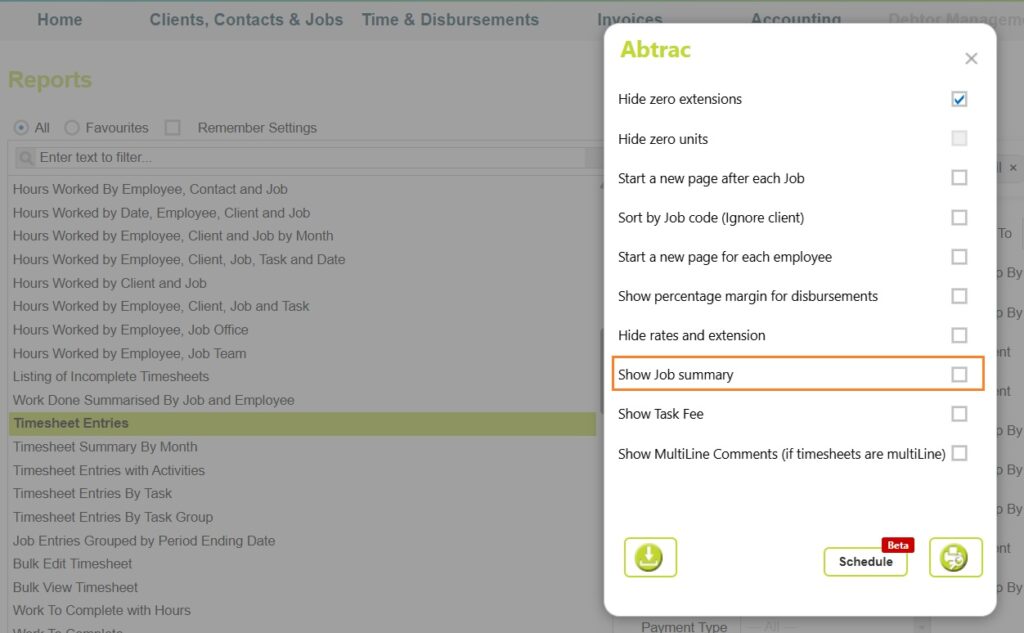
If enabled, the report also includes a Job Summary at the end of each project. This option is controlled from the report options in the standard Timesheet Entries report.
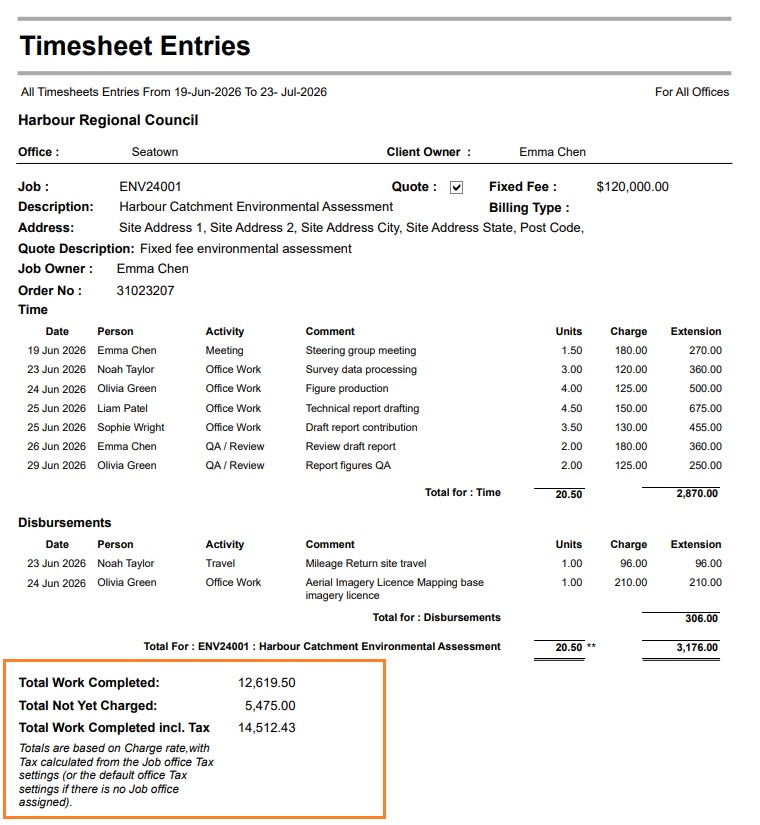
The summary displays cumulative values for the entire project and is not affected by the report date range.
- Total Work Completed shows the total value of all time and disbursements recorded against the project.
- Total Not Yet Charged shows the value of all unbilled time and disbursements currently remaining in Work In Progress (WIP).
- Total Work Completed incl. Tax shows the total work completed value, including tax, calculated using the project’s tax rate.
These totals are always calculated using Charge Rates. Tax is calculated using the Job Office tax settings, or the default Office tax settings if no Job Office has been assigned.
Choosing the right Timesheet Entries report
The Timesheet Entries with Activities report is best when you want to review work in chronological order. Each timesheet entry is listed by date and includes the activity as a dedicated column, making it easy to follow the sequence of work completed.
The standard Timesheet Entries report presents the same information in a different layout. It can group entries by Task and Activity, providing subtotals for each group and making it better suited to reviewing or summarising work by activity.
If you need the greatest flexibility for sorting, grouping and filtering timesheet data, consider using the Bulk View Timesheets report instead. It allows you to customise the layout, choose which columns to display, and sort or group the data in a variety of ways, making it the most flexible option for analysing timesheet entries.
Abtrac KB # 2100