
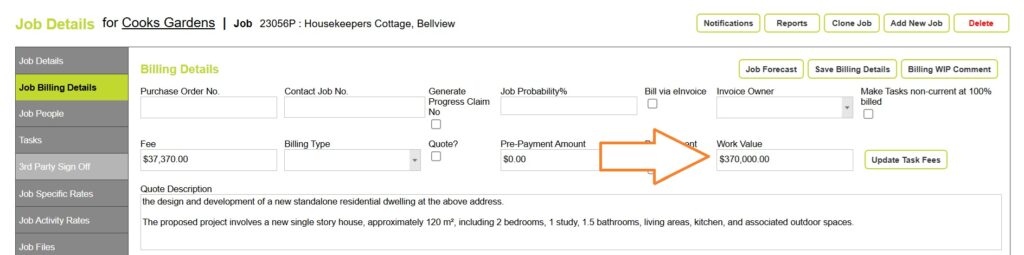
In Abtrac, Work Value is used to record the total construction or build value of a project. This is separate from your consultancy or professional fee.
For example:
- Construction value of a project: $370,000
- Architectural fee charged by your practice: $37,000
The $370,000 figure would be entered as the Work Value, while your consultancy fee would be recorded separately in the Fees section of Project billing details.
What is Work Value used for?
Work Value is primarily used for:
- Displaying project build value information on selected reports
- Calculating task fee estimates using percentage-based fees
- Supporting traditional percentage-fee billing methods
In many architecture and consulting workflows, tasks or stages are estimated as a percentage of the total project value.
Abtrac can automatically calculate the estimated task fee amounts based on these percentages and the project Work Value.
Where to set the Work Value
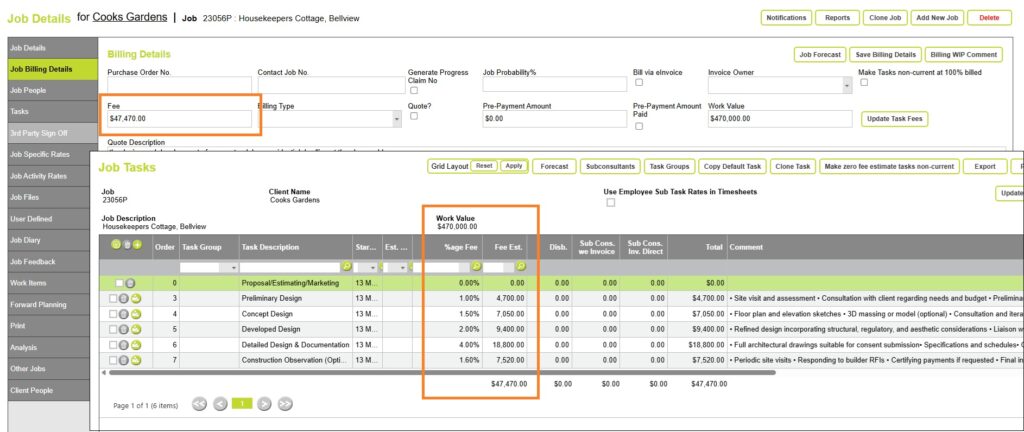
To enter or update the Work Value for a project, open the project and from the Job Details page select Job Billing Details. Enter the project value into the Work Value field, then choose Save Job Billing Details to apply the changes.
Using Work Value and percentages to set Task Fees
Task fee values can be generated using percentage fees based on the project Work Value. This allows you to estimate fees for each project stage by applying a percentage against the total construction or build cost recorded in Abtrac.
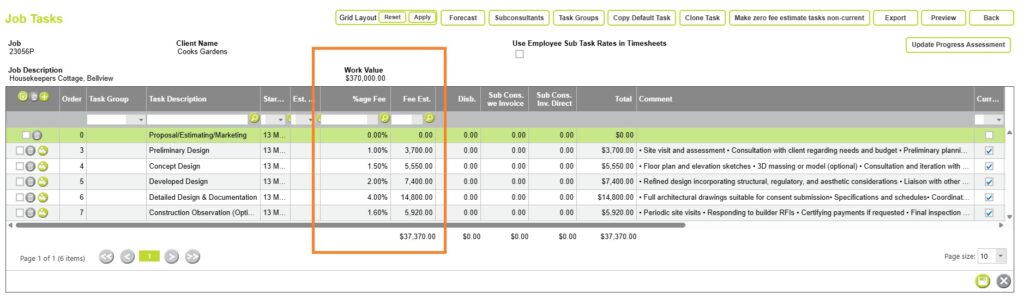
For example, a residential project with a Work Value of $370,000 may have a total architectural fee of approximately $37,370. Each stage of the project can be assigned its own percentage fee, with Abtrac automatically calculating the corresponding task value.
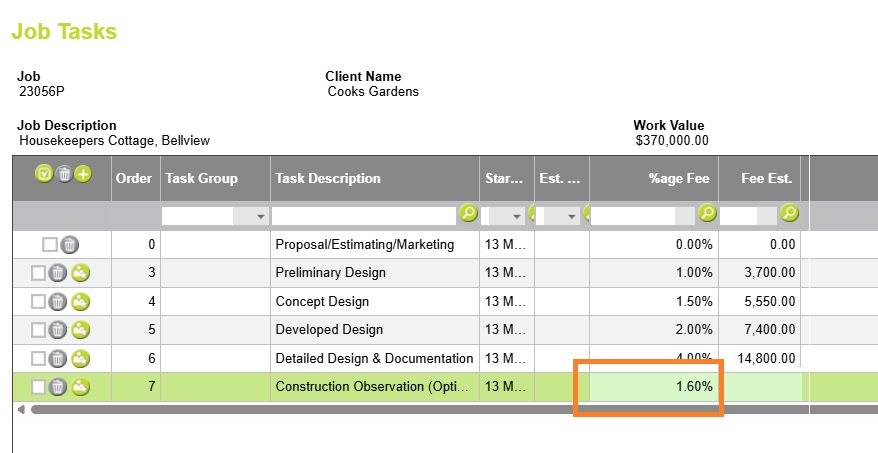
This approach can be useful when preparing fee proposals, estimating stage values, or working with traditional percentage-based fee structures. The percentages are entered against each task in the %age Fee column on the Tasks page.
| Project Stage | % Fee | Calculated Task Fee |
|---|---|---|
| Preliminary Design | 1.00% | $3,700.00 |
| Concept Design | 1.50% | $5,550.00 |
| Developed Design | 2.00% | $7,400.00 |
| Detailed Design & Documentation | 4.00% | $14,800.00 |
| Construction Observation (Optional) | 1.60% | $5,920.00 |
| Total Estimated Fee | 10.10% | $37,370.00 |
Task fee values can be generated using percentage fees.
Task fee values can be generated using percentage fees based on the project Work Value.
To set this up, open the project and go to Job Details > Tasks
Then enter a percentage value into the %age Fee column for each task or project stage.
When you enter a value in the %age Fee column, Abtrac will display the following confirmation message:
“You have entered a percentage figure so the system will use that in preference to any rates or hours entered. Please make sure this is consistent.”
Click OK to continue.
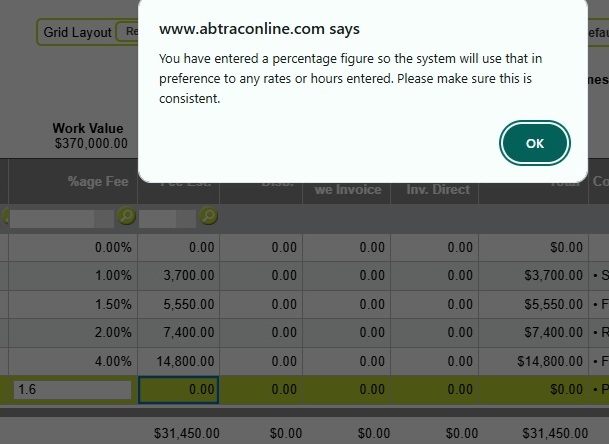
Abtrac will automatically calculate the corresponding task fee amount using the project Work Value entered in Job Billing Details.
Adding %ge Fee to the Tasks page
If the %age Fee column is not visible on the Tasks page, it can be added through the User Control Settings.
To enable the field, go to Administration > Settings > User Control Settings, then customise the Tasks grid to display the %age Fee column.
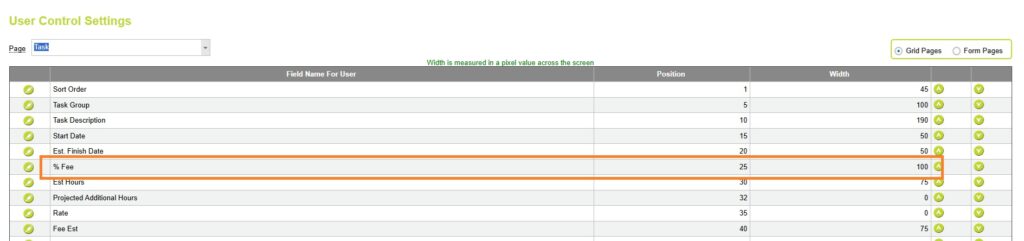
For more information on configuring grid pages, see User Control Settings – Grid Pages.
Updating Task Fees after changing the Work Value
If the project Work Value changes during the life of the project, you can recalculate the task fee amounts.
To do this, go to Job Details > Job Billing Details and update the Work Value.
Then Click Update Task Fees.

Abtrac will display the following confirmation message:
“Are you sure you wish to update Task Fees based on a %age of the current Work Value? This update will change both Task fees and the fee estimate for the Job. If in doubt click ‘No’.”

Abtrac will recalculate the task fee values using the percentages entered against each task.
Abtrac KB #2250