
Keeping your business data secure is a top priority for Abtrac. Login security measures such as strong passwords, Multi-Factor Authentication (MFA), and session timeouts all work together to reduce the risk of unauthorised access—especially in shared or unattended environments.
This article explains how Abtrac protects your account, with a particular focus on session timeouts and why Abtrac now uses a 10-hour inactivity limit.
What Is a Session Timeout?
A session timeout limits how long you can remain logged in to Abtrac without activity. If no activity occurs within the defined period, Abtrac automatically logs you out.
Activity, in this context, means making a request to the Abtrac server—such as:
- Saving data
- Requesting or loading data
- Updating records
It’s important to note that the server is not aware of activity until there is direct communication with it. Simply having Abtrac open in a browser tab, without interacting with it, does not count as activity.
Why Abtrac Uses a 10-Hour Timeout
Abtrac’s 4-hour inactivity timeout is based on commonly accepted industry best practice for modern web applications that handle sensitive data.
Many cloud-based business systems—particularly those dealing with financial or client information—use session timeouts to help customers maintain strong security. This is especially important where systems may integrate with third-party applications or be accessed from shared devices.
As always, Abtrac works to the best of its ability to ensure customer data remains secure and protected at all times.
How does the 10-Hour inactivity timeout work?
If no activity occurs within the defined period, Abtrac automatically logs you out.
Five minutes before the screen locks, a message will appear as a pop up withing the Abtrac tab you have open:
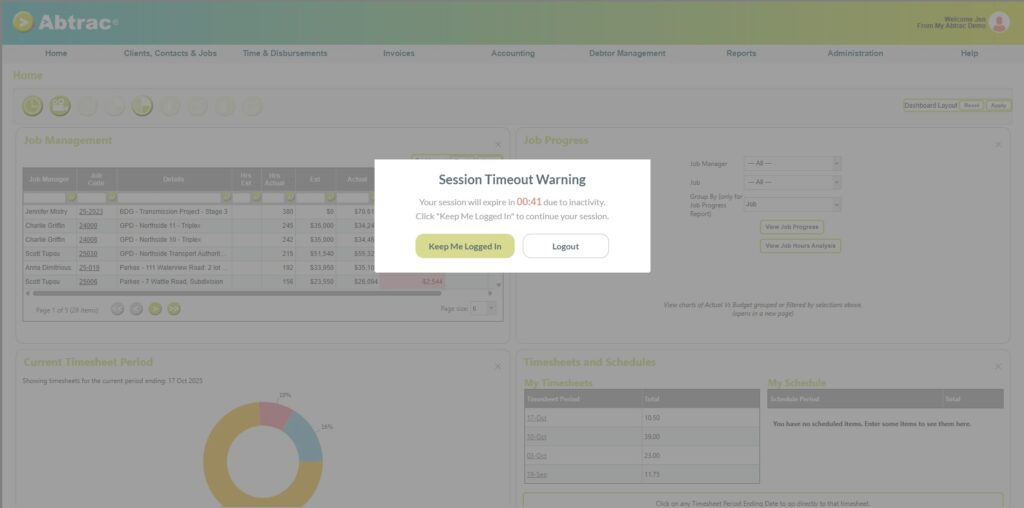
If you click, Keep Me Logged In, you can continue working as before.
Your inactivity session time will also be reset.
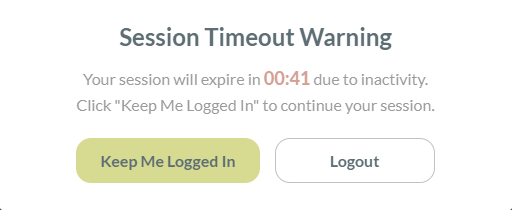
If you don’t click Keep Me Logged In, and you don’t make any requests to the Abtrac server—such as:
- Saving data
- Requesting or loading data
- Updating records
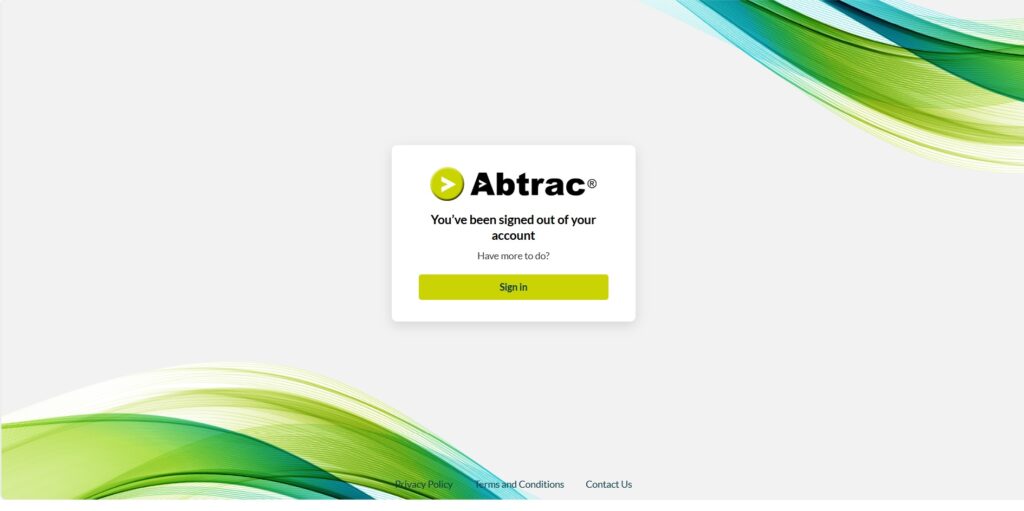
then Abtrac automatically logs you out and you will need to sign back in to continue.
Removal of the “Stay Logged In for 12 Hours” Option
In 2026 the optional “Stay logged in for 12 hours” setting has been removed.
This change aligns Abtrac with current security best practice for timeout settings and supports broader cybersecurity expectations from government‑level guidance in both Australia and New Zealand.
We agree with these government led security recommendations and have applied them early. Similar principles have already been mandated for accounting software, and we believe the same rules should apply to invoicing and business management applications.
If there’s no activity for 10 hours, you’ll be logged out automatically. When you’re ready to continue working, you can simply log in again.
This approach balances security with usability—helping protect your data while keeping re‑login quick and straightforward.
Why you might still get logged out sooner than the 10 hour limit
Even with the 10-hour timeout setting in place, there are a number of technical reasons why users can end up logged out sooner than they might expect. These aren’t caused by Abtrac itself, but by how modern devices, browsers and networks behave:
1. Internet Connection Issues
If your device temporarily loses internet access—whether due to Wi-Fi drops, corporate network changes or mobile signal loss—it can interrupt the communication between your browser and the Abtrac server. Without that connection, the server can’t register activity and may time out the session much earlier than 4 hours.
2. Machine Sleep/Hibernation
Many laptops and desktops automatically enter sleep or hibernation when idle. When this happens, network connections are typically terminated. As a result, Abtrac can no longer receive activity pings from the device, causing the session to expire.
3. Power Saving Settings
Both operating systems and modern devices include power-saving settings that disable network interfaces when idle. These settings can stop your device from sending periodic activity or maintaining an open session.

4. Browser Power Saving Modes:
Some browsers (for example, Microsoft Edge’s “sleeping tabs” or Chrome energy-saving features) may suspend background tabs to save resources. When the Abtrac tab is suspended, it stops communicating with the Abtrac server, and this can trigger a timeout even if you haven’t been inactive in your overall workflow.


Solutions to avoid unexpected timeouts
Here are some practical steps you can take to reduce the chances of premature session timeouts:
1. Maintain a stable internet connection:
Avoid unstable Wi-Fi or networks that frequently disconnect.
2. Adjust your device’s sleep settings:
Configure your system to stay awake when you’re working with Abtrac.

3. Disable aggressive power-saving modes:
Disable power-saving options that affect your internet connection. This may include adjusting settings to prevent your Wi-Fi from going to sleep, or shutting down network connections.
4. Check your browser’s background tab settings:
If using Microsoft Edge, disable the sleeping tabs feature. Follow the instructions here to adjust this setting.
Abtrac KB# 2060