
Abtrac now includes the option to sign in using your Microsoft account (Single Sign-On).
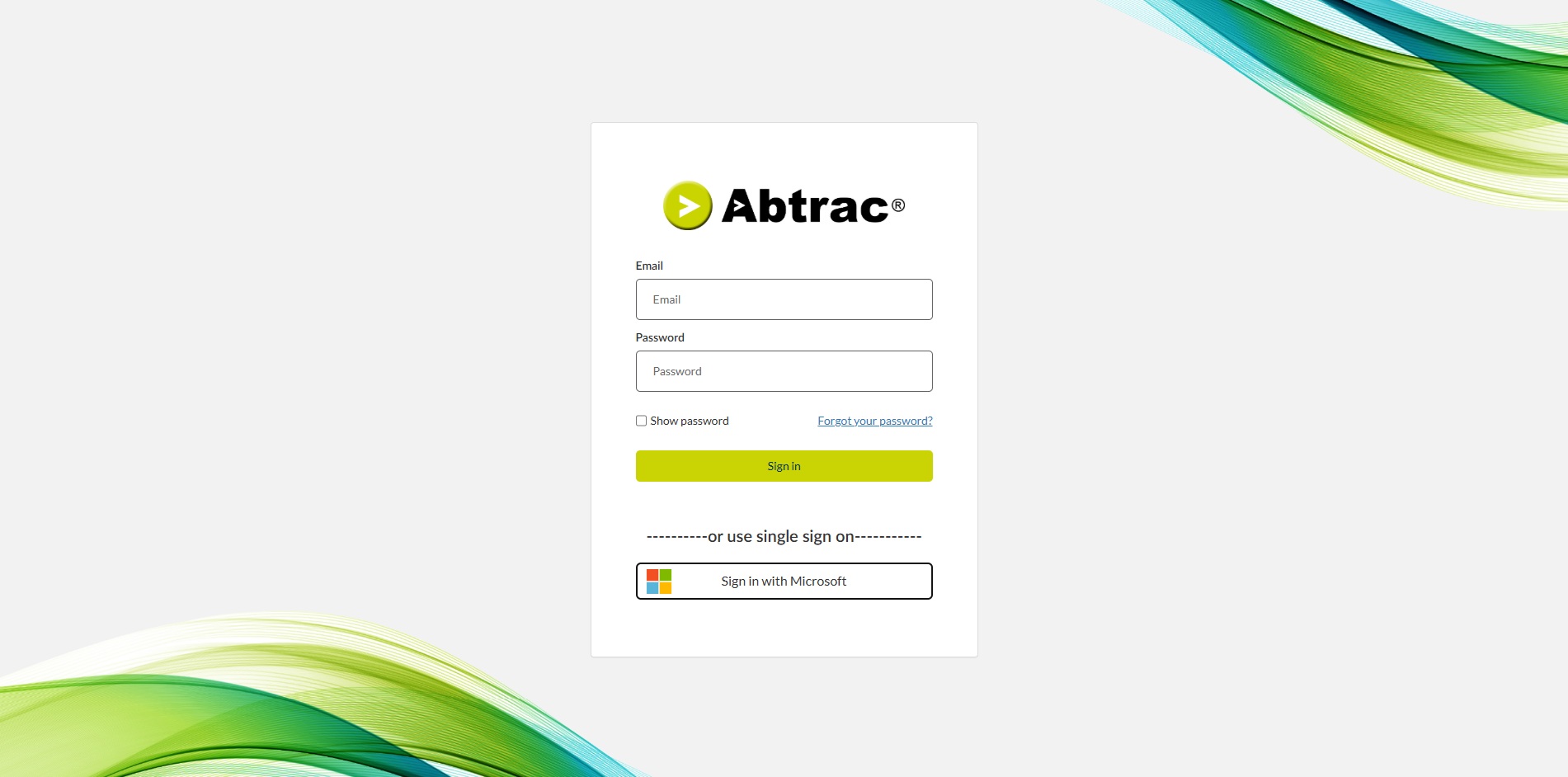
This means you can securely access Abtrac without needing to enter your Abtrac password each time, using your existing Microsoft login instead. Your Abtrac username and password will still work as normal – using Microsoft SSO is optional.
What is required to sign in using your Microsoft account
Before using single sign on with Microsoft, make sure:
- You already have an Abtrac user account
- Your Abtrac username (email address) matches your Microsoft account email
How Microsoft SSO works
When you choose to sign into Abtrac with Microsoft:
- Abtrac checks that your Microsoft account is valid
- It then checks whether that same Microsoft email address is registered in Abtrac
- If a match is found, you’ll be signed in without having to enter your Abtrac username and password
- If you’re already signed in to Microsoft in your web browser, you’ll be signed in to Abtrac with a single click
Any additional security (such as multi-factor authentication) is managed by your Abtrac account settings. If your Abtrac administrators have set app or email authentication as required – you’ll still need to enter these codes when logging in.
Read more about authentication options in Abtrac here
First time Sign in with Microsoft
- Instead of adding your Abtrac credentials – click Sign in with Microsoft
2. If you are already signed in to to your Microsoft account in your current browser, skip ahead to Step 3.
If you are not already signed, you will be asked to sign in with your Microsoft email and password.
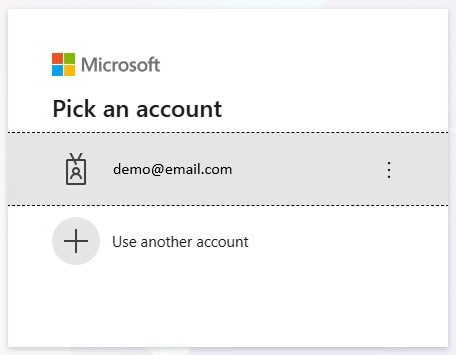
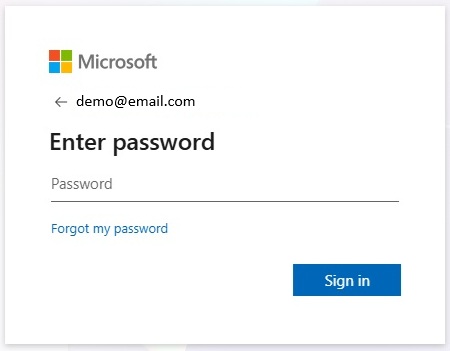
At this point you may be prompted to approve the connection between your Abtrac login and your Microsoft account.
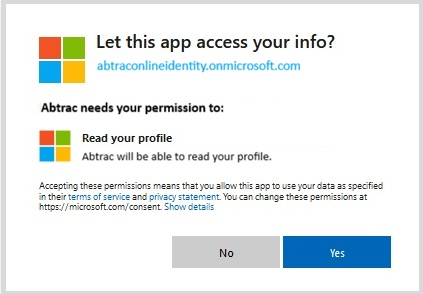
Choose Yes to allow Abtraconline to Read your Microsoft Profile.
3. You will then be asked to confirm the Microsoft credentials that will be linked to Abtrac. Your Microsoft username/display name is pre-filled here, you will need to confirm your given and last names for Abtrac.
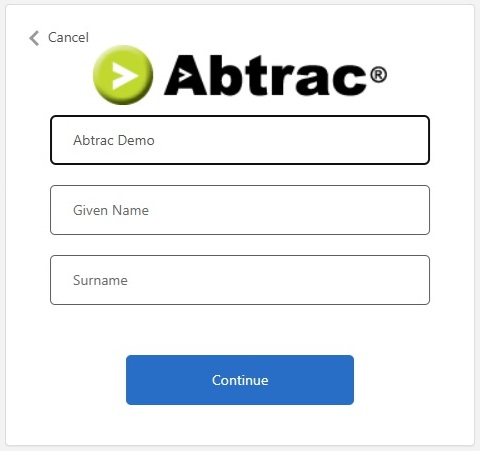
4. Click continue and you will be logged in to Abtrac.
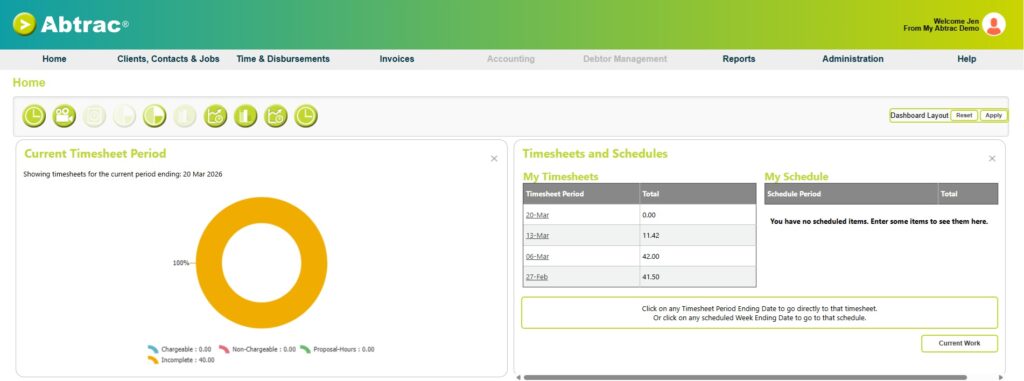
Single Sign On with Microsoft
- Instead of adding your Abtrac credentials – click Sign in with Microsoft
2. If you are already signed in to to your Microsoft account in your current browser, and you’ve used the Abtrac + Microsoft sign in before, you’ll be logged into the home page straight away.
If you are not already signed in to Microsoft, you will be asked to sign in with your Microsoft email and password.
Click Sign in to proceed to the Abtrac homepage.
Abtrac KB # 2245