
Scheduled Reports allow administrators to automatically generate and email selected Abtrac reports on a daily, weekly, or monthly basis.
Instead of manually running the same report each period, you can create a schedule and have Abtrac generate a PDF report and email it to nominated recipients automatically.
Scheduled Reports are intended for regular management reporting.
Reports available for scheduling
The reports available for scheduling are a curated list including:
- Unbilled Work Quick Summary
- Timesheet Entries
- Timesheet Entries with Activities
- Hours Worked by Employee
- Actual vs Budget by Job and Task
- Actual vs Budget Summary by Job
- Job List
The schedule reports feature is currently limited to selected report types because each report requires specific date handling and filter logic.
Accessing Scheduled Reports
From Reports > Performance Reports > navigate to the report you want to schedule.
If the report supports scheduling, this will be indicated in the report summary.
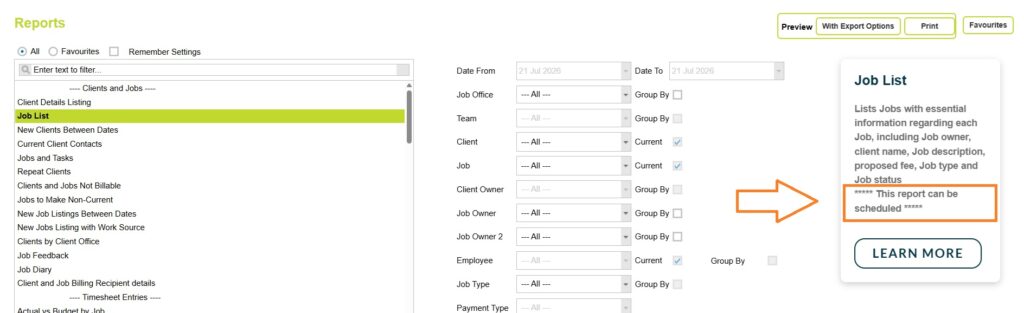
Select the required report dates, along with any filtering or grouping options on the main reports screen. If the report includes additional options, these can be configured in the report-specific options pop up window.
Once you’ve confirmed the report parameters > choose the Schedule button.
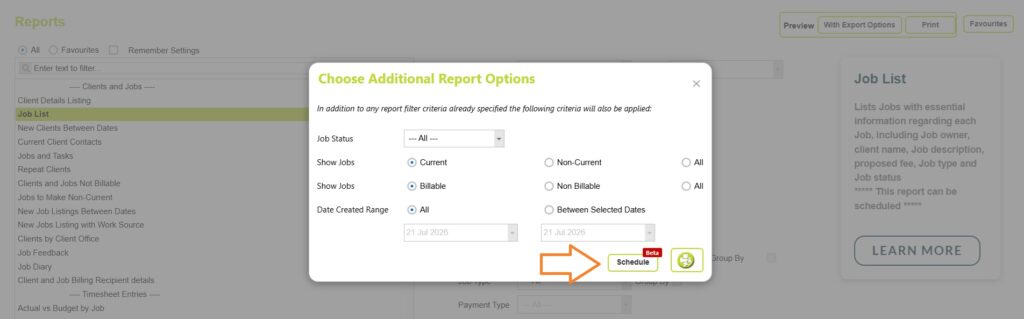
Creating a Report Schedule
When a schedule is created, Abtrac saves the report configuration exactly as it was when the Schedule button was clicked. This includes the report dates, filtering, grouping, and any report-specific options.
Each time the schedule runs, Abtrac uses these saved settings to generate the report. The recipients receive the report based on those stored criteria.
For example:
- A Job List report may be filtered to Current Jobs only.
- An Hours Worked by Employee report may be filtered to a specific office.
- An Unbilled Work Quick Summary report may be filtered by Job Owner.
Because these settings are saved with the schedule, it’s important to review all report filters and options before creating the schedule to ensure the correct information is sent each time the report runs.
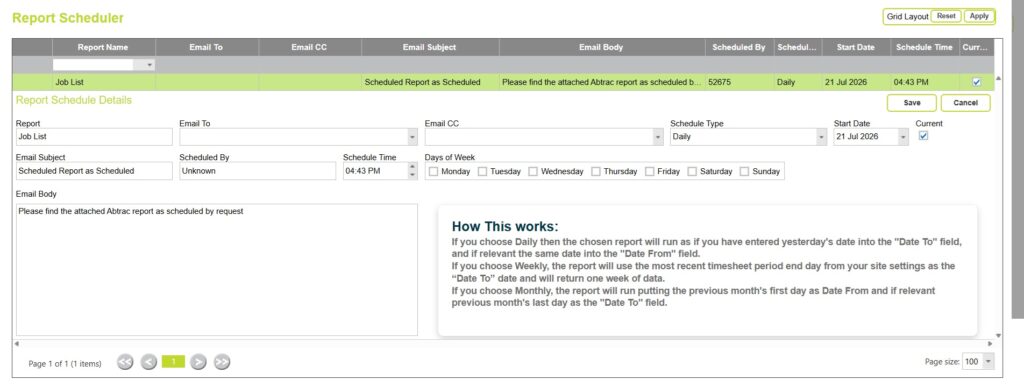
When creating a schedule, complete the following fields:
Report
Abtrac will pre-fill the name of the report that will be generated and emailed.
Email To
Select one or more employees to receive the scheduled report.
Only employees within your Abtrac subscription who have permission to access Reports (and the selected report) are available to receive scheduled reports.
Employees must also have a valid email address recorded in their Employee Details record. Employees without an email address entered via Administration > Employees > Employee Details are automatically excluded from the recipient list.
A schedule cannot be saved unless at least one valid recipient has been selected.
Multiple recipients can be selected for the same schedule.
Scheduled by
Displays the email address of the employee who created the report schedule.
Employees without an email address entered via Administration > Employees > Employee Details are displayed as “Unknown”.
Email CC
Optional recipients to receive a copy of the report.
Schedule Type
Choose how often the report should run:
- Daily
- Weekly
- Monthly
Daily and Weekly Schedules
When a daily or weekly schedule is selected, you can choose one or more days of the week on which the report should run.
For example:
- Every Monday
- Every Friday
- Every Monday and Thursday
Monthly Schedules
When a monthly schedule is selected the report will run monthly on the selected day of every month.
Start Date
The date the schedule becomes active. For Monthly schedules this is also the recurring date.
Schedule Time
The time of day the report should be generated and emailed.
Email Subject
The subject line used for the outgoing email.
Email Body
The message included in the email.
Current
Tick this option to enable the schedule.
Unticking the option disables the schedule without deleting it.
How Report Date selection works
Because scheduled reports run automatically, Abtrac calculates the reporting dates for you.
The date logic varies depending on the schedule type.
Daily Reports
Daily reports run using yesterday as the reporting date.
For reports that use both a Date From and Date To range, both dates will generally be set to yesterday.
Example:
If the report runs on 15 June, it will typically report on data from 14 June.
Weekly Reports
Weekly reports use the most recent timesheet period end date defined in your site settings.
The report will return one complete timesheet period of data ending on that date.
Example:
If your timesheet period runs Monday to Sunday and the report runs on Tuesday, the report will generally use the most recently completed Sunday as the reporting end date.
Monthly Reports
Monthly reports automatically use the previous calendar month.
Example:
If the report runs during June:
- Date From = 1 May
- Date To = 31 May
This ensures monthly reports always contain complete month-end information.
Understanding Report Filters
When a schedule is created, Abtrac stores the report filters that were selected when the Schedule button was clicked.
This means the scheduled report will continue using those same filters each time it runs.
For example:
- A Job List report may be filtered to Current Jobs only.
- An Hours Worked by Employee report may be filtered to a specific office.
- An Unbilled Work Quick Summary report may be filtered by Job Owner.
The report recipients receive the results based on those saved criteria.
For this reason, it is important to review your report filters before creating a schedule.
Managing Existing Schedules
The Scheduled Reports page displays all existing schedules. You can view this from Reports > Manage Report Schedules
From this screen you can:
- Edit schedules
- Disable schedules
- Change recipients
- Change schedule times
- Update email content
- Review who created the schedule
Schedules can be filtered and sorted to help manage larger numbers of scheduled reports.
Email Delivery
When a scheduled report runs:
- Abtrac generates the report as a PDF.
- The PDF is attached to an email.
- The email is sent to the nominated recipients.
- The schedule remains active and will run again at the next scheduled interval.
Notes and Limitations
PDF File Names
Reports generated through the scheduler are delivered as PDF attachments.
Depending on the report type and export method, attachment names may differ from reports generated manually through the standard report preview screens.
Report Results Depend on Report Logic
Each report uses its own date and filtering rules.
For example:
- The Unbilled Work Quick Summary report reports all unbilled work up to a selected date rather than between two dates.
- Timesheet Entries reports generally report activity between a Date From and Date To range.
As a result, the data returned by different scheduled reports may not always be directly comparable.
Report Results Depend on User Group Privileges
The reports available for scheduling are controlled by your User Group permissions.
If a user does not have permission to access a report, or is restricted from viewing certain projects, offices, employees, charge rates, cost rates, or other data, those same restrictions may affect the information available when creating and scheduling reports.
For example, a user who cannot view charge rates may not be able to access reports containing fee information. Similarly, users restricted to specific offices, job owners, or projects may only be able to schedule reports based on the data they are permitted to see.
If you require access to additional reports or financial information, contact your Abtrac administrator to review your User Group permissions.
Beta Release
As of July 2026, Report Scheduling is a Beta feature. Additional functionality will be added in future releases, and some existing features may change or be replaced.
As the feature evolves, you may need to recreate schedules that were created in earlier Beta releases.
Abtrac KB# 2262