
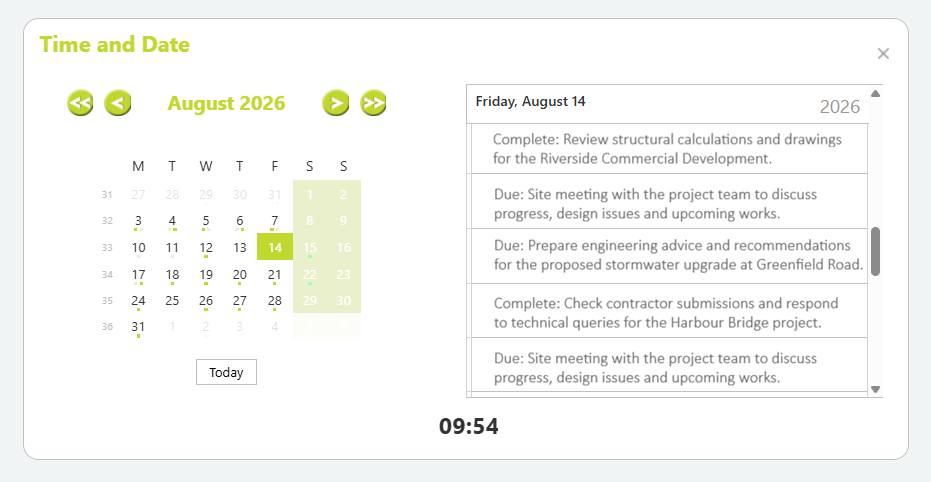
The Time and Date Widget provides a quick overview of scheduled work, planned time, and diary items for the logged-in employee. It combines a calendar view, daily schedule summary, and current time display, making it easy to see upcoming commitments and review planned work without opening the full Work Scheduling screen.
Time and Date Widget
The Time and Date Widget displays:
- A monthly calendar.
- Indicators showing days that contain scheduled work items.
- A summary of planned work and comments for the selected date.
- The current system date and time.
- Quick navigation between months.
This widget is typically used to review upcoming commitments and identify what work has been scheduled on specific days.
Scheduled time indicators
Small coloured dots displayed beneath dates indicate that planned time or scheduled work exists for that day.
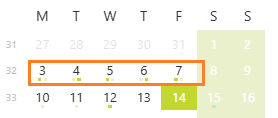
These indicators provide a quick visual reference to help identify days with scheduled activity without opening detailed scheduling screens.
Daily schedule summary
The panel on the right displays a summary of planned items for the selected date.
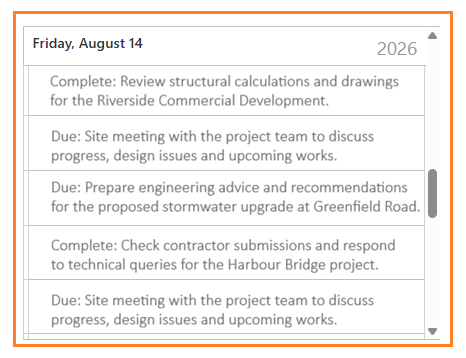
Each entry includes:
Due or Complete status, which is linked to the Planned time ‘Done’ checkbox, and the Planned time comments.

Selecting a different date in the calendar automatically refreshes the list to display all items scheduled for that day.
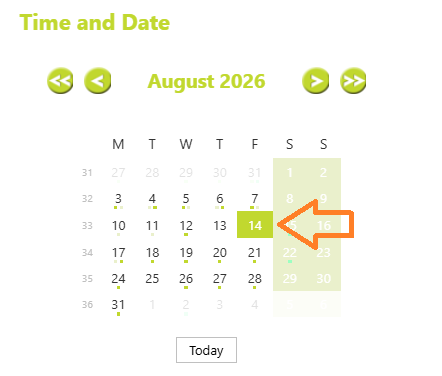
Understanding Planned time summary
The information shown in the daily summary column of the Time and Date Widget is sourced from the employee’s scheduled work and planned time records.
More detailed scheduling information can be viewed through the Work Scheduling > Planned Time screen.
Work Scheduling Details provides full scheduling management, while the Time and Date Widget > Appointment Summary offers a convenient dashboard summary.
Time and Date Widget Availability and Configuration
The Time and Date widget is available on the Abtrac Home Page and may be displayed or hidden depending on user preferences and system configuration.
For information about managing access to Home Page widgets, see thsesarticle:
Home Page Widgets – Administrator Controls
Abtrac KB# 2281