
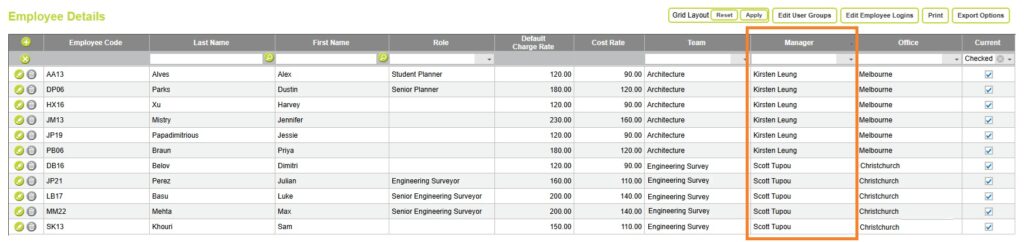
From Administration > Employees > Employee Details you can assign an Employee Manager to each staff member.
Employee Managers are typically senior or administration staff, who have been assigned elevated access permissions, usually including the permission to view others timesheets.
When named as an Employee Manager, these employees are able to review, approve and commit timesheets for all the staff they manage from the approve timesheets screen.
Who Can Be an Employee Manager?
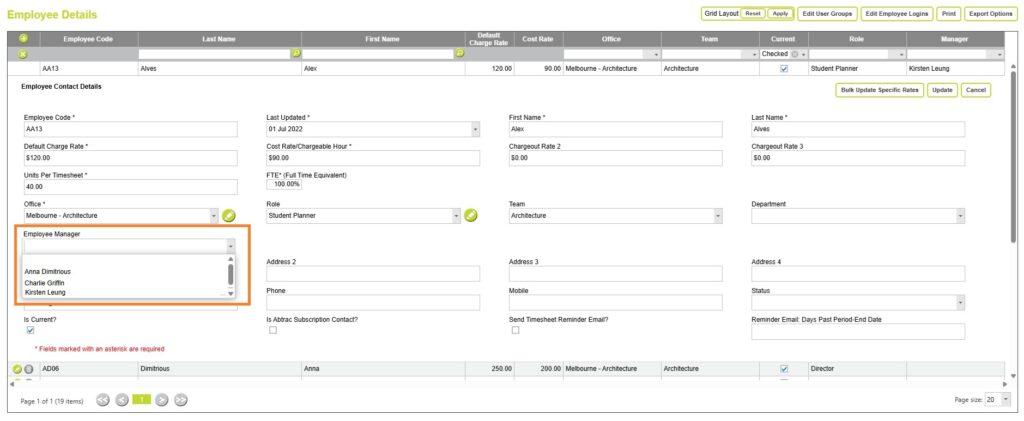
To show in the Employee Manager list, the employee must meet one of these criteria below:
- belong to the default Abtrac system Admin user group
- have employee hierarchy rules configured and be able to view other employee’s timesheet and/or schedules
System default administrators
Employees who belong to the default Abtrac system Admin user group, and have full access to all employee timesheets and schedules, are available as Employee Managers for all other employees.

Read more about User Groups and Permissions here
Employees allowed to view the timesheets and schedules of others
Employees who have hierarchy permissions applied are available as Employee managers for any employees whose timesheets or schedules they have permission to view.
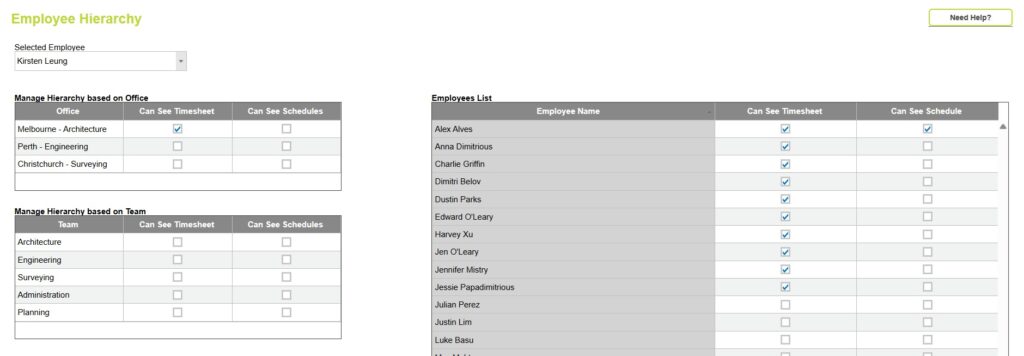
Read more about enabling Employee Hierarchy here
Employees can also be assigned to self manage.
An employee’s own name will also appear in the Employee Manager list – they can be set as their own manager if needed.
Although typically you would just leave the manager field as blank for self-management.
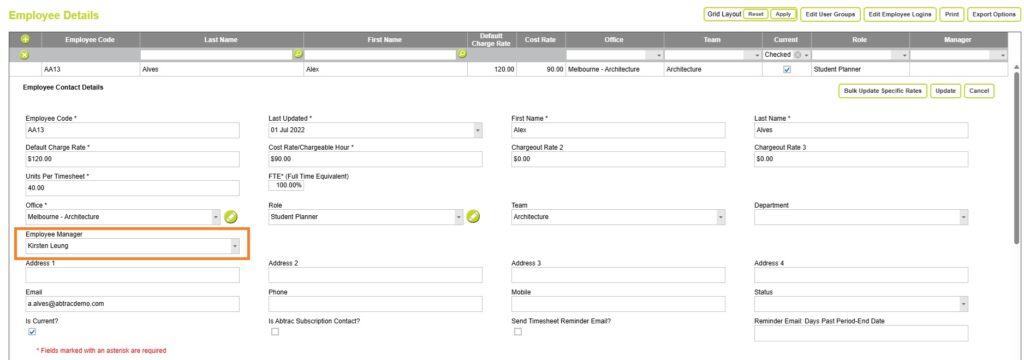
How to assign Employees to an Employee Manager
From Administration > Employees > Employee Details you can assign an Employee Manager to each staff member and choose Update to save your changes.
Reviewing and Approving Timesheets as an Employee Manager
From Time & Disbursements > Approve Timesheets, employees with appropriate permissions are able to review, approve and commit timesheets for other employees that they manage.

Related roles: Client Owners, Job Owners, and Invoice Managers
Employee Managers are assigned to staff members specifically for managing time and timesheets. Their ability to view, approve, or commit timesheets depends on their assigned permissions and user access.
Other types of employee roles are managed separately from the Administration > Employees > Owners screen.
Client and Job Managers (commonly named Client Owner, Client Owner 2, Job Owner, and Job Owner 2) are used throughout Abtrac for reporting purposes. These roles help identify who is responsible for client relationships and job delivery, and are often used to filter, group, and sort data.
Invoice Managers are also assigned from the Owners screen. They may not be directly responsible for delivering work but are accountable for invoicing and financial recoveries.
Invoice Managers and Employee Managers can be the same person, or they may be different team members—typically from your administration or finance team.
Read more about Client Owners, Job Managers and Project Leaders here
Abtrac KB #2216